Interface
After logging in, the system will enter the home Interface automatically.
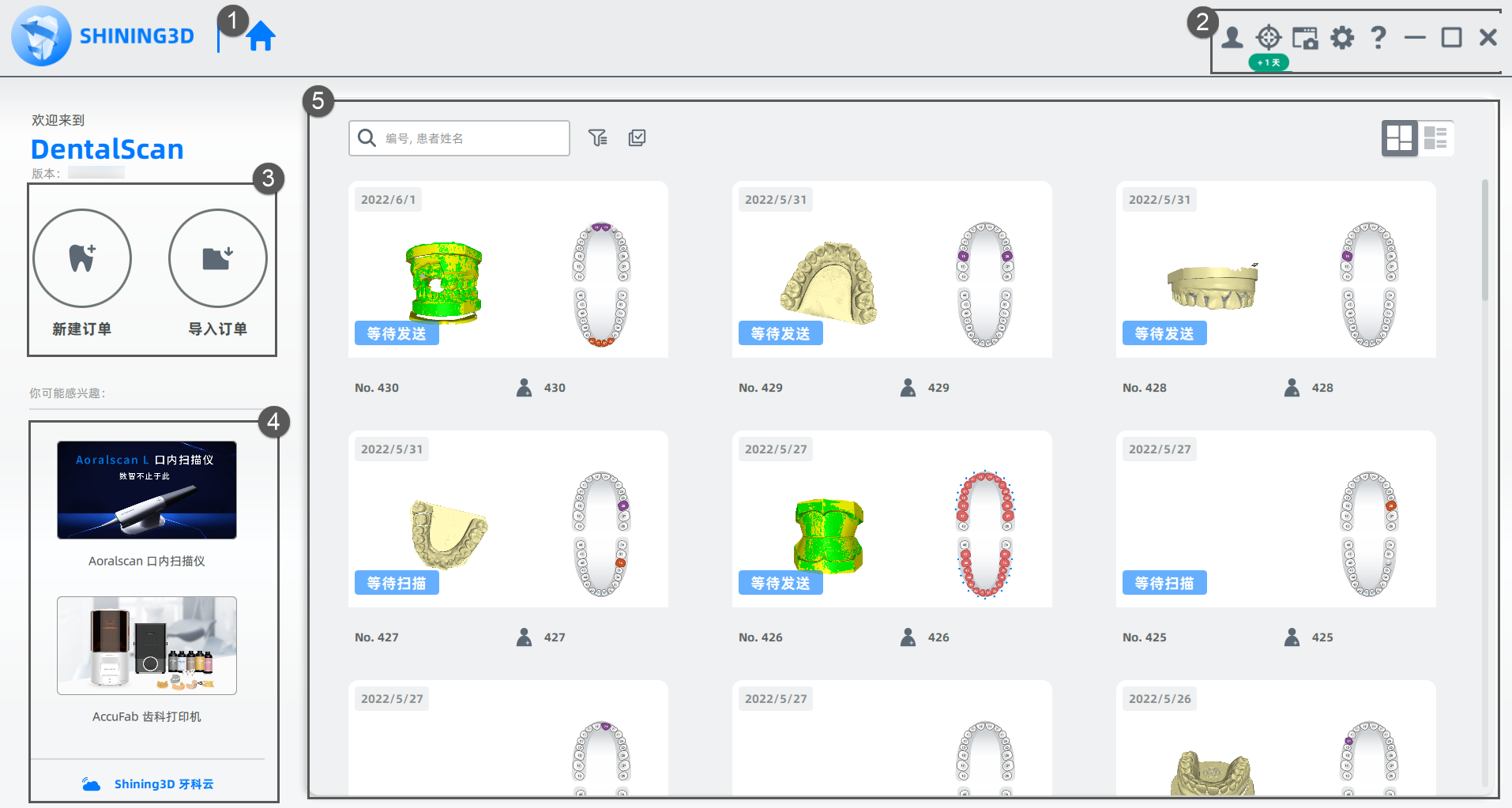
Click  to return to the Homepage.
| Icons | Name | Description |
|---|---|---|
 |
Users | View users information and Connection. |
 |
Calibration | Process Calibration and White Balance. |
 |
Screen Shot Tool | Support operations including real-time screen recording, taking screenshots and checking screenshots. |
 |
Settings | Set parameters for order creation and scanning. More details, see Oder settings. |
 |
Help | View the Manual or the other instructions. |
 :Click to create New Order.
 :Import the order generated from DentalScan or ExoCAD.
See information of other productions. Click Shining3D Dental Cloud to enter the cloud platform.
| Icons | Name | Description |
|---|---|---|
 |
Search | Enter the relative information for searching. |
 |
Filter | Filter the order with conditions. Click  again to exit. again to exit. |
 |
Multi-selection Mode | Process the duplication or the deletion of multiple orders. Click  to exit. to exit. |
 / /  |
Card Mode & Table Mode | Switch arraying methods between card & table. Open a certain order by double-clicking it. |
 |
Send | Enter the sending order page. If the Support for sending orders to the Cloud option isn't checked in the Order Creation Rules, then the button will be hidden. |
 |
Explore | Transfer to the folder that stores the order files and view the order file. |
 |
Duplicate | Create a new order identical to the current one. |
 |
Delete | Delete the selected order(s) from the list. Delete the file permanently by checking Delete File. |