Project List
Tap the  button to enter the
  Project List interface.
Interface Overview
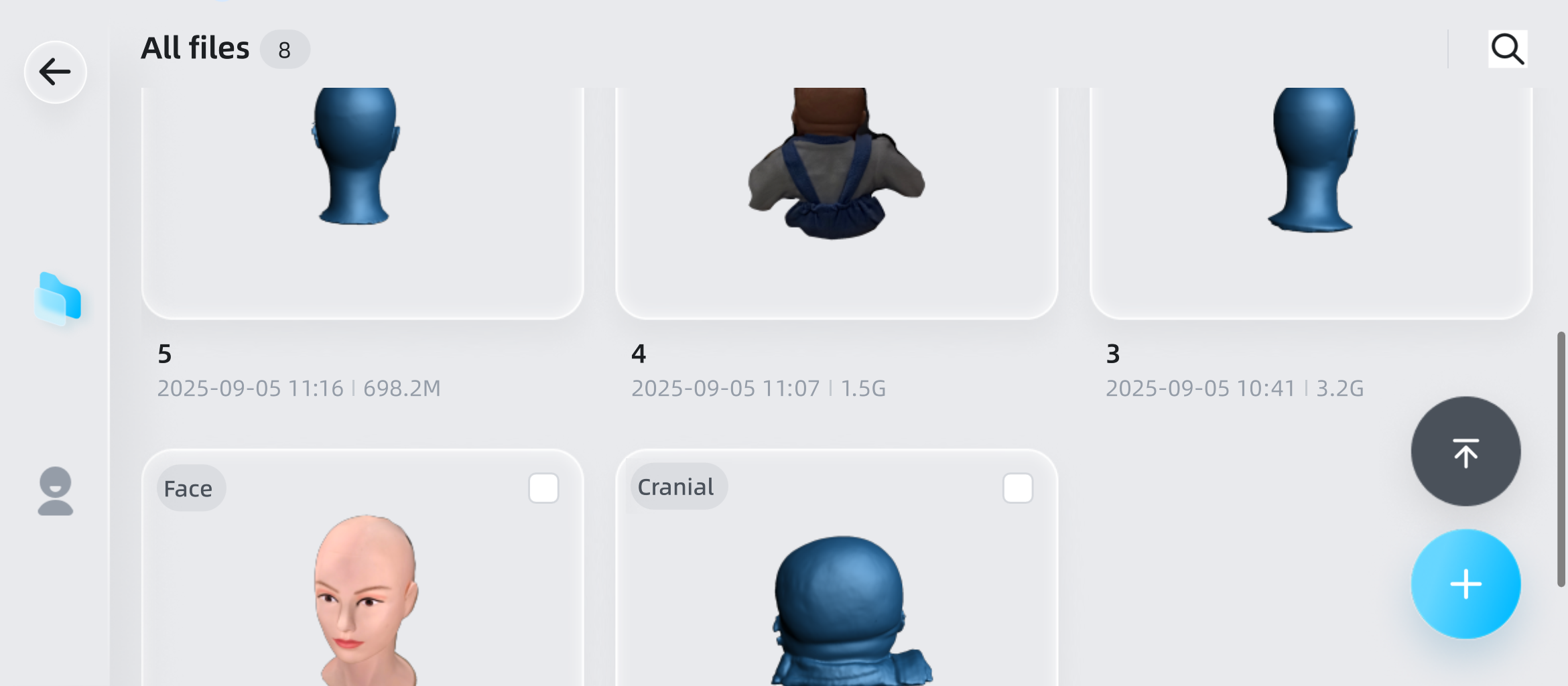
Left Navigation Bar
| Function | |
|---|---|
| Tap to return to the homepage. | |
|
Tap to return to the Project List interface. |
 |
Tap to enter the User Center interface. |
User Center
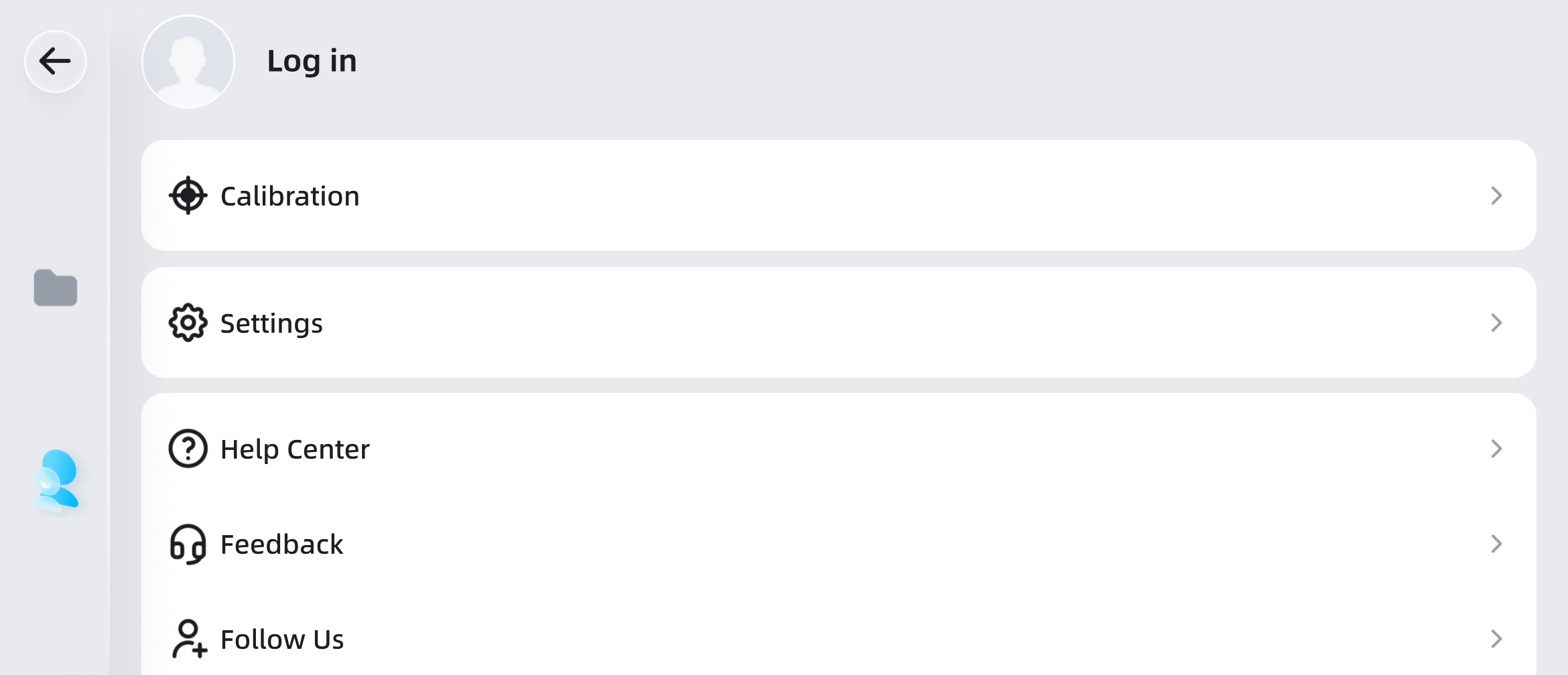
| Function | |
|---|---|
 |
Tap to enter the login interface. |
 |
Tap to enter the Settings > Calibration interface. |
 |
Tap to enter the Settings interface. |
 |
Tap to enter the Help Center, where you can view beginner tutorials and scan a QR code to access the user manual. |
 |
Tap to enter the Feedback, where you can report issues via the e-mail or support website with exported logs. |
 |
Tap to view related QR codes and follow us. |
Other Interface Buttons
| Function | |
|---|---|
 |
Tap to pop up the search window. Note NoteIf there are no files in the current project group list, this function button will not be visible. |
| After scrolling down the project group list, this button will appear on the right side of the interface; tap to return to the top of the interface. | |
 |
Tap to quickly create a new project. |
| Rename | After selecting a project, tap to pop up the rename window to rename the project. |
| Delete | After selecting a project, tap to pop up the delete confirmation window; tap Confirm to delete. |
| Cancel | After selecting a project, tap to cancel the selection. |
Card List
Col
All saved model files are displayed in the format of file cards, which are sorted by file update time in descending order.
Col
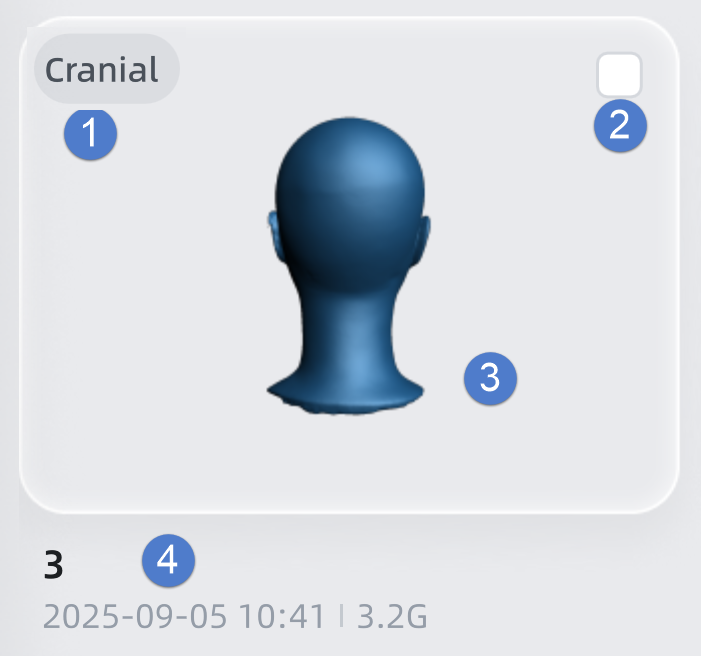
Displays the scan type of the project.
Check  or long press the card to select it for deleting or renaming.
Displays a thumbnail of the model; point cloud models with textures and mesh models with texture mapping will display as colored models, while other models will display in blue.
Note
If the file is corrupted, it will display as  ; tapping this button will pop up a delete window prompt, and tapping Confirm will delete the file.
Displays the name, last update time, and file size of the model file.