Scan Mode
Scans can be performed on the human body and equipment.

Scanning Types
Supports scanning of the cranial (face and cranial), torso, upper limbs, lower limbs, feet (Insole-SMO and AFO-KAFO), sockets, seating, and foam boxes; simply tap the corresponding location to select the scanning type and enter the parameter settings interface.
Note
- Insole-SMO: Scans from the sole to the ankle.
- AFO-KAFO: Scans from the sole to the thigh.
Parameter Settings
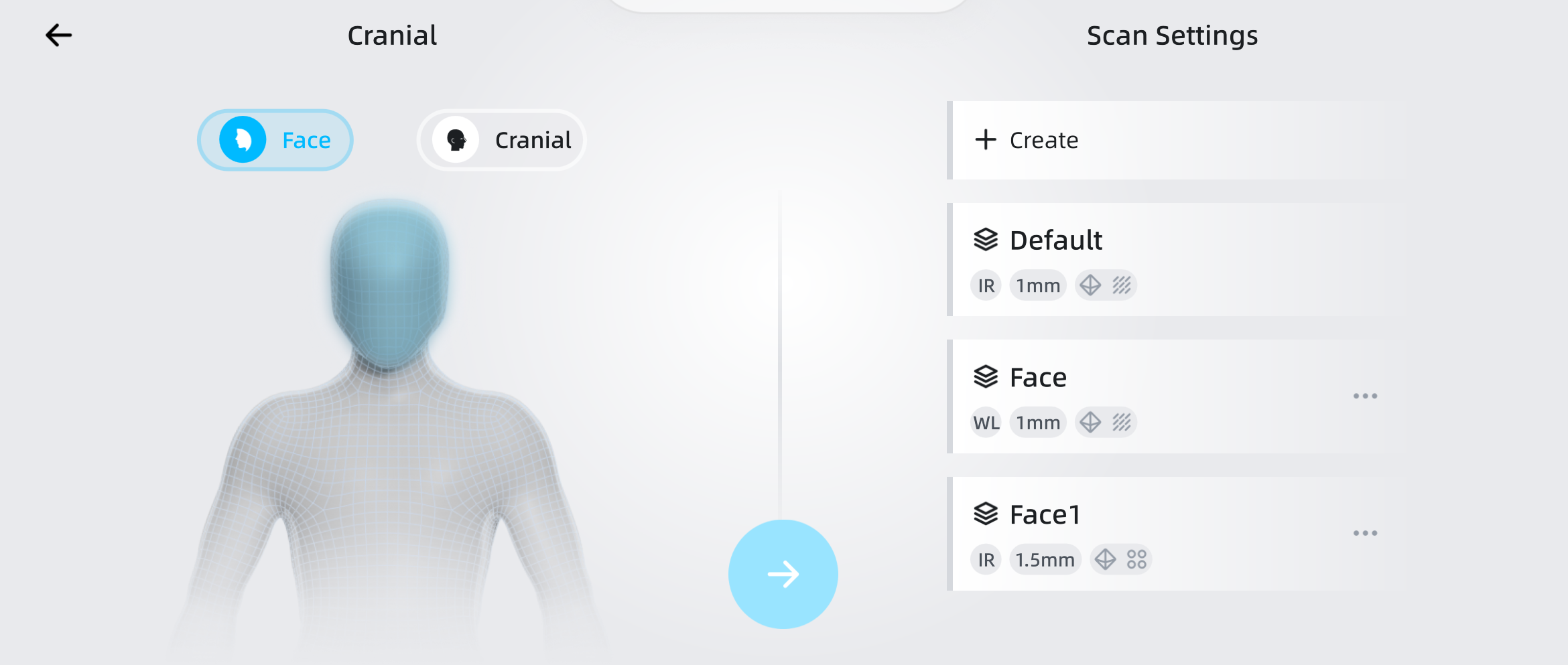
You can quickly create a new project using the existing default parameter templates or create a new parameter template for scanning.
Note
- Up to 3 parameter templates can be created.
- Default templates cannot be edited or deleted.
| Icon | |
|---|---|
| + New | Tap to create a new parameter template. |
| … | Tap to select  to edit the template or to edit the template or  to delete the template. to delete the template. |
| Icon Meaning | |||
|---|---|---|---|
| IR Infrared Mode |
WL White Light Mode |
mm Resolution |
 Acquire Texture |
 Feature Alignment |
 Texture Alignment |
 Marker Alignment |
 Global Markers Alignment |
Light Source
Supports two types of light sources: infrared (IR) and white light (WL).
- Infrared Mode: Scans using infrared invisible light.
- White Light Mode: Scans using white visible light, effectively capturing the color and surface details of objects.
Resolution
Set the resolution manually. A smaller value results in a smaller point distance, increased data quality requirements, longer scanning times, and finer meshes generated. The range is from 0.2 to 3.0 mm.
Note
If the interface does not show the full range of values, you can tap  to enter the high-detail mode, and then tap
  or
or  to adjust the resolution.
Acquire Texture
This function must be enabled to use the  texture visibility function in the scanning interface and the
  mapping function in the post-processing interface.
Note
Acquire Texture cannot be enabled in Foot Scanning > Insole-SMO.
Align Mode
Supports Feature Alignment, Texture Alignment, Marker Alignment and Global Markers Alignment.
| Align Mode | ||
|---|---|---|
| Feature Alignment | Automatically completes alignment using the geometric features of the scanned object's surface, suitable for objects with rich geometric features or those that cannot have markers pasted.  Note NoteWhen enabled, will be displayed in the project information at the top left. |
|
| Texture Alignment | Automatically completes alignment using the surface texture of the scanned object, suitable for objects with rich surface texture patterns but lacking rich irregular geometric features. Note When enabled, will be displayed in the project information at the top left. |
|
| Marker Alignment | Completes alignment using markers, suitable for objects with distinct geometric features, flat areas with minimal geometric features, and scenes requiring accuracy.Note When enabled, will be displayed in the project information at the top left. |
|
| Global Markers Alignment | Completes alignment using markers, suitable for objects lacking rich and variable geometric features and requiring high accuracy. Note When enabled, will be displayed in the project information at the top left. |
Note
- Texture Alignment and Marker Alignment cannot be enabled simultaneously.
- Feet Scanning (Insole-SMO and AFO-KAFO) does not support selecting Alignment Mode.
- The alignment mode for Insole-SMO is Global Markers Alignment.
- The alignment mode for AFO-KAFO is a combination of Global Markers Alignment and Feature Alignment. When Acquire Texture is enabled, the alignment mode for AFO-KAFO is a combination of Global Markers Alignment, Feature Alignment and Texture Alignment.
- The alignment mode for Insole-SMO is