Scan Rewind
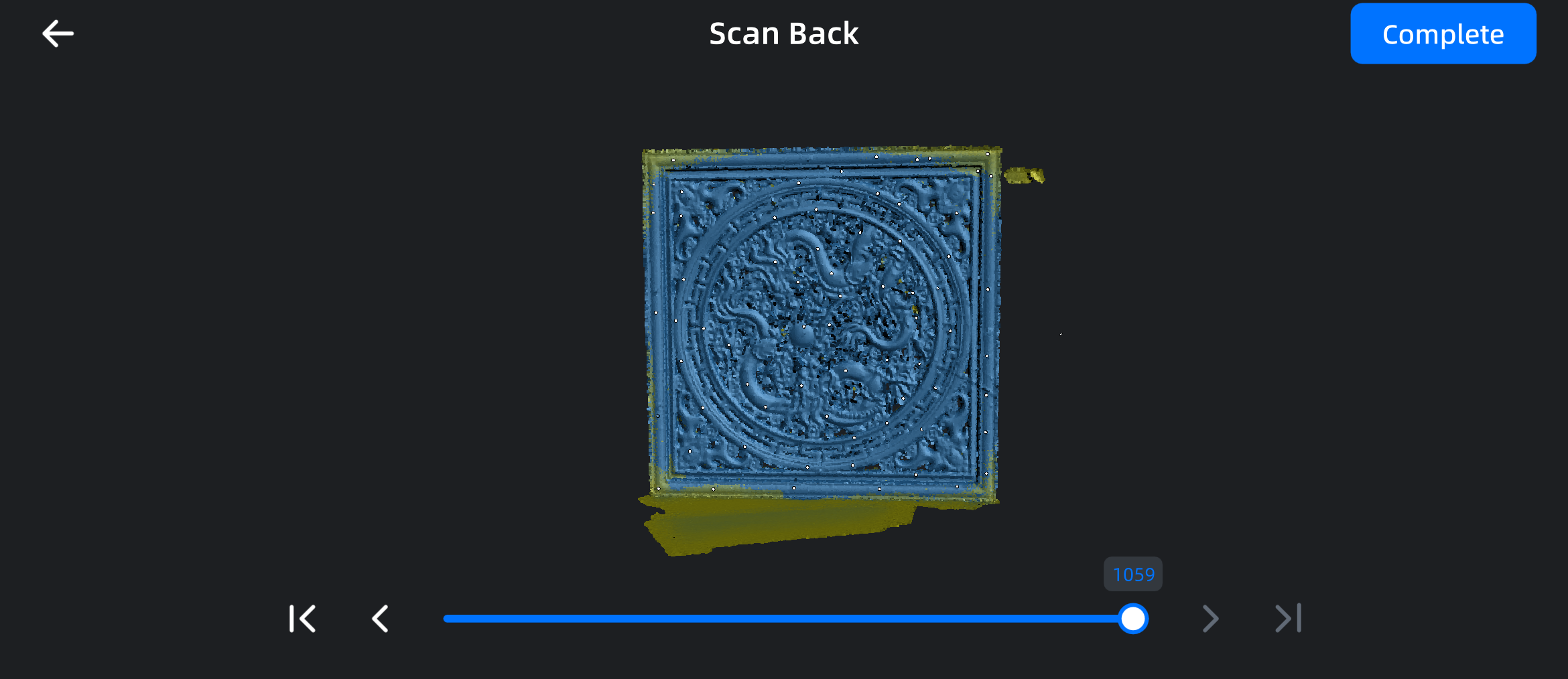
If there are issues such as alignment errors during the scanning process, you can pause the scan and tap the  button to use the rewind function. This allows you to rewind the frames to precisely delete any excess or incorrectly aligned data.
Note
- This function can only rewind frames in IR Scan mode.
- If the total number of frames in the current project is ≤ 50, no frames can be rewound.
- After scanning the global markers, you need to scan the point cloud data; otherwise, the rewind function cannot be used.
| Function | |
|---|---|
 |
Drag to quickly adjust the rewind frame count. |
 / /  |
Tap to make fine adjustments to the frame count; each tap increases or decreases by one frame. |
 / /  |
Tap to quickly rewind to the maximum or minimum frame count. |
| Pan | Slide to pan the model with two fingers . |
| Rotate | Slide to rotate the model with one finger. |
| Zoom | Pinch or spread with two fingers to zoom the model. |
Operation Instructions
- When the scan is paused, tap the button to enter the rewind function.
- Pan, rotate, and zoom the data to check for alignment errors.
- Drag the slider to rewind to the specified frame count.
- (Optional) Tap / to make fine adjustments to the rewind frame count; each tap can increase or decrease by one frame.
- Check the data again by panning, rotating, and zooming. If the data has been rewound to a normal state, tap Complete to delete the data after the current frame and return to the scan interface.
Note
- The interface defaults to displaying the last frame; when rewinding the frames, the point cloud data and markers in the 3D scene will change in real-time.
- When rewinding frames, it is recommended that you enable the data quality indicator to check the current quality of the model. If the data shows yellow after rewinding, the yellow areas need to be scanned again to improve scanning quality.