Model Measurement
After generating the mesh, tap  to enter the measurement interface for model measurement, including measuring
  Bounding Box and
  Distance.
Bounding Box
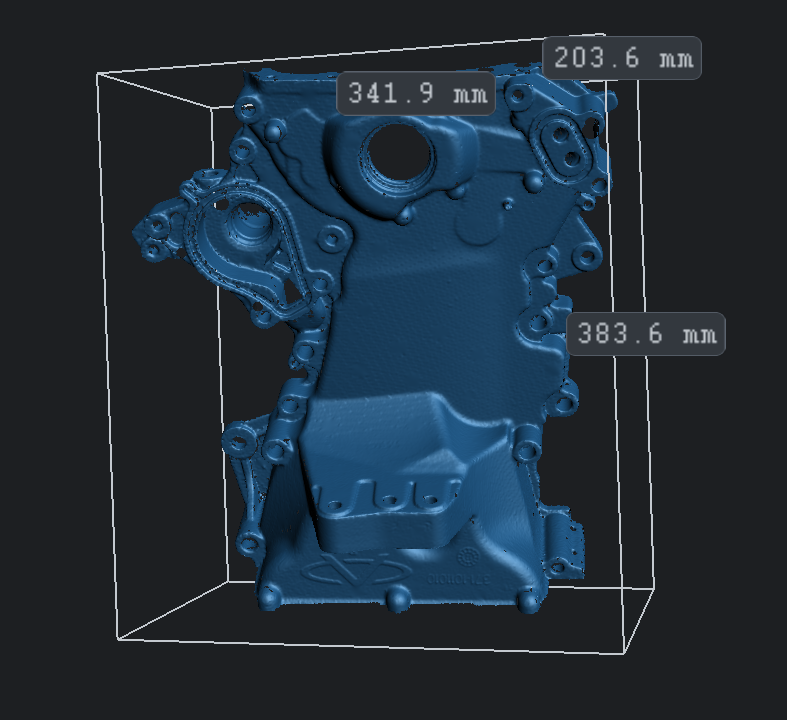
Tap the  button in the measurement interface to display the bounding box and show its length, width, and height measurements (unit: mm).
Note
The model can be panned, rotated or zoomed and you can reset the model to its original size and correct the view by tapping  .
.
Distance
Tap the  button in the measurement interface to enable the function for measuring the distance.
The steps to measure distance are as follows:
-
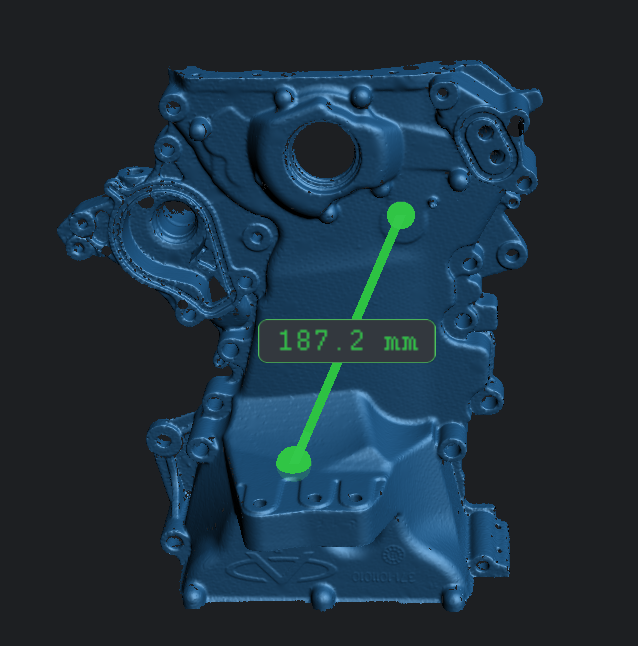
Tap any position on the model to add two points.
Note
Tap
 to switch to rotation mode
  , allowing you to pan, rotate and zoom the model, and you can reset the model to its original size and correct the view by tapping .
 -
After adding two points, a line will be automatically drawn, showing the straight-line distance (mm).
-
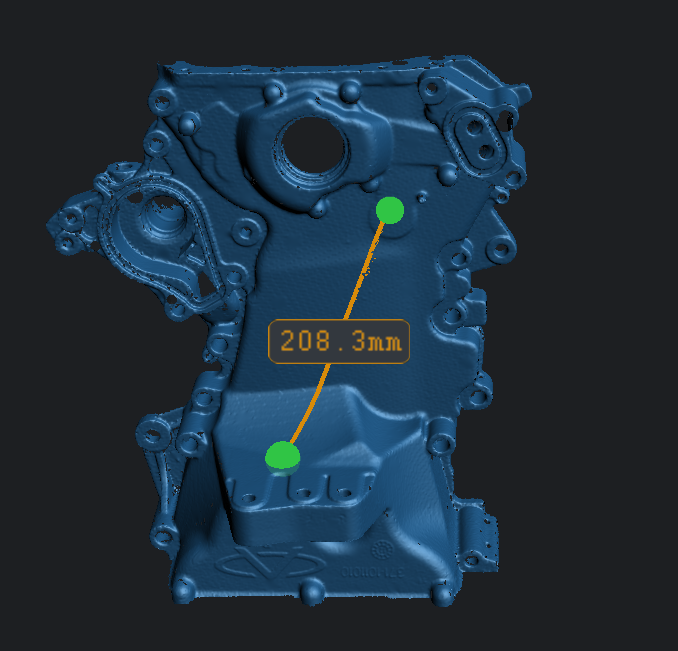
(Optional) When there is a line on the model, you can enable the Geodesic function to calculate the geodesic distance.
Note
When the geodesic function is enabled, the straight line will be automatically hidden.
Note
- If the two points added are not in the same connected domain, the geodesic function cannot be used.
- You can drag the points to adjust their position, and the distance value will be updated in real time; dragging points will also activate the magnifying glass function to enlarge a specific area of the model, helping you to more accurately define the position of the measurement points.