Screen Cast
Before starting the scan, you can cast the scanner screen to other devices for scanning and other operations.
Note
- When the scanner is connected to a computer, the scanner does not support screen cast.
- During scanning or calibration, you cannot change the screen cast status.
Operation
- Swipe down from the top of the scanner screen to bring up the control center.
-
Tap Screen Cast, and choose Wi-Fi or Hotspot.
Note
- Wi-Fi: You need to scan the QR code with the device to be cast or manually connect the device to the same network as the scanner.
- Hotspot: You need to scan the QR code with the device to be cast or manually connect the device to the scanner's hotspot.
-
Tap Start Casting.
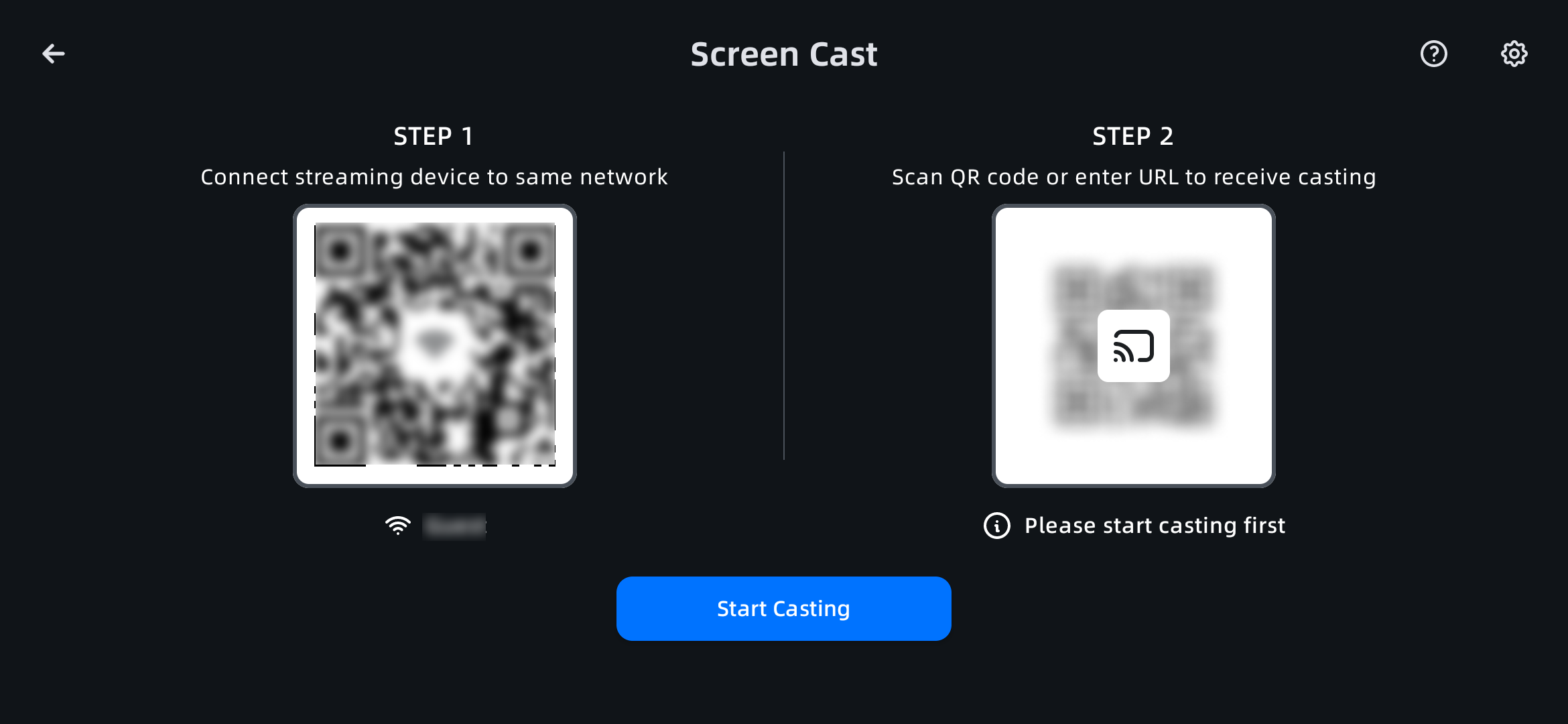
-
Use the device to be cast to scan the QR code or enter the URL displayed on the scanner screen in a browser.
- If the scanner screen appears on the device, it indicates that the casting was successful; you can then operate the scanner directly from that device. To cancel the casting, tap Exit Casting on the casting interface.
Note
- Tap the
 button in the upper right corner of the casting interface to view Help content for more guidance.
 - Tap the
 button in the upper right corner of the casting interface to set the Display Resolution.