Mesh
After generating the point cloud, click  on the right sidebar in the scanning interface to enter the post-processing interface, where the point cloud can be converted into the mesh.
Mesh Type
Choose different mesh types based on your requirements.
| Function | |
|---|---|
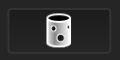 Unwatertight Model |
For models with unclosed holes, use this mesh type to keep the original state with less meshing time. |
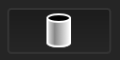 Semi-watertight Model |
Fill the holes (diameter less than the point distance * 5) automatically. |
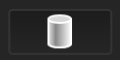 Watertight |
All holes will be filled automatically. The data can directly be 3D printed. |
Mesh Optimization
After selecting the mesh type, you can continue to adjust the following parameters to optimize the mesh.
Filter
Optimize the data and improve the clarity of the data.
- None: No optimization.
- Standard: Optimize data slightly and preserve data characteristics.
- Med: Reduce the noise on the surface of the scanned data.
- High: Reduce the noise on the surface of the scanned data and make the data smoother.
Smooth
Smooth the possible noise on the surface of the scanned data.
Caution
When Filter is set to None, Smooth is not available.
Remove Small Floating Parts
Delete any small disconnected data from the main data.
Simplification
Set the reduction level of the number of triangles in the mesh.
Note
- When the number of triangles removed during simplification exceeds the maximum number of triangles you set, the software will prioritize the simplification effect.
- In Laser Scan, select Unwatertight Model as the mesh type and then you can choose to enable Intelligent Simplification. The software will automatically set the degree of simplification based on the model.
Max Triangles
Set the maximum number of triangles for data simplification.
Note
Please enter a reasonable value to avoid excessive simplification that may result in a decrease in data quality.
Remove Spike
Remove spike-like data on the edge.
Markers Hole Filling
Fill the surface holes on the data that are covered by markers before.
Recommended Parameters
When enabled, the software will automatically use the recommended parameters for meshing; when disabled, you can customize the parameters.
Buttons
| Function | |
|---|---|
| Preview | Click this button to preview the effects of the applied settings. |
 |
Click this button to discard the current settings and reset the preview effect. |
| Confirm | Click this button to apply the settings and enter the mesh editing interface. |