Data Editing
After pausing scanning, you can use the editing tools and right sidebar functions in the scanning interface to edit the data and generate accurate 3D point clouds.
Editing Toolbar
After pausing scanning or generating point clouds, you can use the following tools to edit the data.
Note
After editing the data, you can still click  to perform additional scans.

| Function | |
|---|---|
 Perspective View |
The object appears larger when closer, and smaller when farther away, which is consistent with the rule of normal human eyes to observe the 3D world. Click this button again to switch to Orthogonal View. |
 Orthogonal View |
The object does not appear larger when closer, and smaller when farther away; the size of the object displayed in the view is independent of the current viewpoint distance; Click this button again to switch to Perspective View. |
 Multi View |
Observe the data from 6 different views. |
 Cutting Plane |
Create a cutting plane to make a quick cut. |
| Function | |
|---|---|
 Point Cloud Edit |
In this mode, only point clouds can be chosen. Click it again to switch to Edit Markers. Note NoteMultiple undo or redo operations are supported. |
 Edit Markers |
In this mode, only markers can be chosen. Click it again to switch toPoint Cloud Edit.Note |
 Rewind |
Drag the progress bar to select (highlighted in red) the scanning data corresponding to a specific frame. Clicking Confirm will delete the corresponding data. Clicking Exit will discard the current operation and exit rewind.Note global optimization. global optimization. |
| Function | |
|---|---|
 Rectangular |
Select or deselect a rectangular area. |
 Polygon |
Select or deselect a polygon area. |
 Lasso |
Select or deselect the area by using the lasso tool. |
 Line |
Select or deselect the area by using the straight line tool. |
 Brush |
Select or deselect the area by using the brush tool. |
| Function | Function | ||
|---|---|---|---|
 Select All |
Select all of the data. |  Unselect |
Cancel all selection. |
 Connected Domain |
Click the button after selecting a patch of data and all connected region to the selected data will be selected. |  Invert |
Revert the selection. |
 Delete Selected Data |
Delete selected data. |
| Function | Function | ||
|---|---|---|---|
 Undo |
The last deletion will be undone. Click multiple times to undo multiple deletion. |
 Redo |
The last operation will be redone. Click multiple times to redo multiple operations. |
 Cancel Edit |
Undo all edits. |  Apply Edit |
Apply all edits. |
Cutting Plane
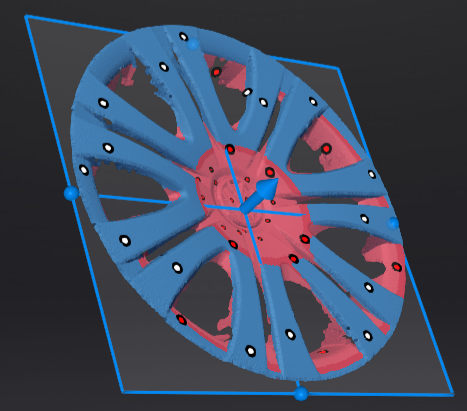
The cutting plane tool can be used to quickly remove data below the base or multiple planes of an object. You can create and edit cutting planes through the settings panel on the left; after applying the cutting plane, the data below the cutting plane will no longer be collected when scanning again.
Creation
- On the editing toolbar at the bottom of the interface, click to enter the cutting plane tool interface.
-
Select the creation method and follow the interface prompts to create the cutting plane.
Method Description Fitting Point Cloud Press Shift+Left Button to select data, and generate the cutting plane according to the selected data. Creating Straight Line Press Shift+Left Button to draw a line, and generate the cutting plane according to the line. By Markers Press Shift+Left Button to select markers.
3 markers or more are required to generate the cutting plane. -
Click Create to create a cutting plane, which will be displayed in the cutting plane list; click Cancel to cancel all operations and exit the cutting plane tool interface.
Note
- When saving a global markers file, the cutting plane will be saved together.
- The cutting plane created in the current project are only effective for that project.
- After creating a cutting plane, data below the cutting plane will no longer be collected.
- Cutting planes can be created after opening a global markers file or scanning global markers (before and after optimization).
Editing
Col
-
Delete the selected point cloud / markers: When ticked, the selected point cloud data or markers will be highlighted in red. Apply the edit to delete the highlighted point clouds or markers.
Caution
- Unable to uncheck Delete the selected point cloud in the current version.
- It is not supported to deleted all point clouds.
- At least four markers should be remained on the front of the cutting plane.
Col
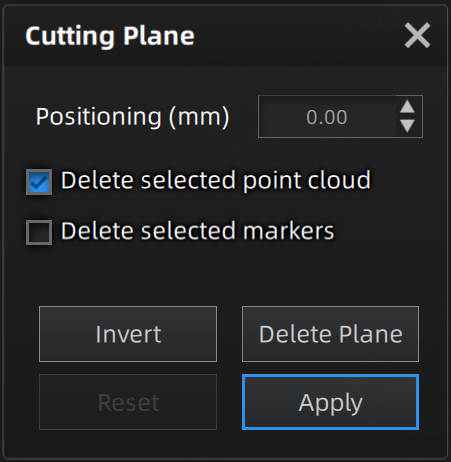
- Invert: Use this button to reverse the selection of data by flipping the cutting plane.
- Delete plane: Clicking this button will delete the current cutting plane and return to the interface for creating a new cutting plane.
- Reset: Reset all the operations performed after creating the cutting plane.
- Apply: Apply all the edits made.
Col
Col
- Positioning: The cutting plane can be translated in the following two ways:
- Dragging the normal arrow on the cutting plane
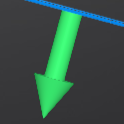 to translate the cutting plane.
 - Entering the translation distance (unit:mm) in the value box to translate the cutting plane.
- Dragging the normal arrow on the cutting plane
- Rotation: The cutting plane can be rotated by dragging the sphere on the cutting plane
 , using the opposite axis of the currently selected sphere as the center axis for rotation.
Right Sidebar
In the scanning interface, you can use more functions in the right sidebar.
| Function | |
|---|---|
 Generate Point Cloud |
Generate point cloud directly without any optimization.Note This function is unavailable in IR Scan. |
Optimizing and Generating Point Cloud |
Optimize then generate point cloud, suggest choosing this option when you have higher accuracy requirement or when there is layering problem caused by accumulated aligning errors during scanning. |
| Function | Function | ||
|---|---|---|---|
 Project Group |
Create or open a project group. |  Delete Your Scan |
Delete the current data to rescan. |
 Align |
Align the data as needed. |  Export the Scan |
Save the scanned data in the specified format locally. |
 Mesh |
Mesh your model. |
Shortcut
| Shortcut | |
|---|---|
| Press and hold the Left Button and move the cursor | Rotate the data |
| Press and hold the Middle Button and move the cursor | Translate the data |
| Hold down Shift+Left Button | Select the area of data |
| Press and hold Ctrl+Left Button | Deselect the area of data |
| Scroll wheel | Zoom in or zoom out the data |
| Spacebar | Apply edits when editing data |
| Delete | Delete the selected data |
Context Menu
| Function | |
|---|---|
| Select all / Invert / Unselect / Delete selected data / Connected Domain | The function is the same as the function on editing toolbar, and can be operated by shortcut keys. |
| Fitting View | The data on the interface is displayed in the center according to the appropriate size; it can be operated by shortcut keys. |
| Set Rotate Center | The rotation center can be set on the data by the left mouse button. |
| Reset Rotate Center | Reset the rotation center back to the data center. |
| Bottom camera | Open or close the camera window. |