Creating Features
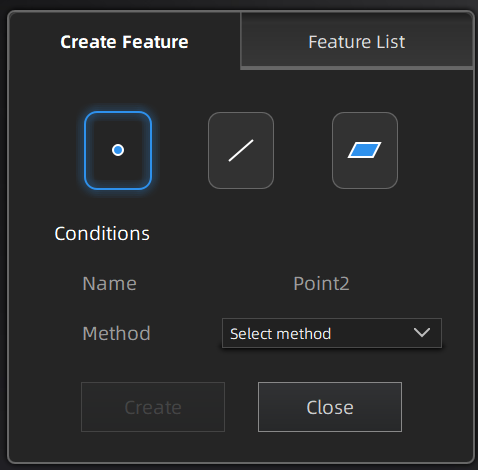
On the right side of the measurement interface, click  to open the create feature window, where you can create feature points, lines, and planes for the model.
Col
Col
Note
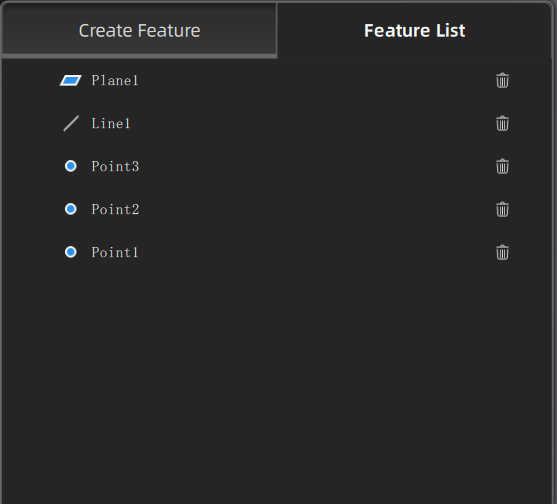
You can switch to the Feature List to view created features; click  to delete created features.
Feature Point
You can create feature points using either the Select Point or Line-Plane Intersection method.
- Choose Select Point as the creation method.
- Click on the model to select points.
- Click Create to generate a single feature point.
Note
If you do not click Create after selecting a point, you can click elsewhere on the model to reselect.
- Choose Line-Plane Intersection as the creation method.
- Click on a created feature line on the model, or select one from the line dropdown list.
- Click on a created feature plane on the model, or select one from the plane dropdown list.
- Click Create to generate a single feature point.
Note
- You cannot select feature lines that lie on feature planes.
- You cannot select parallel feature lines and planes.
- This method requires pre-created feature lines and planes.
Feature Line
- Choose 2 Points as the creation method.
-
Select two points by clicking anywhere on the data or by selecting created feature points.
Note
Under Selection, you can click From or To to reselect points.
-
Click Create to generate a single feature line.
- Choose Plane-Plane Intersection as the creation method.
- Click on created feature planes on the model, or select them from the plane dropdown list.
- After selecting two planes, click Create to generate a single feature line.
Note
- You cannot select two parallel feature planes.
- This method requires at least two pre-created feature planes.
- Before clicking Create, you can click Plane under Selection to reselect planes.
Feature Plane
- Choose 3 Points as the creation method.
-
Select three points by clicking anywhere on the data or by selecting created feature points.
Note
- The three selected points must not be colinear.
- Under Selection, you can click Point 1 / Point 2 / Point 3 to reselect points.
-
Click Create to generate a single feature plane.
- Choose Point-Line Fit as the creation method.
- Click on a created feature line on the model, or select one from the line dropdown list.
- Select a point by clicking anywhere on the data or by selecting a created feature point.
- Click Create to generate a single feature plane.
Note
- The selected point must not lie on the selected feature line.
- Before clicking Create, you can click Line / Point under Selection to reselect.
Use the selection tool in the editing toolbar to select data, then click Create to generate a single feature plane. The resulting plane minimizes deviation from the selected area.
Note
For details about the editing toolbar, see the Point Cloud Editing section.