Interface
Overview
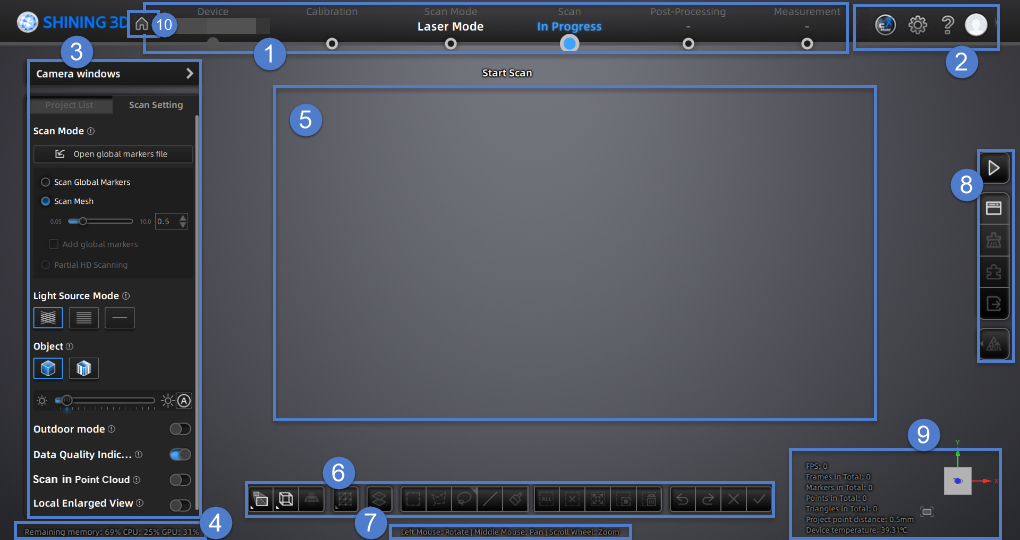
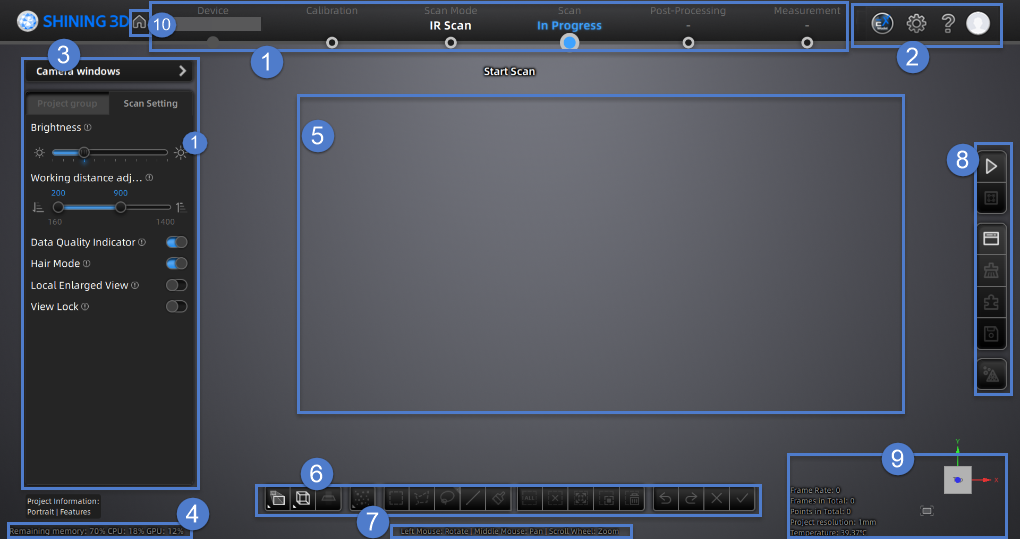
① Navigation Bar
- Device: Display the device status as online / offline.
- Device Online: Show the device name.
- Device Offline: Click
 to reconnect the device.
-
Calibration: Click
 on the corresponding position in the navigation bar to start calibration.
 -
Scan Mode: Click
on the corresponding position in the navigation bar to choose the scan mode. -
Scan: Click
on the corresponding position in the navigation bar to start the scanning. -
Post-Processing: Click
 /
/  after scanning in the Laser Mode or click after optimizing and generating point cloud in the IR Mode to go to the Post-Processing interface. Then you can mesh your data. Or you can click on the corresponding position in the navigation bar to switch to the Post-Processing interface where you can do mesh editing for the imported data.
 -
Inspect: Click
on the corresponding position in the navigation bar to switch to Inspect interface where you can inspect your model here.
② Settings and Help
⑴ General Settings
- Select Language: Set the language displayed in the software.
- Preview: You can preview the scanning effect before the actual scanning when enabling the function.
- Shape Detection Optimization: Before creating a project, you can enable this function. After that, the scanning accuracy can be improved in the cross-line scan mode; however, enabling this function may affect the frame rate and make the scanned data file larger.
- Scanner Tone: Adjust the volume of the scanner's beep sound.
- Compatible with 3Dconnexion SpaceMouse: When enabled (default), it supports the connection and use of a 3Dconnexion SpaceMouse and related unique functions, including rotation axis and shortcuts.
-
Scanning Templates: The software supports exporting and saving the current scan parameter settings as a template / as templates, which can be imported for scanning the same scene. The file saving format is xxx.templ_*.
Caution
- The template file currently does not support saving the brightness parameters in the scan global markers mode .
- If the Confirm button is not clicked after setting the parameters during the meshing process, the exported template will not include the parameter settings from the meshing interface.
-
Factory Default: Click Recover to initialize all settings and the software will automatically restart.
⑵ Laser Scan Settings
- Scanning distance indication method: There are two methods to indicate the scanning distance.
During scanning, you can adjust the scanning distance based on the color indication. Here is the color code for distance adjustment:
Blue: Distance is too far.
Green: Distance is proper.
Red: Distance is too close.
Col
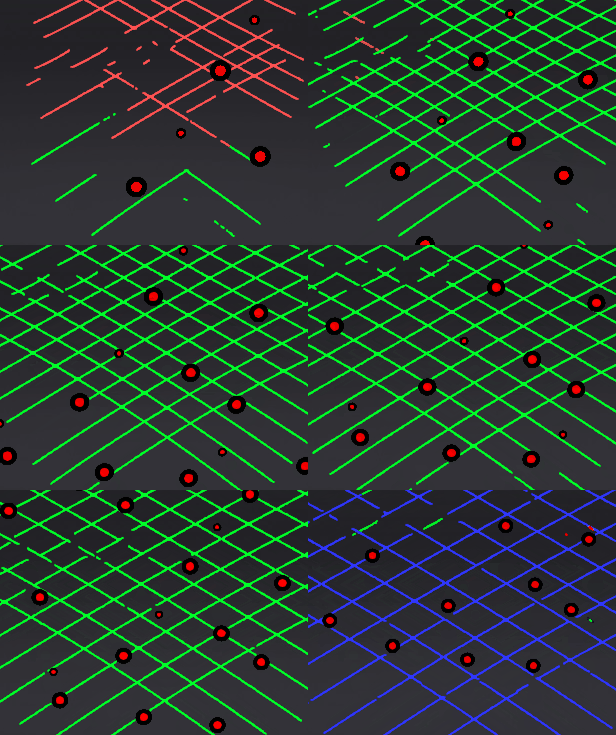 Laser Line Indicator
Col
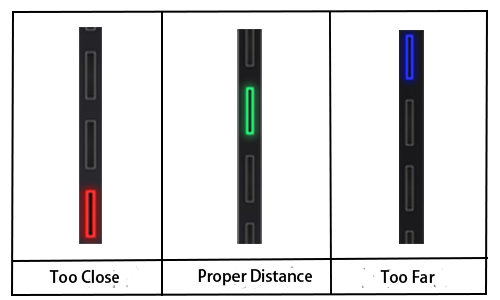 Scanning Distance Indicator
-
The Laser Line Closes Intelligently: If the scanner fails to identify enough markers, it will not project the laser line during scanning when enabling the function.
-
Partial Resolution Circle: The circle refers to the scan area in partial resolution mode. Changing the circle size changes the size of the scan area.
⑶ Third-party Software Setting: You can check the third-party software to be called up and select the calling path. Only the selected third-party software will be displayed in the third-party software list in the Post-Processing and Inspect interfaces.
⑷ WiFi: You can view the smart dock connection status, including IP address, bandwidth, and channel. Click the IP to configure the network.
⑴ About: You can view device name, serial number, calibration board, software version information, etc.; After checking Download UPdates Automatically, when a new software version is detected, it will be automatically downloaded and prompt you to install it. Otherwise, you will need to manually download and update the software to the new version.
⑵ System Diagnose: Check whether your computer configuration meets the running requirements. If  appears, it means that the configuration meets the requirements. If
  appears, it means that there are some issues need to be resolved. Click Refresh to diagnose again.
⑶ Support: You can open the user manual, get remote assistance and check contact information of technical support here.
Note
Col
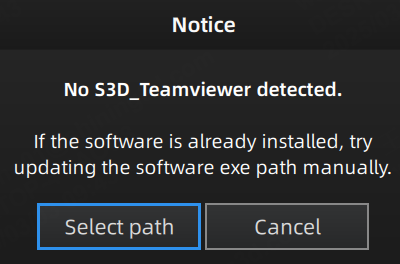
If the software displays a pop-up stating "No S3D_TeamViewer detected" when you use remote assistance function, you can click Select Path in the dialog box and choose TeamViewer's .exe file to manually update the launch path for TeamViewer.
Col
- Reverse Engineering Service: By sending us the scanned project files and specific information, you can get our assistance in the reverse engineering.
- Account: You can view login status, account information, and authorization period.
- Login: You can log in / log out of your account.
- My SHINING 3D Account: Click to enter the personal center.
- Official Website: Click to visit our official website for more products and information.
- Facebook: Enter our Facebook to view product introduction and learn other operations.
③ Scan Settings
- Camera Windows: To preview the actual scene during scanning. Parameters can be adjusted accurately through the camera window.
- Project List: To manage projects and the project group. For more, see Project and Project Group.
- Scan Setting: To set scanning parameters. For more, see Settings.
④ Memory / CPU / GPU
- Remaining Memory: To display the percentage of remaining memory.
- CPU Usage: To display the CPU Usage of the computer in real time. You may need to close other unrelated software if it is too high.
- GPU Usage: To display the GPU Usage of the computer in real time.
⑤ Preview / Scanning Window
To preview the model and check the scanned model.
⑥ Edit Toolbar
To edit data after scanning. See more details in Data Editing.
⑦ Shortcuts
To change the perspectives and move the model by the composition of keys.
⑧ Side Toolbar
For more, see Scanning and Other Functions.
⑨ Other Information
To show information about FPS, Frames in Total, Points in Total, etc.
| Function | |
|---|---|
 Fit View |
Click to center the model and adjust the view size to fit the screen automatically. |
 View Controller |
⑩ Home Page
Click  to quickly return to the home page.