Activation
Online Activation
You can connect the device to FreeScan Omni software and log in to your SHINING 3D account to activate it.
If your computer failed to connect to the network:
- Check the network connection and click Refresh to reconnect to the network. It will jump back to the login interface after successfully connecting to the network.
- If your computer can not connect to the network successfully, please choose offline activation.
Col
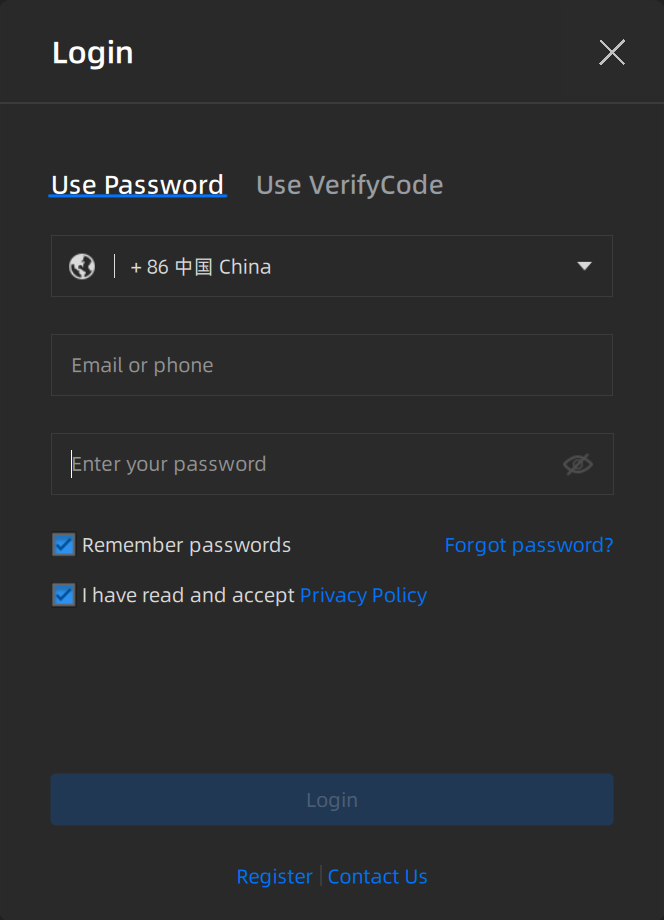 Passport
Col
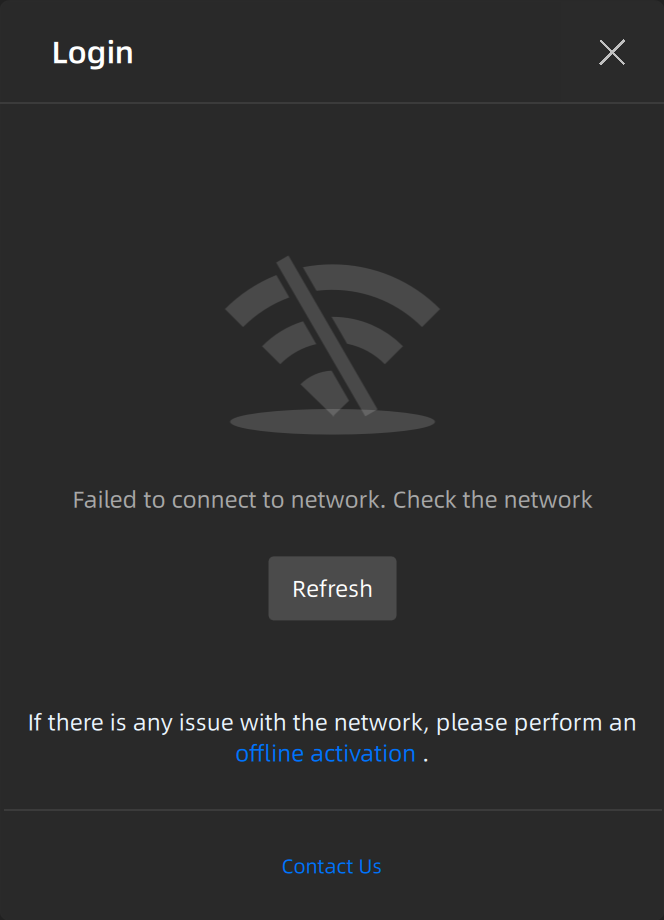 Network Not Available
The activation will be completed automatically after logging in successfully on the networked computer.
Offline Activation
If your computer cannot be networked, activate the scanner offline.
-
Export C2SN3D file to a USB flash drive in the offline activation window.
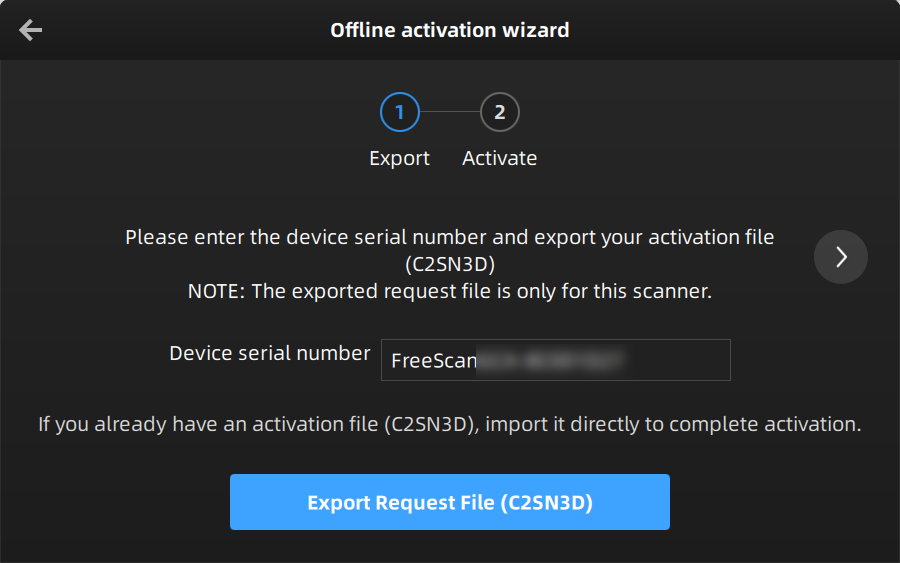
-
Log in https://passport.shining3d.com/login on the networked computer.
-
Click Offline Activation.
-
Upload the C2SN3D file.
-
Export the SN3D2C file corresponding to your scanner to your USB flash drive.
-
Import the SN3D2C file to the software.
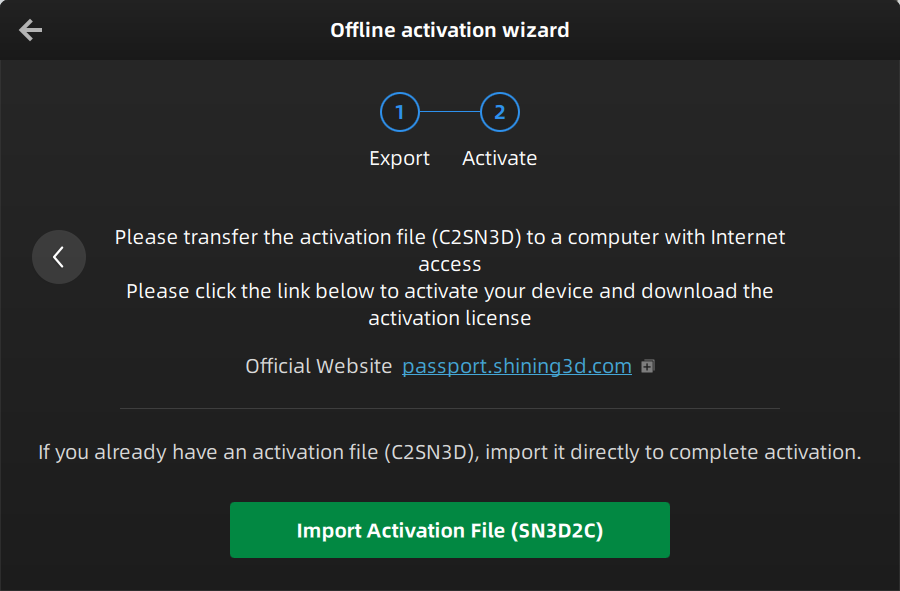
Note
Please contact the supplier or technical support if none of the above methods can activate your device.