Data Transfer
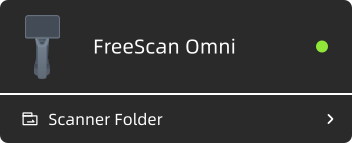
When the scanner is successfully connected to the FreeScan Omni software, you can enter the Scanner Folder to export the project groups and global markers file of the scanner or export global markers files and inspect templates to the scanner.
Note
The default export path is C://Users/admin/Documents/FreeScanOmni/ProjectGroup, and you can click Select Default Path to modify it.
Project Group
-
Click the Scanner Folder in the upper left corner of the software homepage
 .
. -
Select the project groups you want to download and click Download.
-
Back to the homepage to check the downloaded project group.
Note
- You can select up to 30 project groups at a time.
- The inspect report is downloaded with the project group by default. You can deselect all the formats of report to disable the download.
- If mesh only is enabled, only the project group with
 badge can be exported.
 - The project groups downloaded to the local will display a label
 .
.
Global Markers File
Supported formats: *.p3, *.asc, *.txt, *.dgm.
Download from Device
-
Click the Scanner Folder in the upper left corner of the software homepage
. -
Click Global Markers File to switch to the corresponding tab.

-
Select the global markers files you want to download and click Import Locally.
-
After the transfer is complete, the imported global markers file will display a label
.
Upload from Local
-
Click the Scanner Folder in the upper left corner of the software homepage
. -
Click Global Markers File to switch to the corresponding tab.
-
Click
 .
. -
Follow the prompts on the interface to select the global markers file to import to the device.
-
After the global markers file is imported, it will be displayed in the upload list.
Inspect Templates
The inspect templates are generated by the SHINING 3D Inspect software. To use the inspect templates to generate reports, the device must have a valid license for inspect function. For purchasing a license, please contact Technical Support.
Supported format: *.SNITemplate
Caution
Purchasing a license for scanner function does not automatically grant access to those function on the FreeScan Omni software.
-
Click the Scanner Folder in the upper left corner of the software homepage
. -
Click Inspect Templates to switch to the corresponding tab.

-
Follow the prompts on the interface to select the inspect templates to import to the device.
-
After the inspect templates are imported, they will be displayed in the upload list.