Interface
Tap on the  on the homepage, and the software will automatically create a project group and enter the scanning preview interface.
Information
-
FPS/Frames/Markers
Real-time display of the current scanning FPS, frame count, and number of markers. -
Status Bar
Displays the current device's network, temperature, battery level, and other status information. For more details, please refer to the homepage. -
Scanning Distance Indication Method (Working Distance Indicator)
Col
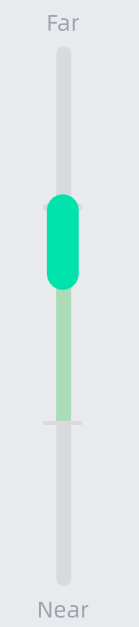
HistogramCol
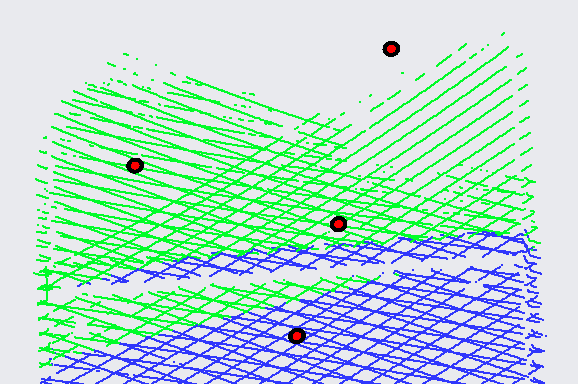
Laser line indicatorDuring scanning, if the slider on the histogram or the laser line is green, it indicates that the distance is appropriate.
Note
If the scanning distance indication method is set to Laser line indicator, the histogram will not be displayed.
-
Scan Mode
Displays the scan mode and alignment method of the current file. -
Model Preview Area
The scanned model will be displayed in the preview area. -
 /
/ /
/
Start Scanning / Pause Scanning / Scanning Preview. -
Scanning Parameters
Different scenes and scanned objects require specific scanning parameter settings. For more details, please refer to Scan Settings.