 Settings
Light Source
| Light Source | Scan Mode |
|---|---|
| Laser | Markers, Photogrammetry, Mesh, Partial Resolution |
| Infrared | Markers, Point Cloud |
Caution
- If there is any scanned data, you must clear them before switching the light source.
- All projects within the project group can only use the same light source, meaning the light source of the second project cannot be modified and must be consistent with the first project.
Global Markers File
Global markers files improve alignment accuracy and reduce errors by automatically aligning multiple scanning data.
Import Global Markers File
-
No global markers file in the resource center:
The global markers file shows as None. Clicking will prompt you to connect to a PC to import or import files from a USB flash drive. For related operations, please refer to Import from USB. -
Global markers file exists in the resource center:
Tap to select a file from the global markers file list.
Note
- Global markers file supports .p3, .asc, .txt, and .dgm formats.
- The number of markers included in the global markers file must be ≥ 4 during laser scanning and ≥ 4 during infrared (IR) scanning, with a maximum of 20,000 points.
- Scanning point clouds and using features for alignment do not support the use of global markers files.
Scan Mode
This mode is used to generate global markers files. By scanning the markers on the surface of an object, you can quickly obtain the marker data of the object.
After scanning, you can save the global markers file or switch to point cloud/mesh mode to continue scanning the object.
Note
- You can import global markers files to continue scanning and supplement global markers.
- Switching from other scan modes to frame point mode will clear existing scanning data and cannot be recovered.
-
During scanning, you can use color indicators to help assess the quality of global markers scanning.
- If the outer circle of the global markers appears orange, it indicates that the quality of the scanned global markers is low, such as
 and
and  .
. - If there are no other colors appearing in the outer circle of the global markers, it indicates that the quality of the scanned global markers is normal, such as
 and
and  .
.
Among them,
and indicate that the scanned markers are currently within the field of view of the scanner. - If the outer circle of the global markers appears orange, it indicates that the quality of the scanned global markers is low, such as
This mode is generally suitable for industrial measurements that require high precision. Depending on the size of the scanned object, you can import a suitable scale file to improve the overall accuracy of the frame point data during scanning.
Note
The device can save a maximum of 16 scale bar files. To add a new scale file, please go to the resource center to delete files before importing new scale bar files.
This mode is used to directly scan and generate mesh data, suitable for most scanning scenarios.
Note
After switching from global markers mode to this mode, you can enable the Add Markers feature while scanning the corresponding object to obtain new markers data.
This mode displays point cloud data during the scanning process, reducing memory consumption.
Note
After switching from global markers mode to this mode, you can enable the Add Markers feature while scanning the corresponding object to obtain new markers data.
This mode is used for scanning when there are high detail requirements for local area data or when local data is missing. Scanning with this mode can save scanning time and make the scanning data more accurate and complete.
Note
- The laser line automatically switches to 25 lines in this mode.
Caution
- This mode is unavailable when the point distance is ≤ 0.1 mm.
- High option is unavailable when the point distance is between 0.2 mm and 0.4 mm.
- Once an option (standard or high) is selected, it cannot be changed.
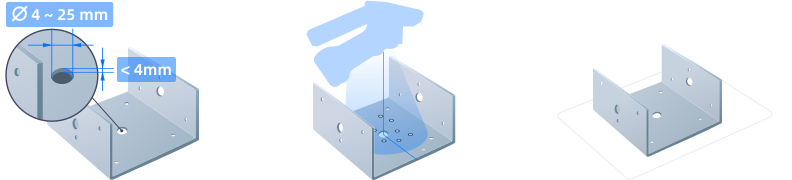
This mode is suitable for scanning and measuring holes (including circular, slotted, and rectangular) on sheet metal stampings.
Scanning Tips:
- Diameter: 4–25 mm.
- Thickness: Up to 4 mm for best results.
- Scanning Method: Scan vertically into the hole. Make sure there are enough markers around the hole for alignment.
- Environment Tips: Ensure strong contrast between the hole and its background to improve scanning accuracy.
Note
It's recommended to scan mesh data first before using AI Feature Recognition for more accurate results and to avoid misidentification of markers and weld nuggets as holes.
 Align Mode
Note
Available only during IR scanning.
| Align Mode | Description |
|---|---|
| Markers | Markers alignment uses global markers files to assist in completing the scanning alignment, requiring the import of an existing global markers file or scanning an object with at least 3 markers pasted. |
| Feature | Feature alignment automatically completes alignment using the geometric features of the scanned object's surface, requiring the scanned object to have rich surface features. |
| Hybrid | Hybrid alignment comprehensively utilizes the object's own features and the pasted markers to complete the scanning alignment, suitable for cases where the geometric feature richness of different parts of the scanned object varies. A minimum of 4 markers must be pasted on flat surfaces. |
 Resolution
| Light Source | Scan Mode | Range |
|---|---|---|
| Laser | Mesh | 0.05 mm ~ 10.0 mm |
| Infrared | Point Cloud | 0.05 mm ~ 3.0 mm |
Note
Once there are existing projects within the project group, the newly created project cannot change the resolution.
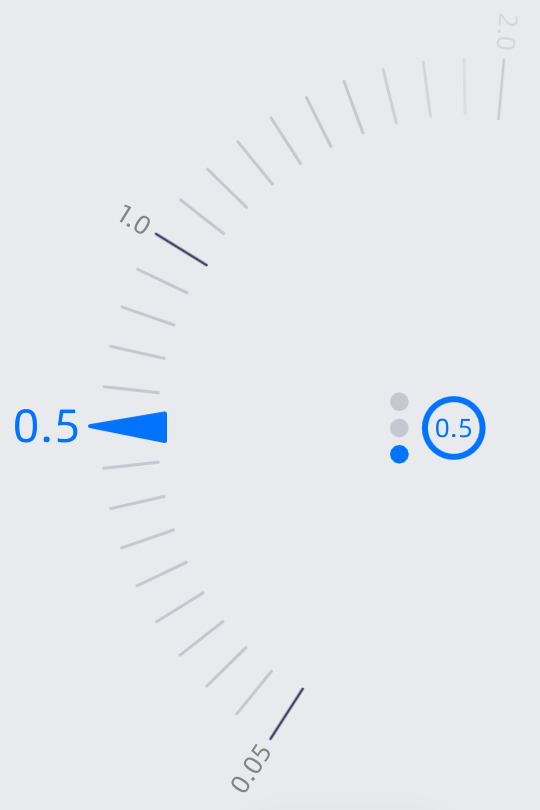
Adjusting resolution:
Col
- Tap
 , to quickly switch different resolutions.
 - Drag the protractor to make fine adjustments.
Col
 Brightness
Brightness affects the number of markers recognized by the device. Adjusting the appropriate brightness can enhance scanning quality, optimize detail capture, and avoid detail loss due to insufficient brightness or reflections caused by overexposure; under different materials and ambient light conditions, it can reduce noise and erroneous data, improve accuracy, and ensure consistency in scanning results.
Brightness has three levels: High, Medium, Low, with three preset modes:
- Auto: Automatically adjusts based on ambient brightness
- Outdoor: Suitable for outdoor bright light environments
- Reflective: Suitable for highly reflective objects
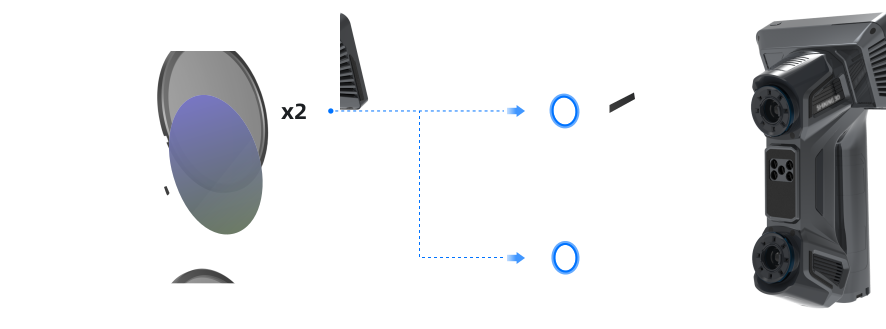
For the outdoor mode, it is recommended to magnetically attach the filter before scanning.
| Scan Mode | Mode Range |
|---|---|
| Markers | Auto, Outdoor |
| Photogrammetry | Auto, Outdoor |
| Point Cloud | Auto, Outdoor, Reflective |
| Mesh&Partial Resolution | Auto, Outdoor, Reflective |
 Working Distance
It refers to the effective area of the scanning data, which can be adjusted based on the size of the object and alignment requirements. A larger value makes it easier to scan data from a distance, but some details may be lost. By controlling the working distance, you can filter out noisy data from far or near.
Note
- Only IR scanning supports adjusting the working distance, with a range of 160 mm - 1400 mm.
- The maximum recognition distance for markers is 800 mm; beyond this distance, it is recommended to use feature or hybrid alignment.
Laser Lines
| Line Count | Description |
|---|---|
| 93 Lines | Mainly used for quick scanning of objects. |
| 25 Lines | Mainly used for local detail scanning. |
| 1 Line | Mainly used for deep hole and gap scanning. |
Note
When selecting a single line, deep hole mode can be enabled. When enabled, scanning deep holes will be more effective. However, noisy data will increase.
 Data Quality Indicator
Displays scanning quality in the form of a spectrum, where blue represents high-quality scanned data, and yellow indicates insufficient scanning that requires further scanning. Insufficiently scanned data may disappear or display abnormally after data processing.
 Plane Detection
Note
Supported only during IR scanning for feature alignment or hybrid alignment.
Once enabled, it will automatically recognize the plane where the scanned object is located, reducing the probability of mis-scanning planes or feature objects, but it cannot scan planes or objects with few features.
In hybrid alignment, scanning a plane requires pasting 4 markers. In feature alignment, it will prompt you that do not scan directly at the plane.