Mesh Optimization
The data after mesh can be directly used for rendering, measurement or printing.
Mesh Parameter
Choose different mesh types according to the reality.
| Icon | Name | |
|---|---|---|
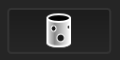 |
Unwatertight Model | For models with unclosed holes, use this mesh type to keep the original state with less meshing time. |
 |
Semi-watertight Model | To fill the holes automatically. |
 |
Watertight Model | To fill all holes automatically. The data can be 3D printed directly. The mesh quality of the watertight model can be set in the IR Mode. |
Note
If there are some data scanned in the Partial Resolution mode, Semi-watertight Model and Watertight Model are disabled when meshing the data.
Options
Optimization
Optimize the data and improve the clarity of the data. The higher the level, the less the small details.
-
None: No optimization.
-
Standard: Optimizes data slightly and preserves data characteristics.
-
Med: Reduce the noise on the surface of the data.
-
High: Reduce the noise on the surface of the data and make the data smoother.
Smooth
Smooth the possible noise on the surface of the data.
Caution
When the Optimization is set to None, the Smooth is not available.
Simplification (IR Mode)
The polygon numbers and detail of data will be reduced universally. When the number of the simplification is more than the number of max triangles you have set, the simplification will be applied.
Remove Small Floating Parts
Remove small floating parts on the model.
Col
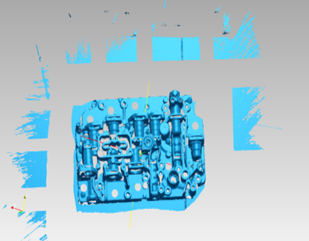 Original data
Col
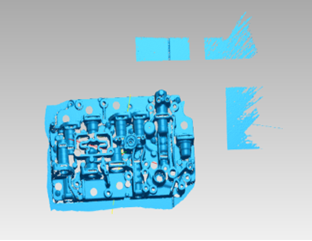 Remove 50
Col
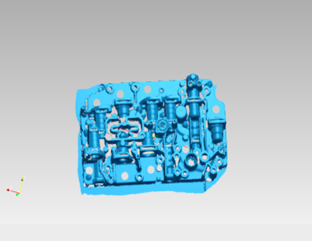 Remove 100
Edge optimization
By checking it, the boundary data will be more complete and smoother after meshing.
Col
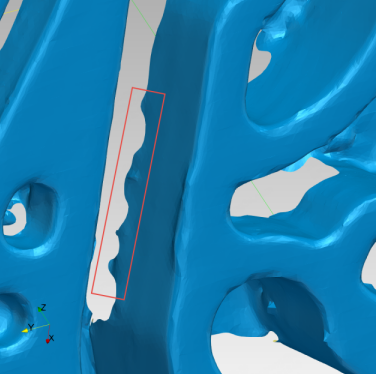
Before
Col

After
Max Triangles
Set max plate number to get mesh model's triangle plate number is within configured plate number.
Fill Small Hole
Auto fill the small hole with a perimeter less than or equal to 10 mm (by default). You can set the hole-filling perimeter.
Remove Spike
Remove spike-like data on the image edge.
Markers Hole Filling
Fill the surface holes on an object that were not scanned due to being occluded by markers.
Recommended Parameters
When turning on, it will automatically use the recommended parameters for meshing.