Upgrade
When a new version of the software is released or a higher firmware version is available, you will be prompted when launching the software.
Firmware Upgrade
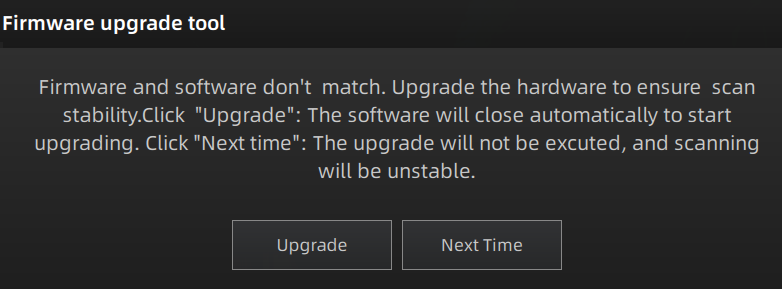
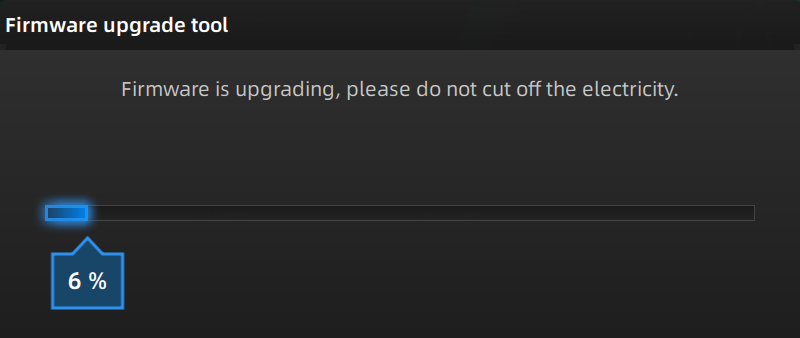
Update the firmware for better performance, stability or bug fixing. Click Upgrade to start the firmware upgrade, as shown below.
Col
Col
Caution
- Make sure that the device is powered on during the upgrade; avoid interruption of the upgrade due to power cuts.
- Do not use mismatched firmware, because this may affect the scanning effect. If in doubt, please contact your supplier or technical support.
- If the upgrade fails, please power off the device and reconnect it to upgrade again.
Software Upgrade
Update the software for better performance, new functions or bug fixing.
Note
It is recommended that you use the latest software.
Col
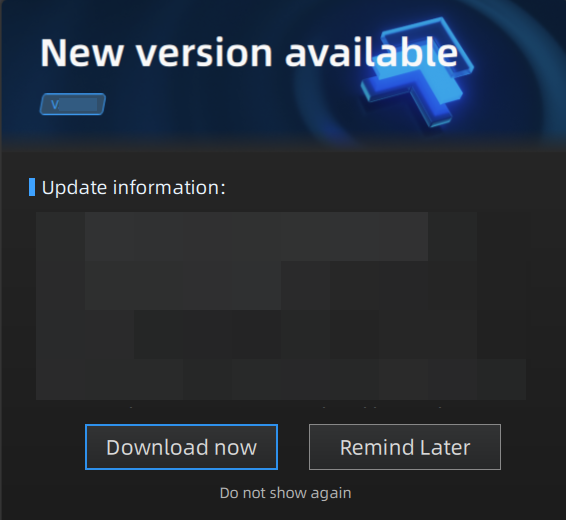
When the software detects a new version, it will display a pop-up after you run the software; you can also check the current software version and see if there are updates by going to Help > About interface.
Click Download now and download the installation package in the background.
When the download is completed, a window will pop up for users to decide whether the new version shall be installed immediately.
Click Yes to start installing.
Col
Caution
- If the software is closed during the download process of the installation package, you can choose to continue downloading the installation package in the background.
- The software will automatically close during the installation. Please make sure to save the scanned data in advance to avoid any data loss.