Project and Project Group
Create or open a project group before scanning.
Note
You can also click  in the upper-left corner of the interface to return to the software homepage and create a new project group or open a project group.
Project Group
Project group is the standard file structure of the software. It contains one project or more. Each project contains the data of its own. Project group is mainly used in the following scenarios:
| Only one project in the project group | One object needs to scan with only one alignment mode. | Only one alignment mode can be used in the same project. |
| Multiple projects in the project group |
|
Please create multiple projects within one project group when scanning a large object or multiple objects. After scanning, you can align these projects one by one. |
 Create a Project Group
Two ways to create a project group:
Method One: Click New project group before scanning.
Method Two: Click  and select New project group in the scanning interface.
In the prompt window, name the project group and click Browse to select the save path; then click Confirm and all scanned data will be saved to the folder with the name you just set.
 Open a Project Group
Two ways to open a project group:
Method One: Click Open project group before scaning.
Method Two: Click and select Open project group in the scanning interface.
In the prompt window, select the project group file and then click Open.
Note
- The current project group will be saved automatically when opening a project group.
- Only the project group scanned in the same scan mode can be opened.
Project Management
Col
Each project is a part of the project group. You can use these buttons to manage projects.
Col
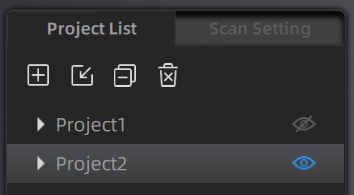
| Icon | Function | ||
|---|---|---|---|
 |
New Project | Click to create a new project when the scanner is connected. | This button can only be used to create a new project when a device is connected. |
 |
Open Project | Click to import a project. You can right-click one in the list to rename it. | Projects with different resolutions cannot be opened in the same project group. |
 |
Remove Project | Click to remove the project from the project list. | The removed project still exists in the folder and you can import it in the list again. |
 |
Delete Project | Click to delete the project. | This operation will delete the selected project and its data at the same time. |
 / / |
Click to show / hide the data or markers. |
Note
- If the project being deleted or removed is the last project in the list (i.e., the current project), the previous project in the list becomes the current project, and you can perform scanning operations on it.
- If a project with the same name as an existing project in the list is opened from a different path, "_1" will be appended to the name of the opened project.
- If a project is imported into the project group from a different path, deleting it will not affect the original data in the original path. Only the project data copied to the project group folder will be deleted.