Scanning
Preview / Start scan / Pause scan
You can switch in these 3 status with the trigger on the scanner, or click the button in the software. The normal order is: Preview (optional) > Scan > Pause.
Note
Col
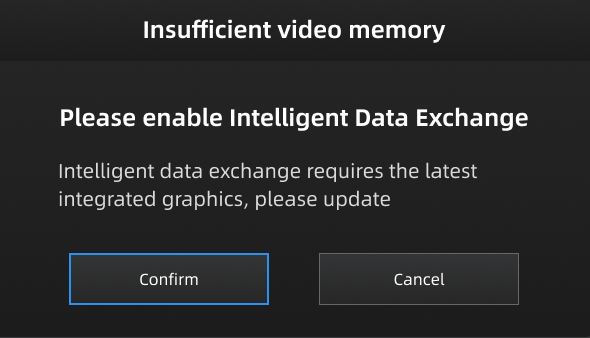
When the performance of the discrete graphics card has reached its limit, you can follow the on-screen prompt to enable Intelligent Data Exchange and switch to the integrated graphics card in order to prevent scanning issues caused by insufficient video memory.
Col
| Function | Icon | |
|---|---|---|
| Preview (optional) |  |
Preview and adjust the scan parameters for better scanning effects. You can open/close the function in  > General Setting. > General Setting. |
| Start Scan |  |
Click to scan. During scanning, keep the scanner parallel to the surface, keep a proper distance from the object, and adjust the brightness depending on the ambient light or texture of the object. |
| Pause Scan |  |
Edit the data or change the view angle after pausing. |
Caution
- Please hold the scanner upright to start to preview / scan.
- When performing a scan, please ensure that there is sufficient VRAM (video random access memory) to prevent any scanning abnormalities or issues.
- When scanning for details or small holes, scan as close as possible to the object.
Generate Data
Laser Mode
After completing the scanning, you can edit the data or align the data.
IR Mode
When finishing the scanning, point at  to choose Generate Point Cloud1 or Optimize and Generate Point Cloud2, and then to edit the data later.
Note
- You can only Optimize and Generate Point Cloud for scanning portraits in the IR Mode.
- The time it takes to generate point cloud depends on the data size of your project and the hardware configuration of your PC.
-
Finish the scan and generate point cloud. ↩
-
After the point cloud is generated, it will automatically optimize the point cloud with larger memory. This method will take a long time and require high memory, but it can solve most of the layering problems caused by accumulated aligning errors. For projects with high precision requirements, please choose Optimize and Generate Point Cloud. ↩