Settings
Scan Templates
- To use a new template: Click Create to create a template with the current parameter settings. The first template will have the default name "Template_01." If you modify the parameter settings after creation, the software will prompt "The template has been modified, please keep it up to date", and you can click
 to update the template.
 - To use an existing template: Click
 to expand the template dropdown list and select an existing scanning template (support Update the template). Additionally, you can click Open Local File to open the software root directory, where you can rename or delete templates and perform other operations.
Note
- Please use a scanning template with the correct file version, and ensure that the selected scanning template matches the current device type and scanning mode.
- If a scanning template is used in the Scan step, it can continue to be used and updated in the Post-Processing step; otherwise, the template module will not be displayed in the Post-Processing step.
Scan Mode
Choose the proper scanning mode to scan.
-
Scan Global Markers
This mode is used to scan markers on the surface of an object. You can quickly obtain the markers data of an object in this way and switch to Scan Mesh to continue scanning.
Note
- The scanner does not project laser lines during the scanning process.
- You can scan new markers after opening a global markers file.
- When switching to Scan Global Markers, the current scanned data will be cleaned up and the data can not be recovered.
- If there is an orange circle outside the markers, it indicates that the quality of the scanned markers is low and further scanning is required; if there is no additional color outside the markers, it indicates that the quality of the scanned markers is normal.
-
Scan Mesh
Directly scan to generate mesh data. This mode is suitable for most scanning scenarios.
Note
- When the markers are not fully scanned in Scan Global Markers, check Add Global Markers to scan new global markers.
- There is no color outside the newly added global markers in Scan Mesh.
-
Partial Resolution
This mode is used for scanning when there is a high requirement for details in a specific area or when there are missing data in certain regions. By using this mode for targeted scanning, it can save scanning time and make the scanned data more accurate and complete.
Note
- Standard is half of the current point distance; High point distance is a quarter of the current point distance.
- The scanning area can be adjusted in Settings > Laser Scan Settings > Partial Resolution Circle.
-
Photogrammetry
This mode is generally suitable for high-precision industrial measurements. Depending on the size of the scanned object(s), you can import an appropriate scale bar file and use the scale bar(s) during scanning to improve the overall accuracy of the global markers data.
Note
If there is an orange circle outside the markers, it indicates that the quality of the scanned markers is low and further scanning is required; if there is no additional color outside the markers, it indicates that the quality of the scanned markers is normal.
-
AI Feature Recognition
This mode is suitable for scanning circles, grooves and rectangles of sheet metal stamping parts. After scanning, you can save models with these features and import them into the third-party software for further measurement.
Note
- If you want to save a separate feature file, select the corresponding feature in the project list, right-click, and select Save to save a single feature file.
- It is supported to save feature files in .stp, .csv, .txt, .igs, .asc, .xyz and .las formats.
Marker Size
Select the recognizable diameter of markers to reduce the misrecognition of markers when scanning reflective objects.
Note
Please select at least one size (multiple selections are supported) or input the custom size. The default selection is 6 mm, with a custom size range of 3 - 16 mm.
Point Distance
Note
- When there is only one project within the project group, you can adjust the point distance in real-time in the scan mesh mode.
- When there are multiple projects within the project group, you cannot adjust the point distance anymore in the scan mesh mode.
| Scan Mode | Point Distance |
|---|---|
| Scan Mesh | 0.05 mm ~ 10.0 mm |
| Partial Resolution | 0.02 mm ~ 3.0 mm |
High-speed Mode
The high-speed mode of the scanner will lose some details. Please turn off the mode when the point distance is less than 0.1 mm.
Caution
3 mm markers can not be recognized in this mode.
Light Source Mode
According to the scanning requirements, you can choose different laser line modes.
| Light Source Mode | |
|---|---|
| 26 Lines | This mode can be used to scan large objects. |
| 5 or 7 Lines1 | This mode can be used to scan fine details. |
| 1 Line | This mode can be used to scan deep holes and pocket area. |
Object
It supports scanning of both normal objects and reflective objects. When scanning reflective objects, select Reflective to improve the scanning effect.
Outdoor Mode
To scan normally in the glare environment such as outdoors.
Caution
Please avoid direct sunlight when scanning objects.
Data Quality Indicator
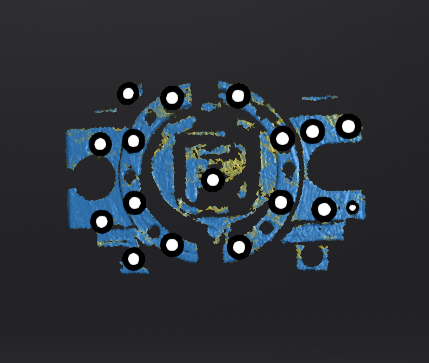
Differentiating scan quality in colors: blue represents high-quality scanned data and yellow represents insufficient scanned data that requires further scanning. Insufficiently scanned data may disappear or become anomalous after editing.
Note
- This function is not available for scanning in scan markers mode or photogrammetry mode.
- Data scanned in Partial Resolution mode is displayed in purple.
Scan in Point Cloud
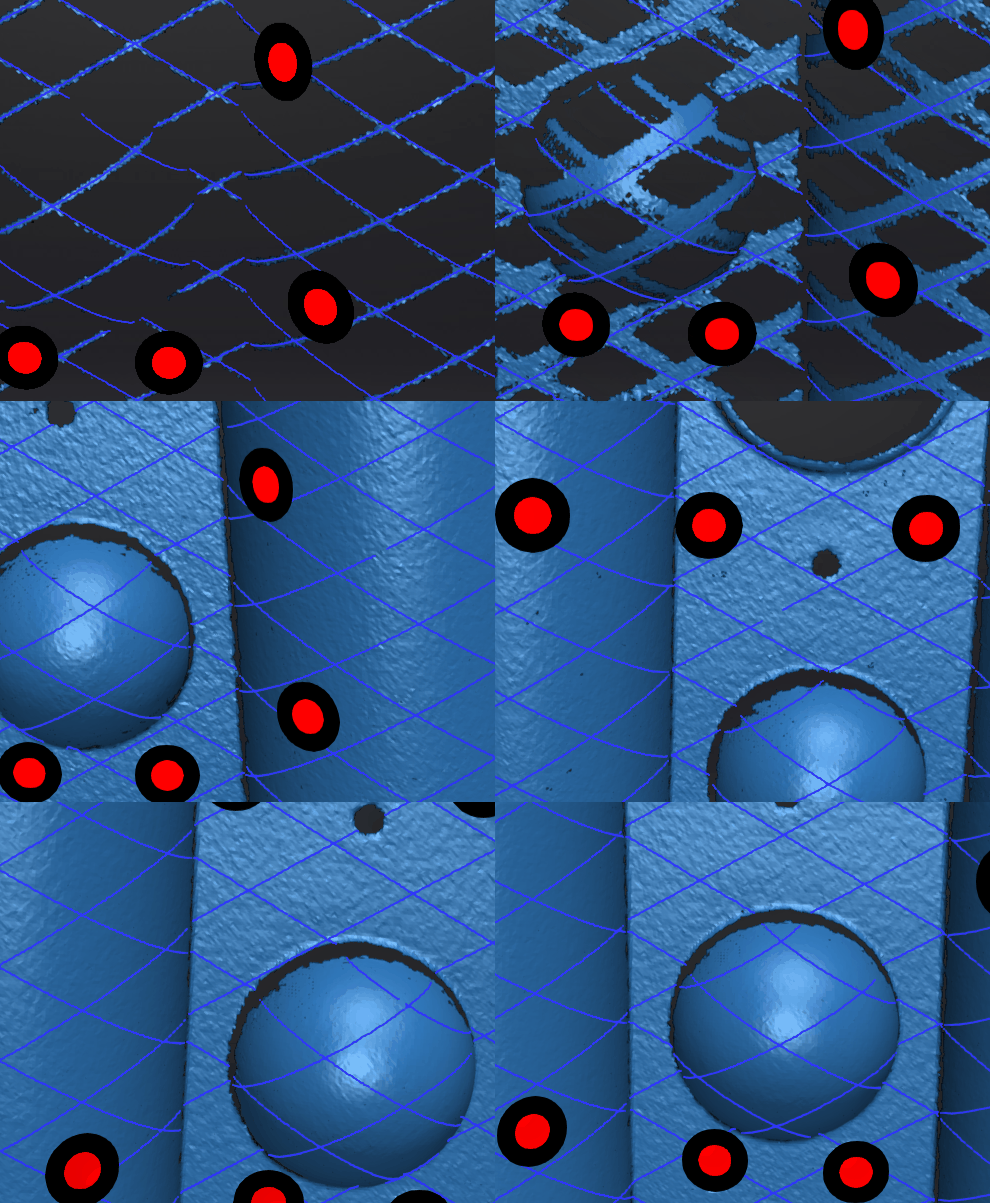
After enabling the Scan in Point Cloud, the point cloud data will be displayed during the scanning process, thereby reducing GPU memory consumption.
Note
- Mesh data will be displayed after pausing the scanning whether this mode is enabled or not.
- You can switch another scan mode when only global markers data is present or after all data is cleared.
- Scan modes cannot be switched during pre-scanning, the scanning process, or when data present in the scene.
- Projects within the same project group can adopt different states: Project A within the group can have this mode enabled, while Project B can have it disabled.
- This function is only supported by Scan Mesh mode and Partial Resolution mode.
Local Enlarged View
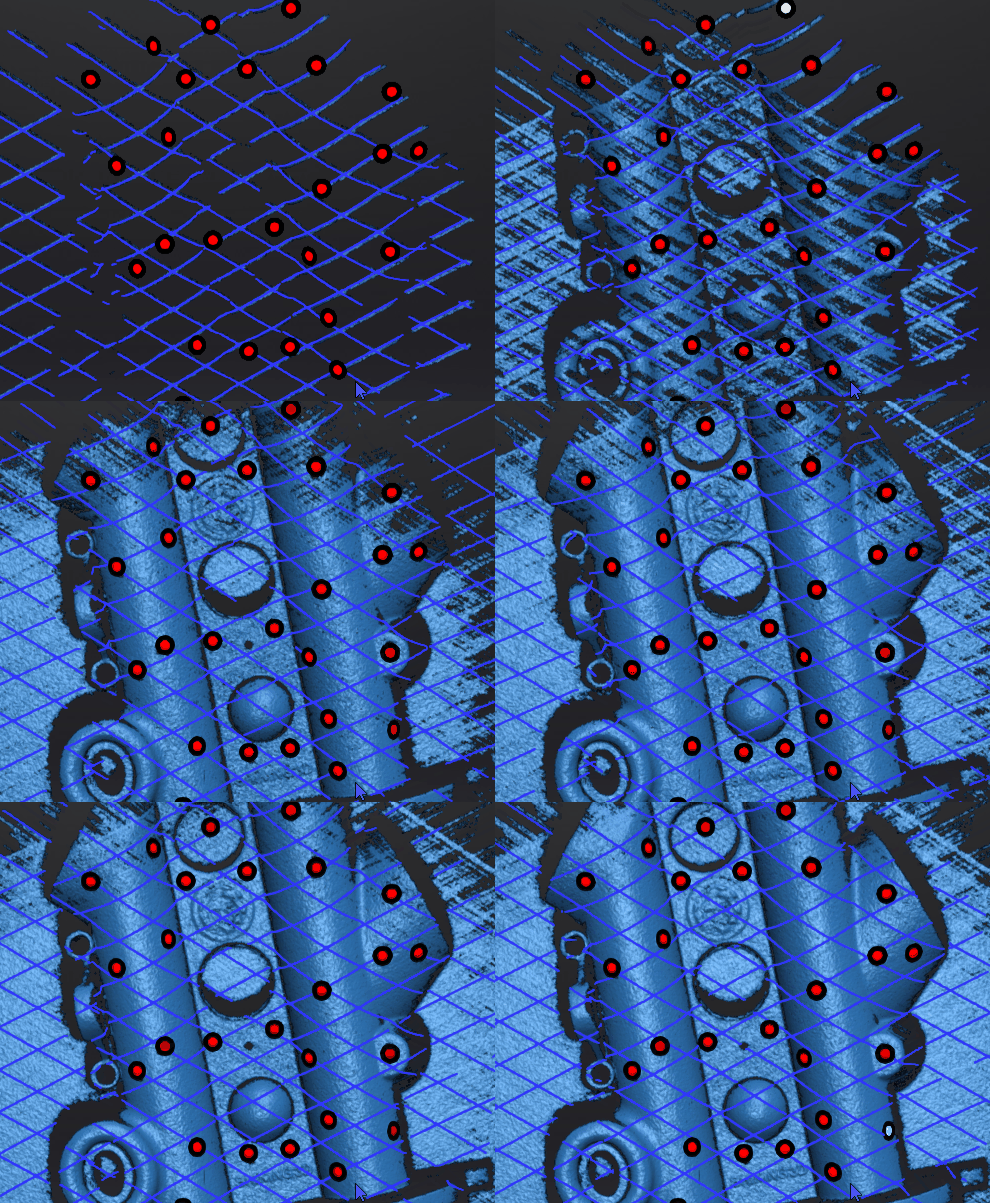
When the function is enabled, the scanning interface only displays the local perspective of the scanned object, which can be used for supplementary scanning of small holes.
View Lock
When the function is enabled, the view will be locked during scanning and not follow the scanning path, which can be used for scanning the data of the locked view.
Brightness
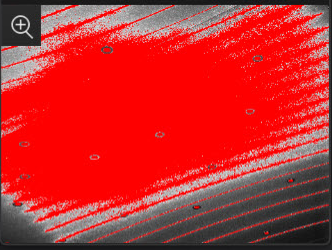
For objects of different materials and colors, adjust the brightness of the scanner to can better.
Col
 Too Bright
Col
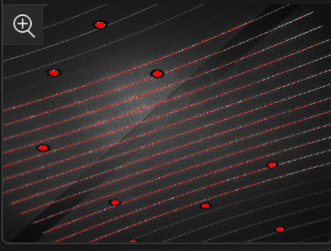 Proper
Col
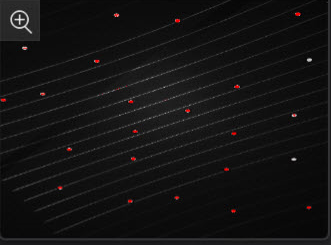 Too Dark
Deep Hole Optimization
When scanning deep holes, please enable it to enhance the scanning depth and the integrity of the scanned data.
Caution
-
Enabling this function may also result in an increase in noise.
-
This mode can only be enabled when the light source mode is selected as 1 line.
Intelligent Resolution
After enabling Intelligent Resolution, the software automatically adjusts the mesh resolution based on the curvature of the scanned object. Multiple scans are required during the scanning process to achieve high-quality data and make the features of the scanned object more clear. After selecting High Intelligent Resolution or Standard Intelligent Resolution and generating mesh, click Preview in the Mesh Optimization interface to view the intelligent resolution effect: areas with high curvature will have higher data density.
Note
- Enabling High Intelligent Resolution requires a point distance in the project greater than 0.4 mm.
- Enabling Standard Intelligent Resolution requires a point distance in the project greater than 0.2 mm.
- Only project files with the same intelligent resolution can exist in a project group; if a project with a different resolution is imported into the current project group, the resolution of the imported project will be changed to the resolution consistent with the project in the current project group.
-
Please refer to the scanner you actually ordered and received. ↩