Data Editing
To edit the scanned data when you pause or finish scanning.
Editing Toolbar
When you pause or finish the scanning, you can use the following tools to edit the scanned data.

| Icon | Function | |
|---|---|---|
 |
Perspective View | View the data in Perspective View that the object appears larger when closer, and smaller when farther away, which is consistent with the rule of normal human eyes to observe the 3D world. You can switch to Orthogonal View by clicking it again. |
 |
Orthogonal View | View the data in Orthogonal View that the size of the object displayed in the view is independent of the current viewpoint distance. You can switch to Perspective View by clicking it again. |
 |
Multi View | 6 different view angles to choose. |
 |
Cutting Plane | Create a plane to do quick cut. For more, see Cutting plane. |
| Icon | Function | |
|---|---|---|
 |
Data Editing | Edit the selected data. Click again will toggle the editing mode. |
 |
Edit Markers | Select the data area and the markers in this area will be shown in red. The red markers can be edited at this time. |
| Icon | Function | |
|---|---|---|
 |
Select Visible | To select data on the front view only. |
 |
Select Through | The surface data and the interior data can be selected at the same time. |
| Icon | Function | |
|---|---|---|
 |
Rectangular | Select / Deselect a rectangular area. The selected area is displayed in red. |
 |
Polygon | Select / Deselect a polygon area. |
 |
Lasso | Select / Deselect the area bu using the Lasso tool. |
 |
Straight Line | Hold down Shift+Left Button and move the cursor to draw a straight line to select the area. |
 |
Brush | Hold down Shift+Left Button and a red circle will appear. At this time, roll the mouse wheel will zoom in and out of the circle. Move the red circle to select the area to be edited. |
 |
Select All | Select all the data. |
 |
Unselect | Cancel all selected areas. |
 |
Connected Domain | Click the button after selecting a patch of data and all connected region to the selected data will be picked. |
 |
Invert | Revert the selection. |
 |
Delete Selected Data | Delete selected data. |
| Icon | Function | |
|---|---|---|
 |
Undo | The last deletion will be undone. You can click multiple times to undo multiple deleted data. |
 |
Redo | Redo the previous action. You can click multiple times to redo multiple actions. |
 |
Cancel Edit | Undo all edits, and exit the edit mode. |
 |
Apply Edit | Click the button or space bar to apply the edit, and exit the edit mode. |
Caution
Once the edit has been applied, the original state cannot be restored except by reloading the file.
Shortcut
| Shortcut | Function |
|---|---|
| Press and hold the Left Button and move the cursor | Rotate the data |
| Press and hold the Middle Button and move the cursor | Translate the data |
| Hold down Shift+Left Button | Select the area of data |
| Hold down Ctrl+Left Button | Deselect the area of data |
| Scroll Wheel | Zoom in / Zoom out the data |
| Space | Apply the edit |
| Del | Delete the selected data |
Context Menu
| Function | |
|---|---|
| Select All / Invert / Unselect / Delete Selected Data | The function is the same as the function on editing toolbar, and can be operated by shortcut keys. |
| Fitting View | The data on the interface is displayed in the center according to the appropriate size. |
| Connected Domain / Select Through / Select Visible | For more, see Editing Toolbar. |
| Switching the Display Type | You can select different display types (triangles, wireframe, point cloud data as well as triangles and wireframes) and the data display mode of the 3D scene will change synchronously after switching. |
| Set Rotate Center | The rotation center can be set on the data by the left mouse button. |
| Reset Rotate Center | After reset, the center of rotation is at the data center. |
Cutting Plane
The cutting plane tool can be used to quickly remove data below the base or multiple planes of an object. You can create and edit cutting planes through the settings panel on the left; after applying the cutting plane, the data below the cutting plane will no longer be collected when scanning again.
-
On the editing toolbar at the bottom of the interface, click
 to enter the cutting plane tool interface.
 -
Select the creation method and follow the interface prompts to create the cutting plane.
Method Instruction Scan Data Fitting Press Shift+Left Button to select data, and then click Generate Plane. The direction of the plane will be calculated by the software according to the direction of the data. Creating Straight Line Press Shift+Left Button to draw a line, and generate the cutting plane according to the line. By Markers Press Shift+Left Button to select markers.
3 markers or more are required to generate the cutting plane.Automatic Recognition Generate the cutting plane automatically once the coded targets are identified. -
Click Create to create a cutting plane, which will be displayed in the cutting plane list; you can also click Cancel to cancel all operations and exit the cutting plane tool interface.
Note
- The cutting plane created in the current project is only effective for this project.
- Cutting planes formed by coded targets will not disappear even after the original coded targets are removed.
- Once six cutting planes exist, coded targets are no longer automatically identified as a new cutting plane.
Col
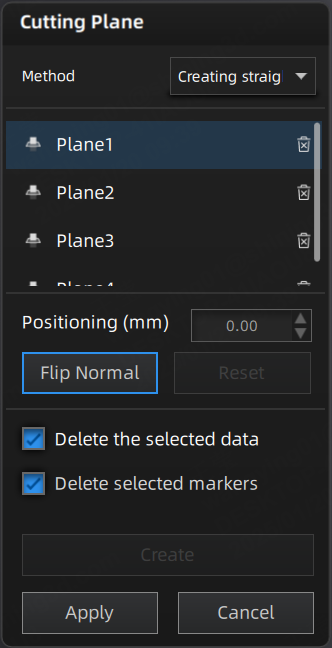 Settings Panel
Col
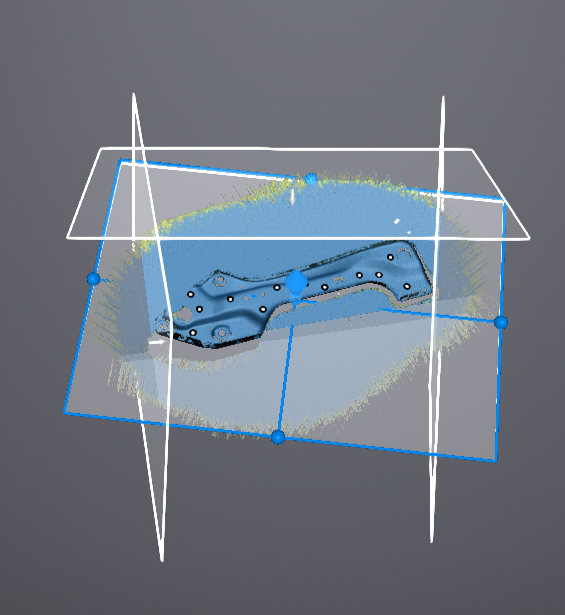 Cutting Plane
| Function | |
|---|---|
| Create Cutting Plane | Click Create to create a new cutting plane; for the creation method, please refer to Creation. Note NoteA maximum of 6 cutting planes can be created within a single project. |
| Cutting Plane List | All cutting planes are displayed in the left settings panel; click the corresponding cutting plane in the list or double-click the cutting plane in the 3D scene to select it. |
| Delete Cutting Plane | In the left settings panel, click  to delete the corresponding cutting plane. to delete the corresponding cutting plane. |
| Delete Selected Data | Check this option and click Apply to delete all data below the cutting plane (displayed as semi-transparent).Note It is not supported to delete all data. |
| Delete Selected Markers | Check this option and click Apply to delete all markers below the cutting plane (displayed as semi-transparent).Note It is not supported to delete all markers; at least 3 markers must be retained. |
| Apply | Apply all edits in the current interface. |
| Cancel | Undo all operations and exit the cutting plane tool interface. |
| Reset | After adjusting the cutting plane's normal or position, click here to reset the adjusted cutting plane back to its original state when created. |
| Flip Normal | Click here to reverse the selection of data to be retained by flipping the cutting plane. |
| Function | |
|---|---|
| Positioning | The cutting plane can be translated in the following two ways:  to translate the cutting plane. to translate the cutting plane. |
| Rotate Plane | The cutting plane can be rotated by dragging the sphere on the cutting plane  , using the opposite axis of the currently selected sphere as the center axis for rotation. , using the opposite axis of the currently selected sphere as the center axis for rotation. |