Scanning
Preview / Start scan / Pause scan
You can switch in these 3 status with the trigger on the scanner, or click the button in the software. The normal order is: Preview (optional) > Scan > Pause.
Note
Col
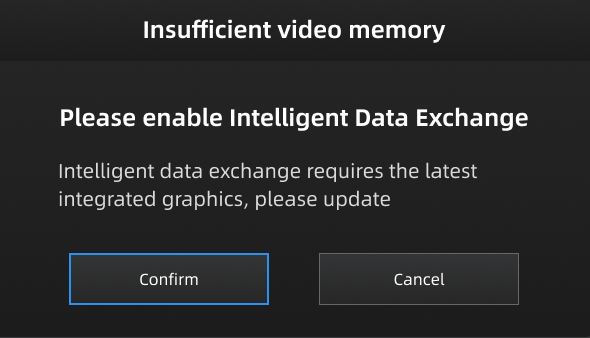
When the performance of the discrete graphics card has reached its limit, you can follow the on-screen prompt to enable Intelligent Data Exchange and switch to the integrated graphics card in order to prevent scanning issues caused by insufficient video memory.
Col
| Function | Icon | |
|---|---|---|
| Preview (optional) |  |
Preview and adjust the scan parameters for better scanning effects. You can open/close the function in  > General Setting. > General Setting. |
| Start Scan |  |
Click to scan. During scanning, keep the scanner parallel to the surface, keep a proper distance from the object, and adjust the brightness depending on the ambient light or texture of the object. |
| Pause Scan |  |
Edit the data or change the view angle after pausing. |
Caution
- Please hold the scanner upright to start to preview / scan.
- When performing a scan, please ensure that there is sufficient VRAM (video random access memory) to prevent any scanning abnormalities or issues.
- When scanning for details or small holes, scan as close as possible to the object.
Generate Data
After completing the scanning, you can edit the data or align the data.