Run the software
If you are using the device for the first time, after logging in and launching the software, it will automatically go to the calibration interface. You need to complete the calibration before using the device properly. Once the calibration is done, the next time you enter the software, it will skip this step and go to the scan mode interface. You can choose the appropriate mode for scanning based on your actual application scenario.
Note
If the software takes a long time to start after running, you can open Windows Security Center > App and Browser Control after closing the software, disable SmartScreen for apps and files, and then restart the software.
Caution
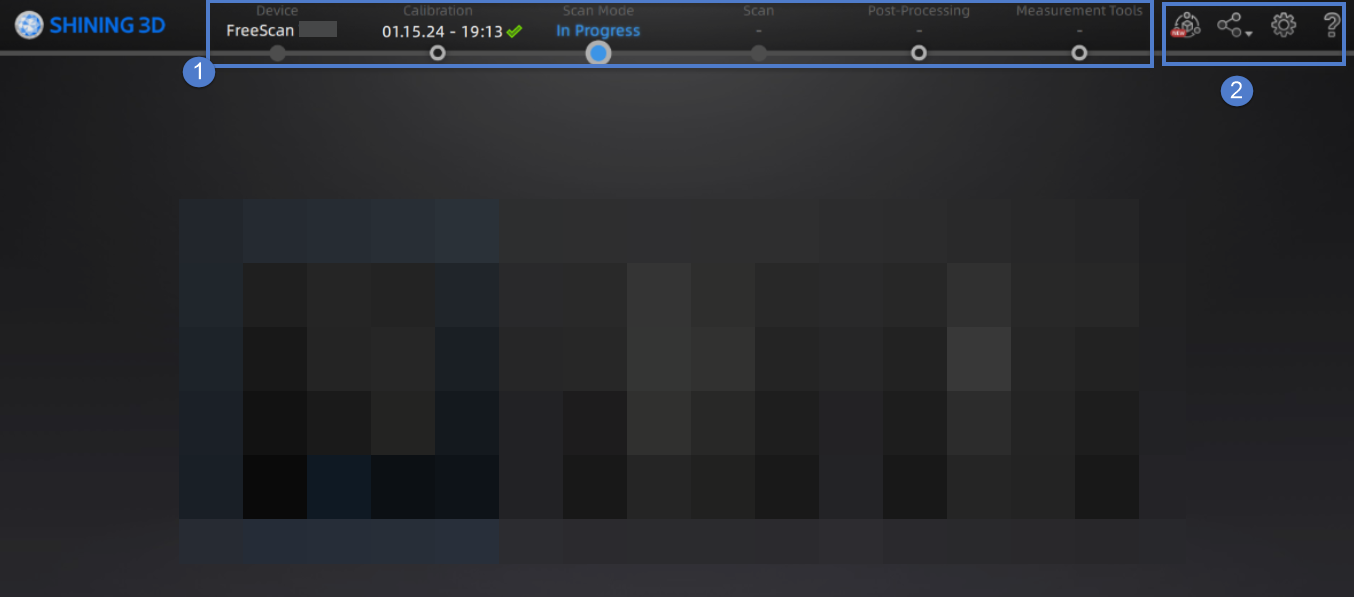
Check the device connection status by  in the upper left corner. If the device is not connected or connected abnormally, check the device connection and then click
  to reconnect the device.
① Navigation bar
| Button | Description |
|---|---|
| Device | To display the device status: online / offline. Device online: to show the device name. Device offline: click to reconnect the device. |
| Calibration | Click  on the corresponding position in the navigation bar to start calibration. on the corresponding position in the navigation bar to start calibration. |
| Scan Mode | Click on the corresponding position in the navigation bar to switch to the scan mode interface. There are different modes you can select. |
| Scan | Click on the corresponding position in the navigation bar to start scanning. |
| Post Processing | Click  after scanning, it will go into the post-process interface. You can do mesh and mesh editing here. after scanning, it will go into the post-process interface. You can do mesh and mesh editing here. You can also click on the corresponding position in the navigation bar to switch to the post-process interface. |
| Measurement | Click on the corresponding position in the navigation bar to switch to the measure interface. You can measure your model here. |
② Settings and feedback
Reverse Engineering Service: By sending us the scanned project files and specific information, we can assist you with reverse engineering.
| Option | Description |
|---|---|
| Official Website | Open the official website of Shining 3D to learn about the company’s products and information. |
| Fackbook | Check the Fackbook account of Shining 3D and get latest information. |
General Settings
- Preview: To preview the scanning effect before scanning when enabled.
- Global Marker Mode:You can select real-time scanning or still photography in scan markers mode. For specific scanning operations, please refer to Scan Markers.
- Shape Detection Optimization: To improve the accuracy of sphere diameter at the cost of some details of the scanned data.
- Scanner Tone: To turn on / off the scanner's beep.
- Accurate Calibration:When enabled, you can switch to accurate calibration in the trak calibration interface.
Laser Scan Settings
- Scanning Distance Indication Method: There are two methods to indicate the scanning distance.
During scanning, you can adjust the scanning distance according to the color indication.
Blue: The scanning distance is too far.
Green: The scanning distance is proper.
Red: The scanning distance is too close.
Col
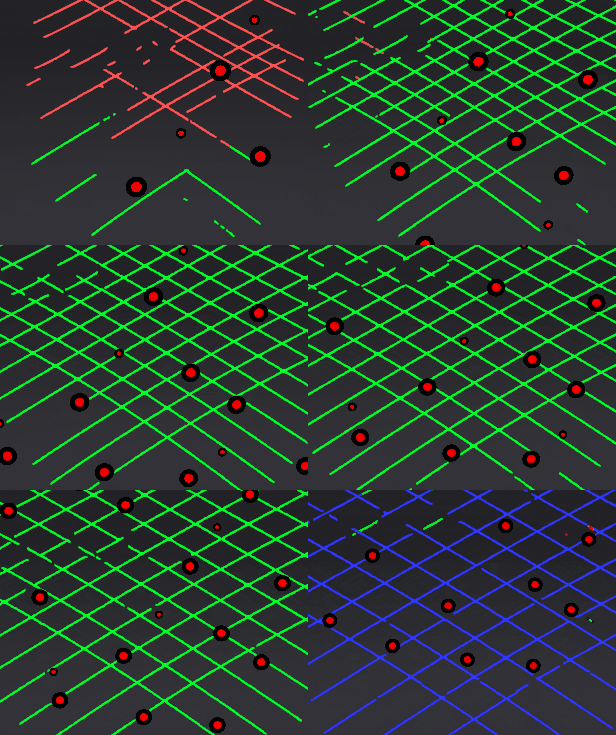 Laser Line Indicator
Col
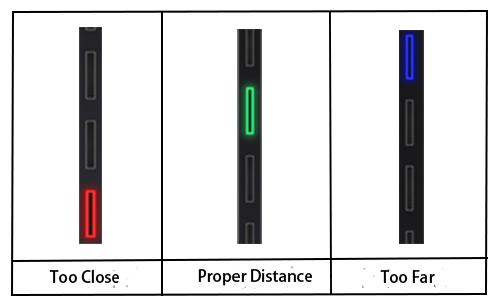 Scanning Distance Indicator
- The Laser Line Closes Intelligently: Not to project laser lines without a recognition of data when enabled.
Probe Setting
Select or switch to a third-party software for using the probe.
Factory Default
Click Recover to restore the software to its factory settings.
- About: To view related scanner information, software version, etc.
- System Diagnose: To check if the computer meets the operating conditions. If all items show
 , it means that the configuration meets the operation requirements. If not, please resolve the problem according to the prompts in the interface. Click Refresh to diagnose the system again.
 - Support: You can open the user manual, get remote assistance and check contact information of technical support here.
-
You can use this mode after purchasing the probe. ↩