Photogrammetry
Note
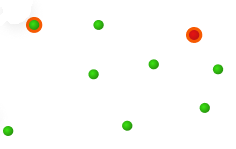
In the Track Mode (real-time scanning), after scanning the global markers, you may notice additional colors outside the global markers.
Col
- If there is an orange color outside the markers, it indicates that the quality of the scanned markers is low.
- If there is no additional color outside the markers, it means that the quality of the scanned markers is normal.
- Markers with an orange color circle may disappear or be displayed abnormally after data processing.
- Once the markers are optimized, the color indication disappears.
- There is no color outside the newly added global markers in the Scan Mesh mode.
Col
Steps
-
Place the calibration bar near the object to be scanned.
-
Select Track Mode > Photogrammetry.
-
(Optional) Click
 on the right of the panel or press the scan button on the device to preview scanning. The user can check the scanning performance and adjust parameters.
 -
Click
 on the right and the tracker starts to scan the markers.
Note
If the calibration bar is placed, only scan the markers on one side of the bar.
-
Change the scanning perspective (move the traker or the scanned object) and click
to start scanning other markers. The software will automatically align the new markers with the former ones. -
Click
 to stop scanning.
 -
Click
 to optimize the markers.
Note
After optimization, recognized markers on one side of the bar will disappear.
-
After finishing global markers scanning, click
 to save data, or you can choose Scan Mesh to continue.
Note
After completing the scan, you can remove the calibration bar and then switch to the Scan Mesh mode to scan mesh data.
Caution
The global markers of imported files can not be optimized by the calibration bar.