Project Settings
After calibration, please create a project group before scanning, or you can import the existing project group file.
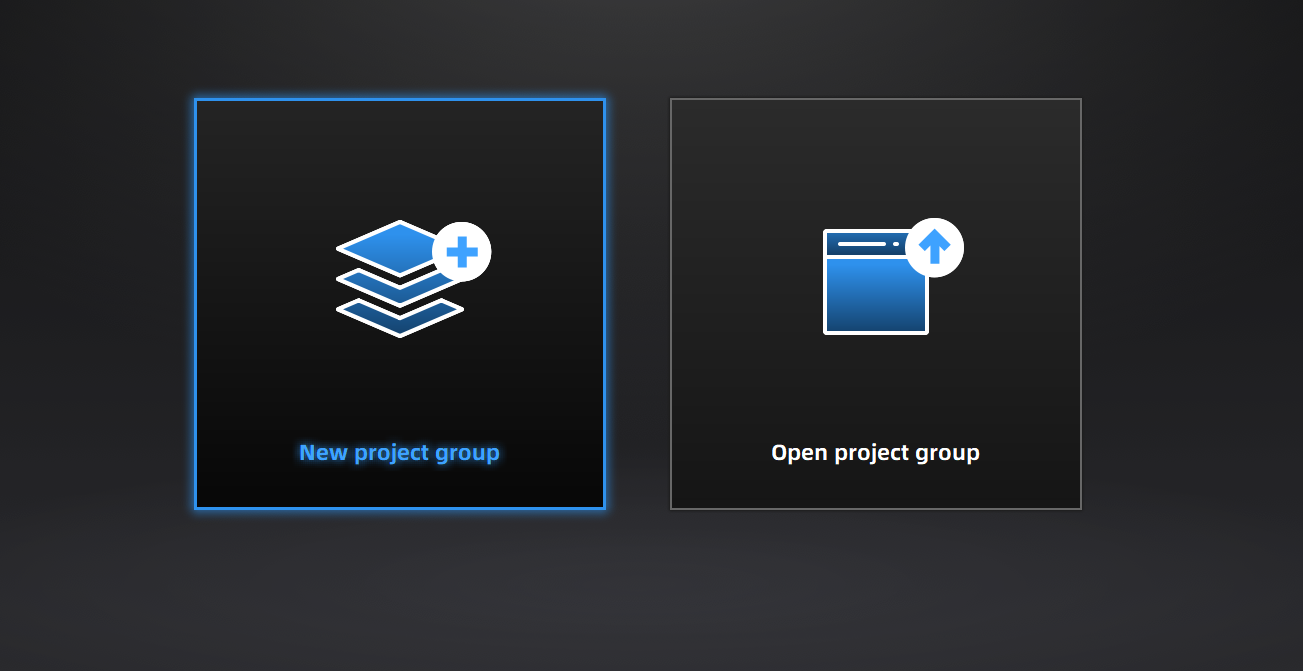
Create a Project Group
To create a project group, please refer to two ways as follows:
-
After selecting the scan mode, the project group interface will automatically appear. At this point, select New project group. In the file dialog that appears, enter the name and path for the project group, then click New. All data related to this project group will be saved to the specified path.
-
In the scan interface, click
 in the right sidebar. In the pop-up window, click New project group. The following steps are the same as mentioned above.
Open a Project Group
To open a project group, please refer to two ways as follows:
-
After selecting the scan mode, the project group interface will automatically appear. At this point, select Open project group. In the file dialog that appears, choose the specified project group or search for it, then click Open.
-
In the scan interface, click
in the right sidebar. In the pop-up window, click Open project group. The following steps are the same as mentioned above.
Note
- The current project group (if there is) will be saved automatically when you choose to open anther project group.
- If you need to perform additional scans on imported project, please use the same device that scanned the data of the imported project.
Project Management
Col
You can create, import, remove or delete projects in one project group.
In the scan interface, click Project Group in the upper left and you will see the panel.
Col

| Icon | Function | |
|---|---|---|
 |
Create a new porject | Click to create a new project. |
 |
Open a project | Click to import a project. You can right-click one in the list to rename it. |
 |
Remove a project | Click to remove the project from the list, which still exists in the folder and you can add it in the list by opening it. |
 |
Delete a project | Click to delete the project, which can not be recovered. |
 / / |
Visible / Invisible | Click to show / hide the data or markers. |