Scan Global Markers
Scanning global markers refers to the collection the markers. By collecting such markers, the markers data of an object can be quickly obtained.
Trak Mode
- Select Trak Mode (still photography) > Scan Markers.
- (Optional) Click
 on the right sidebar or press the scan button on the scanner to preview scanning.
 -
Click
 on the right sidebar or press the scan button on the scanner to start scanning.
 -
Change the scanning perspective (move the traker or the scanned object) and click
to scan other markers. The software will automatically align the new markers with the former ones. - Click
 on the right sidebar to optimize the markers.
 - Click
 to save data, or choose Scan Mesh to continue.
Laser Mode
- Select Laser Mode > Scan Markers.
- (Optional) Click on the right sidebar or press the scan button on the scanner to preview scanning.
- Click on the right sidebar or press the scan button on the scanner to start scanning.
- After scanning, click
 to stop scan.
 - Click on the right sidebar to optimize the markers.
- Click to save data, or choose Scan Mesh to continue.
Note
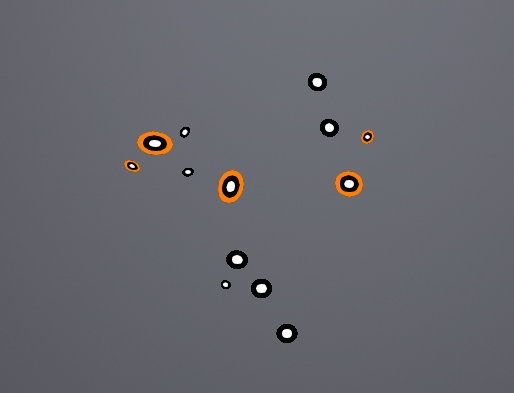
In Laser Mode, after obtaining the global markers, you may notice additional colors outside the global markers.
Col
- If there is an orange circle outside the markers, it indicates that the quality of the scanned markers is low.
- If there are no additional colors outside the markers, it means that the quality of the scanned markers is normal.
- Markers with an orange circle may disappear or be displayed abnormally after data processing.
- Once the markers are optimized, the color indication disappears.
- There is no color outside the newly added global markers in Scan Mesh.
Col