Hybrid Leapfrog
When there are fewer markers in the scanning scene, it is recommended that you use the hybrid leapfrog scanning method. This mode uses dual alignment technology (markers alignment and mesh alignment), allowing you to flexibly scan. The software is equipped with intelligent guidance to make scanning more efficient.
Requirements
- Mode Requirement: This feature can only be enabled in Trak Mode.
- Device Requirement: Only supports scanning with TE Nova.
- Scanning Modes: Supports Scan Mesh and Scan Global Markers (Scanner) modes.
- Editing Status: Cannot be enabled during data editing.
- Marker Point Requirements: Supports 6 mm and 12 mm markers.
- Scanning Status:
- Cannot be enabled during pre-scanning and scanning.
- Can be enabled when scanning is paused (in Scan Mesh mode).
- Data Status:
- Can be enabled with or without existing mesh data; but cannot be enabled when there are only markers.
- Can be enabled before or after data mesh.
Steps
-
In Trak Mode > TE Nova, enable the hybrid leapfrog mode.
Note
- After enabling hybrid leapfrog, it defaults to Scan Mesh mode.
- After enabling hybrid leapfrog, a new project will be automatically created with the name:
Original Project Name_s1. When moving to the next leap, a new project will be created with names:Original Project Name_s2,Original Project Name_s3, etc.
-
Click
 on the right side or press the scan button on the scanner to use Scan Mesh mode for scanning.
Note
- During scanning and when paused, you can adjust the scanning object mode and scanning brightness based on the scanning results. For more scanning settings, please refer to Settings.
- During scanning, only the data from the current leap supports Data Quality Indicator. Based on the indication, you can further scan insufficiently scanned areas (yellow areas) until the data turns blue.
-
Press the TE Nova middle button twice or click Scan Global Markers (Scanner) mode on the interface to switch to Scan Global Markers (Scanner) mode, then click
on the right side or press the scan button on the scanner to start scanning markers.Note
- For more information about scan buttons, please refer to Device Appearance.
- Imported global markers cannot be used for alignment in Hybrid Leapfrog mode.
- For the first leap scanning, both mesh scanning and markers scanning must be completed, otherwise you cannot proceed to the next leap.
- After completing each leap, it is recommended that you pause scanning to review the results and edit data. Returning to previous leaps to supplement markers or mesh data is not supported.
-
Move the tracker (optional), and long press the TE Nova middle button to proceed to the next leap.
Note
Each project only supports one resolution, but different projects can have different resolutions.
-
Use Scan Global Markers (Scanner) mode again to scan markers. When the current leap successfully aligned with the previous leap's markers, scanning will automatically pause and the software interface will display "Aligned".
Note
In the overlapping area between the current scanning leap and the next scanning leap, at least 4 markers need to be scanned for aligning data between leaps.
-
Press the TE Nova middle button twice or click Scan Mesh mode on the interface to switch to Scan Mesh mode for scanning.
-
Repeat steps 4-6 for scanning until completion.
Note
For subsequent leap scanning, markers must be scanned first, followed by mesh data. If markers between two leaps are not successfully aligned, mesh scanning for the next leap cannot proceed.
Col
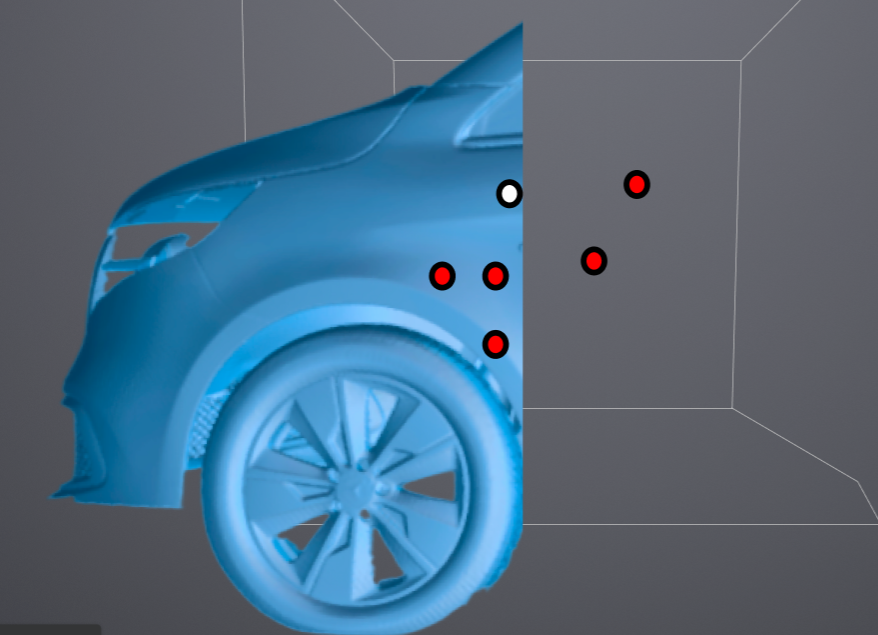
First Leap Scanning
Col
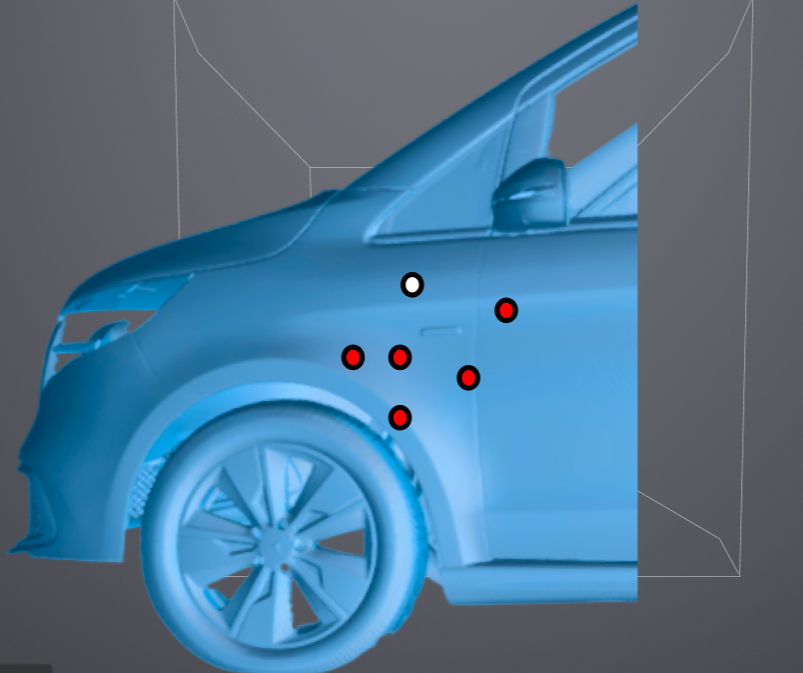
Second Leap Scanning
Col
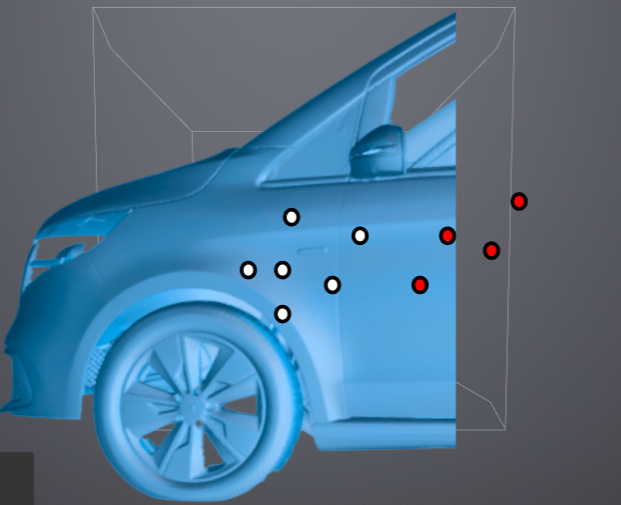
Third Leap Scanning
-
Pause scanning and edit the scanned data.
- Click Exit to quit Hybrid Leapfrog mode.
- Click
 for mesh processing. The software will automatically align all scanned data in Hybrid Leapfrog mode and optimize the data.