Data modification
In the scanning interface, click  on the right panel and edit the scanned data.
On the bottom panel

| Icon | Name | Description |
|---|---|---|
 |
Selected Through | To select the back-facing area when enabled, that is, both the visible data from your viewport and the back-facing data are selected. If disabled, the back-facing data will be ignored.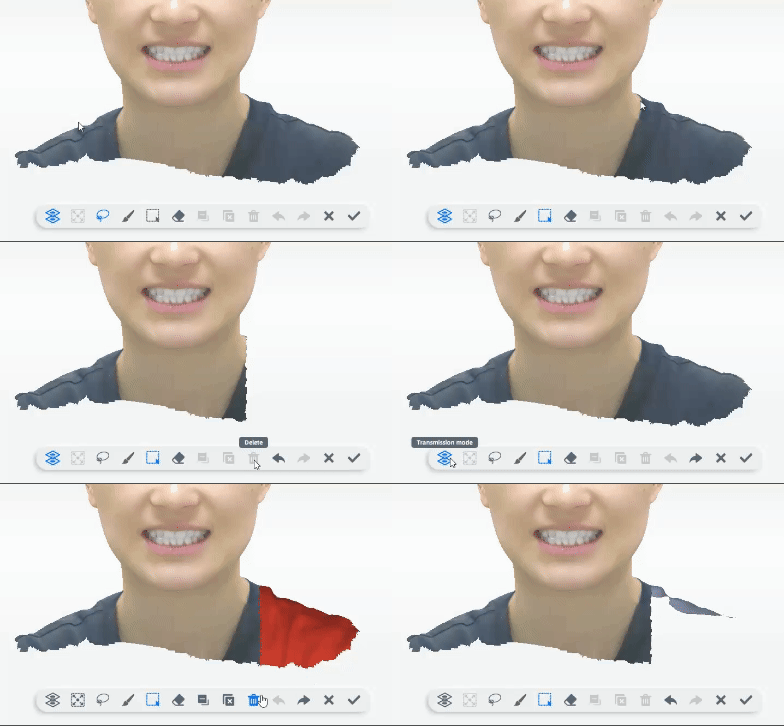 |
 |
Connected | To select all connected areas of the chosen part when enabled. |
 |
Free Selection | To select areas at will, which will then turn red. |
 |
Brush | To use a brush. Upon clicking the brush tool, a blue circle will appear on your cursor. Click and drag on the model to paint a red area. To adjust the circle size, long press Shift and scroll the mouse wheel. |
 |
Rectangle Selection | To draw a rectangular area, which will then turn red. |
 |
Erase | Change the mark function of the above selection tools to the erase function to erase the red mark on the scanned model. |
 |
Reverse Selection | To invert the selected area. |
 |
Cancel Selection | To clear the red. |
 |
Delete | To delete selected areas. You can delete the data with Selected Through and Connected enabled. |
 |
Undo | To undo the last operation. You can repeat the action. |
 |
Redo | To redo the last operation. You can repeat the action. |
 |
Cancel | To quit the editing without saving the data. |
 |
Confirm | To quit the editing and save the data. |
 |
Rotate | Used in touch screen. Other functions are unavailable when you rotate the model. |
On the right panel
| Icon | Name | Description |
|---|---|---|
 |
Remove Isolated Data | To delete small and isolated data. |
 |
Brightness | To adjust texture brightness. |
 |
Import Intraoral Model | To import intraoral scanned data. If there is already a model, the data will cover it |
 |
Texture | To show a colorful model.(Enabled by default) |
 |
Perspective | To make the model appear larger when closer and smaller when farther away. (Enabled by default) |
 |
View Lock | To fix the view during scanning. |
 |
High Quality | To remain more details during scanning. |
 |
Inversion | To conduct a mirror transformation of the scanned data. |
 |
Data Quality Indicator | Click to show the image quality by different colors. White means a poor quality. |
 |
Scan Beard | Disabled by default. When you scan a face wearing a moustache and a beard, you can enable this function, which can improve the scanning quality. Do not enable the function when scanning a face with no moustache or beard lest data abnormalities occur. |