Visualization of mandible movement trajectory
The visualization feature offers versatile playback options for virtual jaw movements, including variable speed, looping, and frame-by-frame viewing. It captures the tracks of the condyle and incisal point across horizontal, midsagittal, and coronal planes. Additionally, it can generate comprehensive track analysis reports, which can be exported as PDF files.
In the pre-design interface, click  to enter the interface.
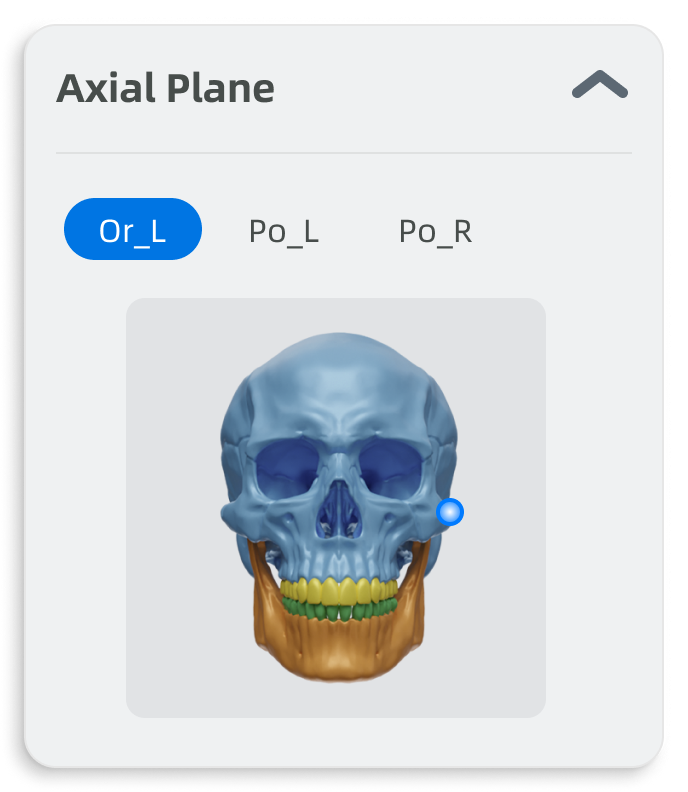
Determine the horizontal plane using three facial feature points (Or_L, Po_L, and Po_R).
Steps
-
Click on a facial feature points within the horizontal plane dialog (as shown above), and following the instruction on the interface, locate the corresponding facial feature point on the DICOM data and double-click to add the point.
Col
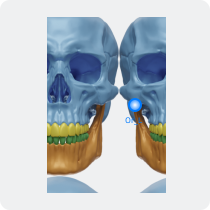
Or_L: Lower point of left orbital ear planeCol
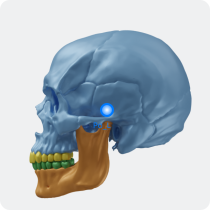
Po_L: Upper border point of the left external auditory canalCol
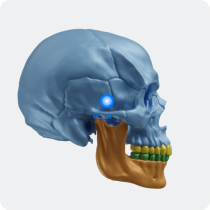
Po_R: Upper border point of the right external auditory canal -
After adding, you can drag the points to adjust their positions.
- Repeat the above steps to add the remaining points.
- Once all points are added, the software generates the horizontal plane of the DICOM data based on the point positions.
- Click
 to confirm the plane. To reselect points, click
  .
.
Steps
-
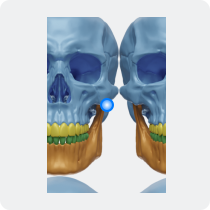
According to the diagram, locate the corresponding facial feature point position on the DICOM data and double-click to add the point.
-
After adding a point, the software generates the median sagittal plane of DICOM data based on the point position.
-
Click
to confirm the plane。To reselect points, click .
The coronal plane will be automatically generated based on the positions of the horizontal plane and median sagittal plane.
Click to confirm the plane and navigate to the Trajectory Play interface.
Caution
After resetting the horizontal plane or median sagittal plane, the coronal plane needs to be reconfirmed.
Note
- After the plane is generated, you can still drag to adjust the points, and the plane will update accordingly.
- To tilt the plane: move the cursor to the edge of the plane, when the arrow icon appears, press and hold while sliding up or down to adjust the tilt angle of the plane.
- To move the plane: move the cursor inside the plane, press and hold to drag up or down to move the plane vertically.
Here you can perform track playback and view the curves of condylar point and incisal point projected on sagittal plane, coronal plane and horizontal plane in real time.
Interface
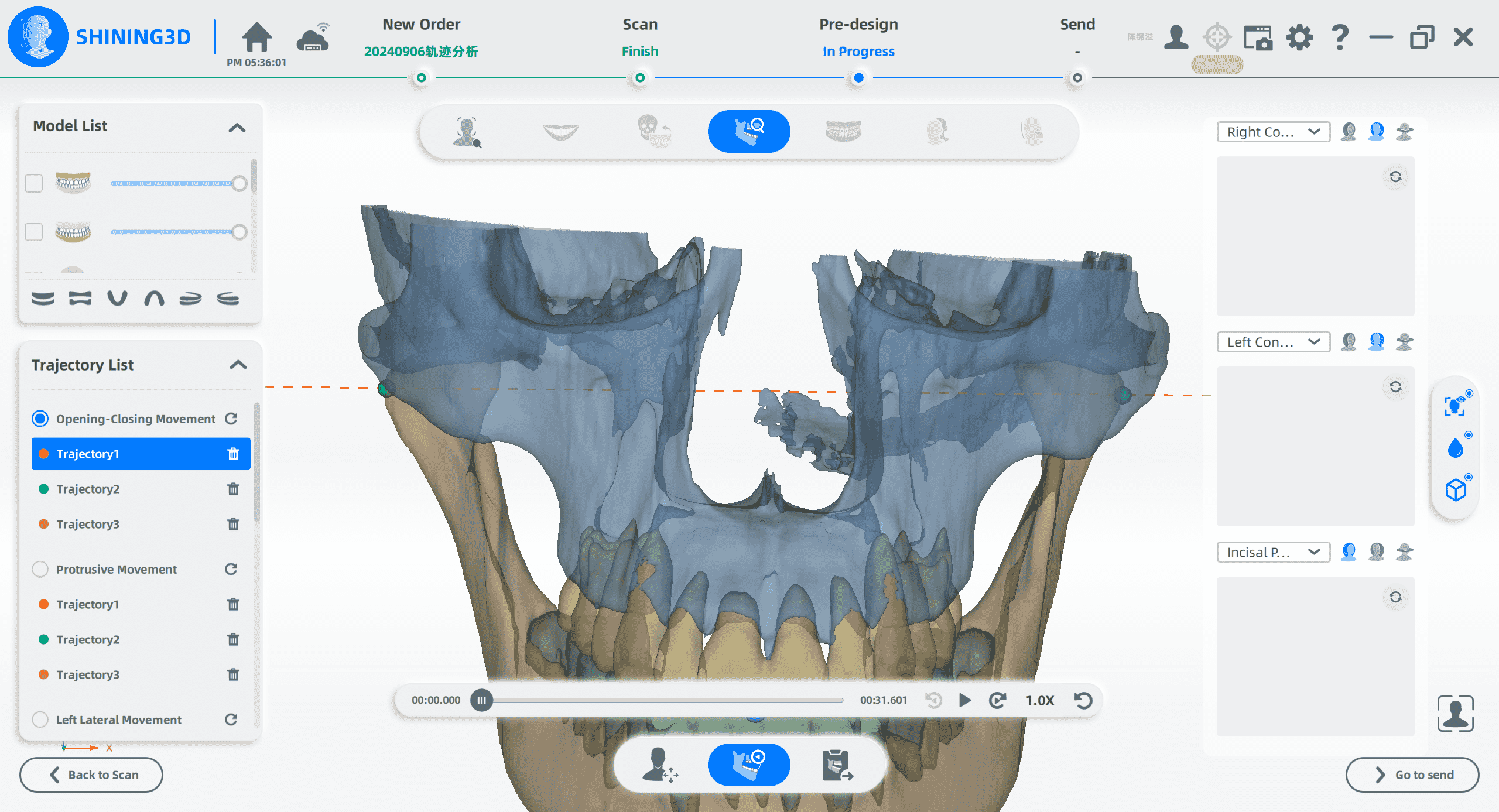
Trajectory list
You can select a specific movement type, with the first track selected by default. Click  to start playback from the current track until the end of the last track.
Trajectory playback
The progress bar contains the progress of all tracks. Click a track in the track list, the progress bar will jump to the position where the corresponding track starts to play.
Curves
As the mandibular movement plays, it draws the curves of the condylar point and incisal point projected onto different planes in real-time.
- Coronal plane:

- Median sagittal plane:

- Horizontal plane:

The following are the default planes for curves of the condylar point and incisal point under different movement types:
| Type | Left condylar point | Right condylar point | Incisal point |
|---|---|---|---|
| Opening-Closing Movement | Median sagittal plane | Median sagittal plane | Coronal plane |
| Protrusive Movement | Median sagittal plane | Median sagittal plane | Median sagittal plane |
| Left lateral Movement | Median sagittal plane | Median sagittal plane | Coronal plane |
| Right lateral Movement | Median sagittal plane | Median sagittal plane | Coronal plane |
| Chewing Movement | Median sagittal plane | Median sagittal plane | Coronal plane |
| Posselt Movement | Median sagittal plane | Median sagittal plane | Coronal plane |
Related operations
| Icon | Description |
|---|---|
 |
Previous frame |
|
Play |
 |
Next frame |
| 1X ▲ | Select playback speed |
 |
Replay |
Click  to preview report.
Click  to save the report in PDF format to local storage.