Order creation
Create different kinds of orders according to the scanning cases (Aesthetics, Maxillofacial or Orthodontics). Please create a new order to better communicate with the patient.
Click  and enter the interface of creating orders.
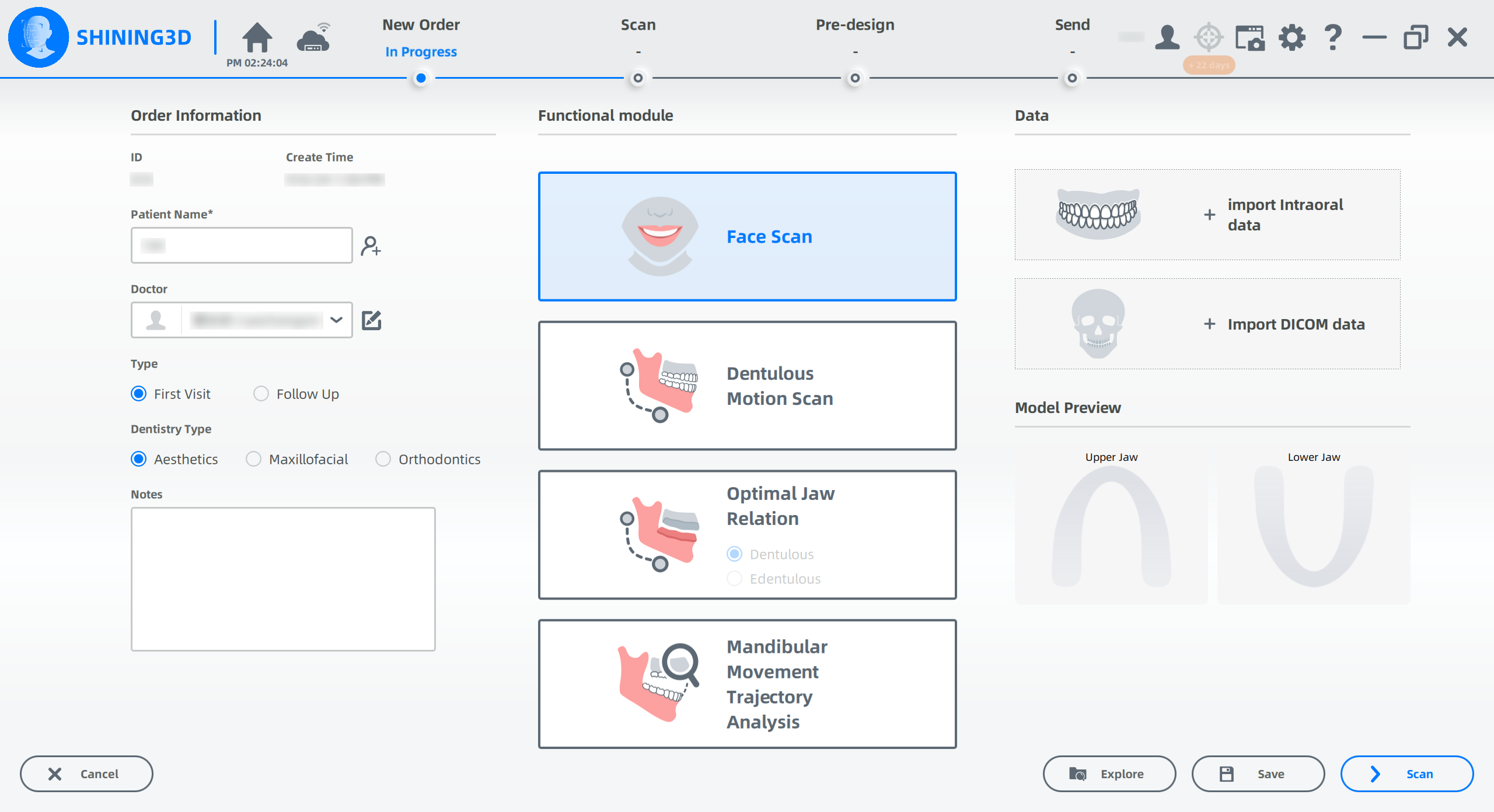
Steps
-
Input related information.
- Click
 and fill in the patient information.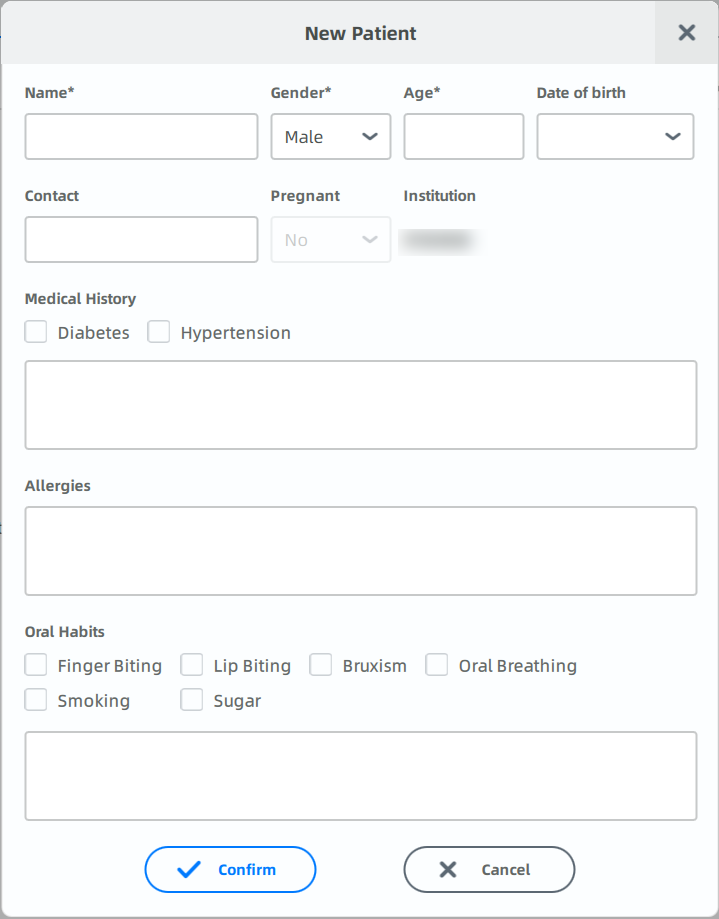
- Click
 to enter the doctor's name, phone number or email address, then click
  .
. -
Choose the types of the visit: First Visit or Follow Up.
Note
If you have a follow up visit, fill in the patient's name directly.
-
Choose the dentistry type: Aesthetics, Maxillofacial or Orthodontics.
Dentistry Type Description Aesthetics Scan the patient's face and check aesthetic restoration points to improve the appearance of teeth, gingiva and/or occlusion by adding oral aesthetic design during dental restoration. Maxillofacial Scan the patient's face to better design follow-up treatment for maxillofacial surgery. Orthodontics Scan the patient's face and straighten the teeth.
- Click
-
Select Face Scan, Dentulous Motion Scan, Optimal Jaw Relation or Mandibular Movement Trajectory Analysis.
-
Import intraoral data of the patient's upper jaw and lower jaw.
-
Click Importing Upper Jaw Data and Importing Lower Jaw Data or click Please import intraoral project files and choose corresponding files.
-
Click Open and import the data.
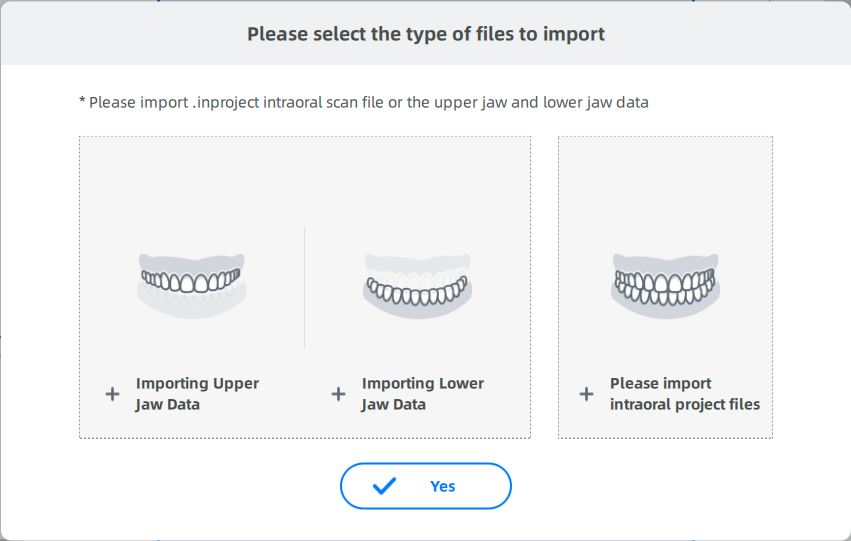
-
After importing, you can preview the model. It supports click-and-drag rotation, holding the left and right mouse buttons to pan, and scrolling the mouse wheel to zoom the model.
Click to reset to the default view.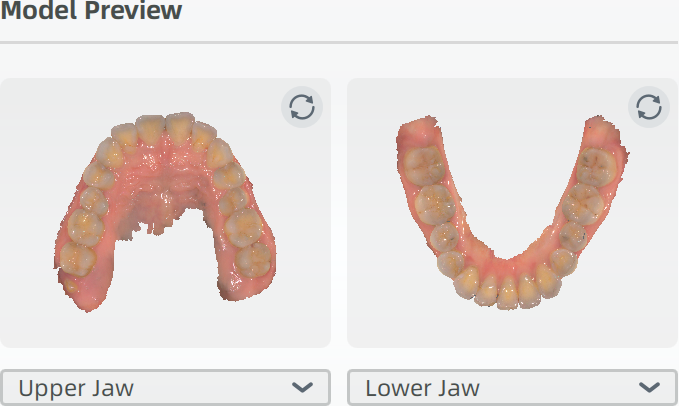
-
If there are multiple upper or lower jaw models, you can switch the displayed model using the dropdown list.
-
In Optimal Jaw Relationship, you need to select Dentulous or Edentulous according to the actual situation.
Note
If intraoral data is not imported when the order is created, you can import it during scanning.
-
-
Import the DICOM data according to the patient's condition.
Note
- If you select the Mandibular Movement Trajectory Analysis,the DICOM data must be imported.
- If the DICOM data is not imported initially, you can import it later when aligning it with the intraoral model.
-
Subsequent operations.
Operation Description Scan Click to scan. Save Save the created order for subsequent scanning. Explore Open the folder where the order is located.