Smile face scanning
Note
When you enter the interface, it will prompt you to take off the glasses, tie up hair and keep a toothy (6-8 teeth) smile.
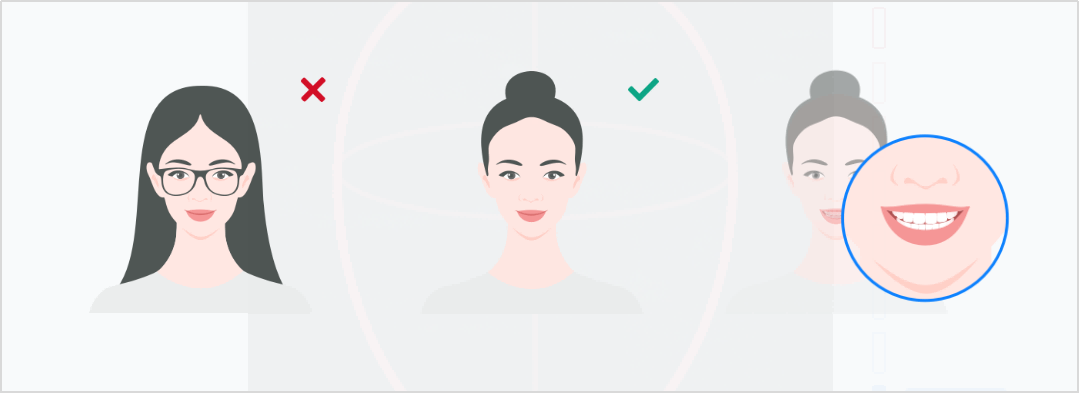
Steps
-
Adjust the distance between the face and the camera.
- Facial recognition: center the face in the camera and the face detection box will be green.
- Appropriate distance: adjust the distance between the face and camera untill the vertical indicator shows Suitable.
Note
When you launch the software and start the first scanning, adjust the face to a proper position and the software will modify the parameters automatically.
Correct Wrong 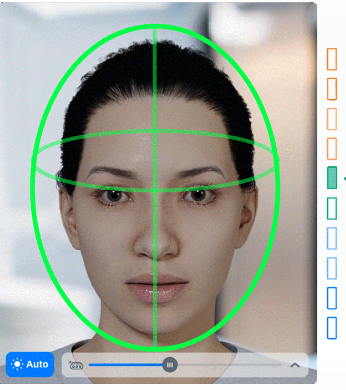
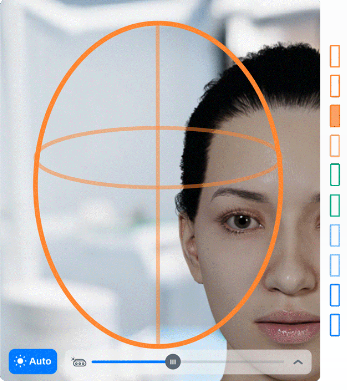
-
Choose
 Handheld Mode or
  Fixed Mode on the lower left.
Note
The scanner operates in fixed mode by default, mirroring the scanned face.
-
Fixed Mode: Place the scanner on a stable surface, ensuring the lens is aligned with the patient's face. Instruct the patient to slowly and steadily rotate their head from side to side and up to down.
-
Handheld Mode: The doctors hold the scanner to scan the patient's face across at a constant speed.
-
-
Hold the position, and the scanning will automatically start after a 3 seconds countdown. To manually start scanning, click
 or use Space.
Icon Description To start scanning. 
To delete the data and re-scan the face. -
Click
 to finish scanning and save the data.
Face alignment
Note
Click  on the right panel to import the intraoral data if you do not import it when creating the order.
After smile face scanning, you can choose to align the face data with the intraoral data automatically or manually.
Click  to align the data automatically.
-
Click
 to align the data manually.
 -
Double-click to add 3 corresponding markers on the teeth in both the left and right windows.
Caution
These markers should be placed in the interproximal spaces and should not lie on a single straight line.
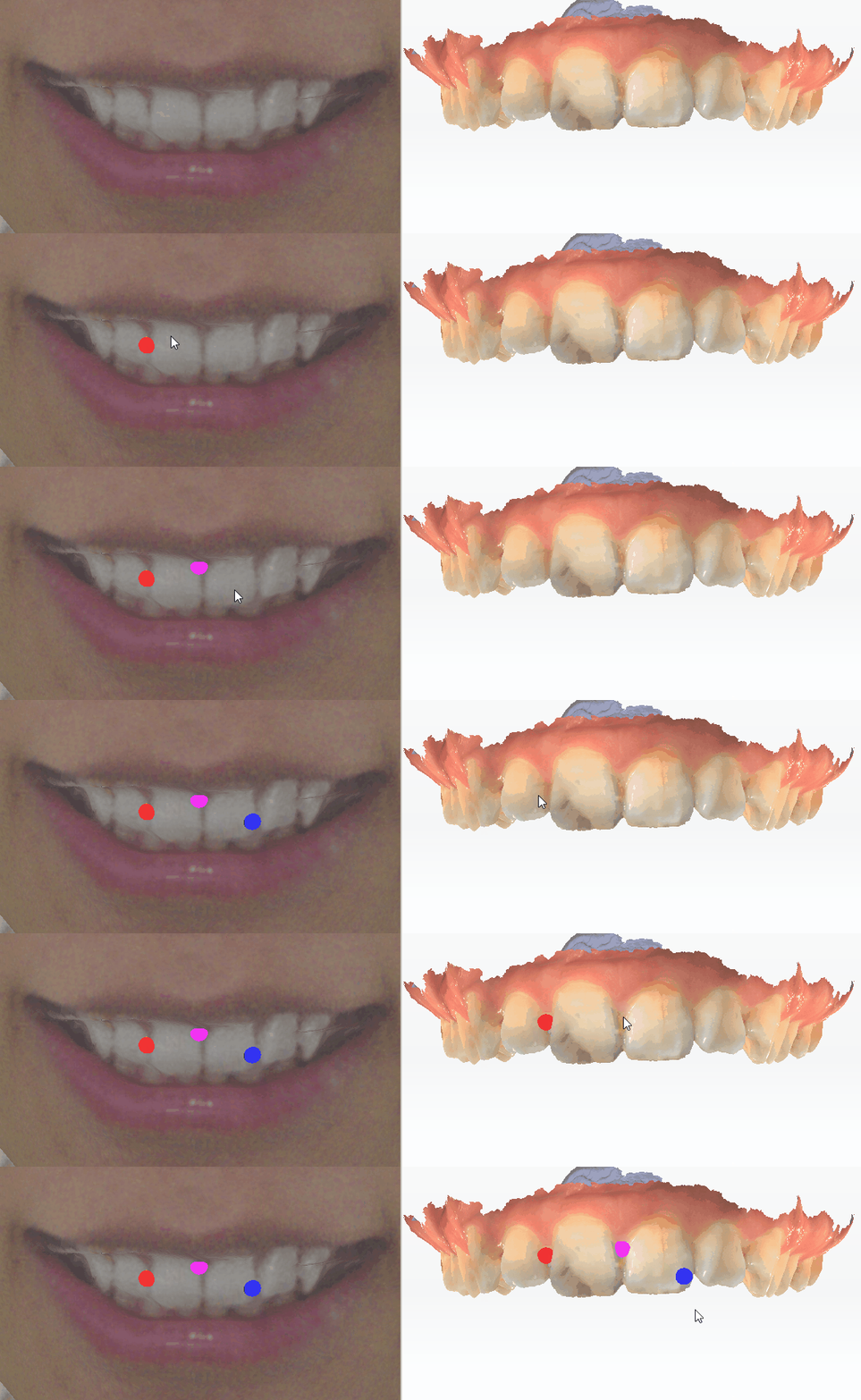
-
Click
 to align the data.
Icon Name Description 
Delete To delete all markers. Manual Align To quit manual alignment.
After completing the alignment, you can check the alignment effect through the color bar value, or reset the alignment.
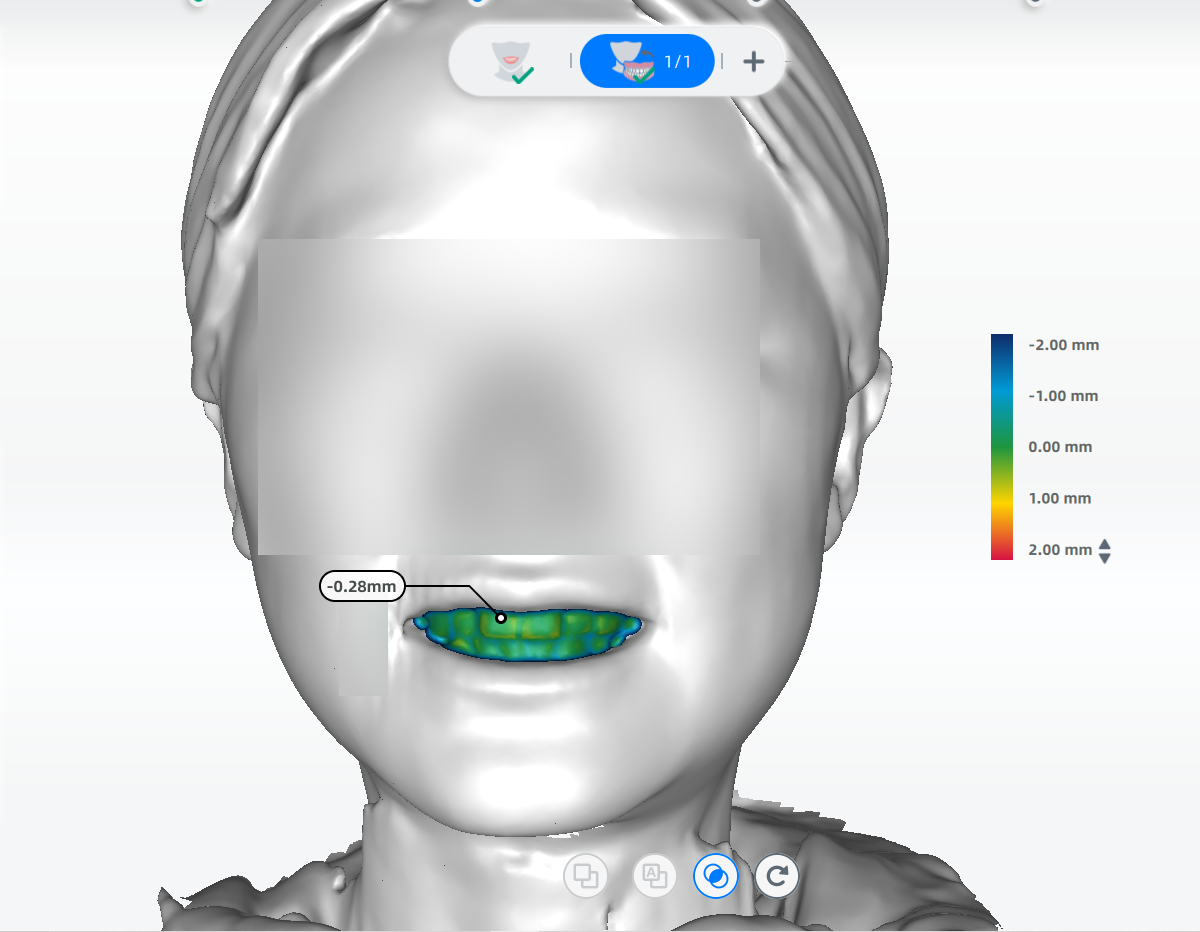
| Icon | Name | Description |
|---|---|---|
 |
Heat Map |
|
|
Reset Align | To delete the aligned model and align the data manually. |
 or double click on a label to delete it.
After scanning, click Go to Pre-design and edit the scanned data. You can also send the order to Dental Cloud. See more details in Data Processing.