Bite Detection
Check if it is a normal occlusion and adjust it. Adjust and view the occlusal gap between the upper and lower jaws.
Click  under the "Pre-design" process to enter the occlusion detection interface.
You can check the collusion depth with color indications and the specific value.
Col
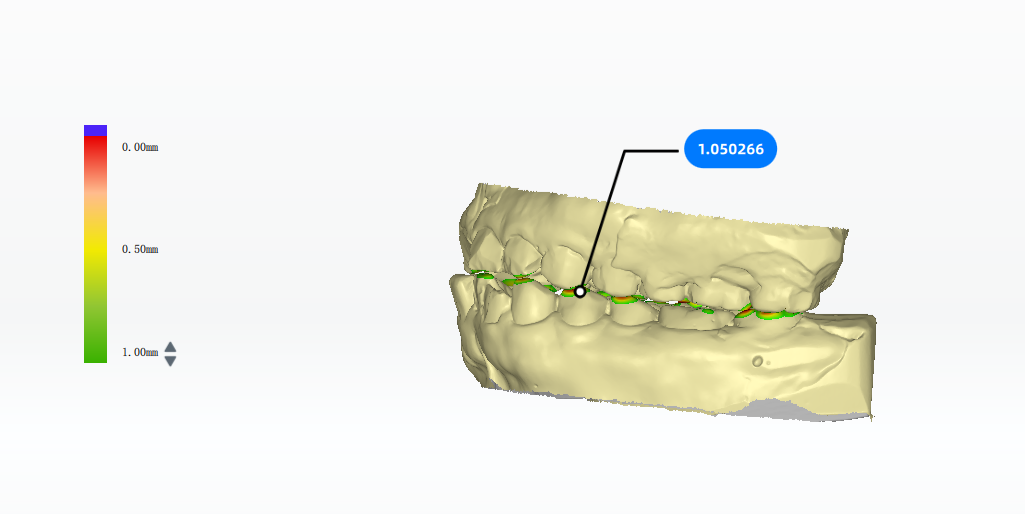
Close
Col
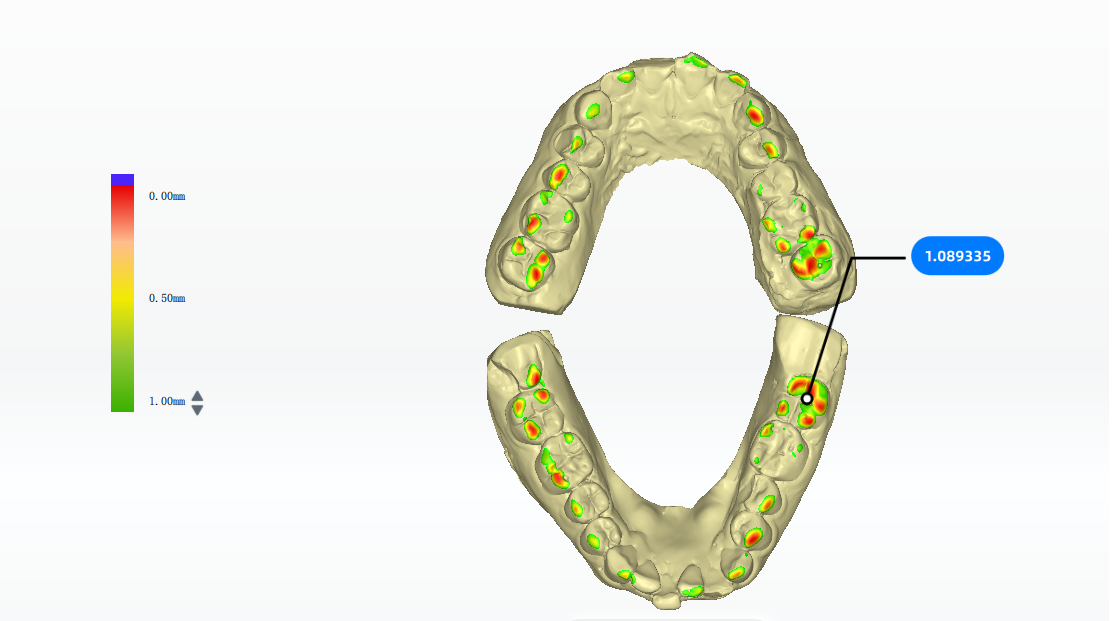 Open
Open
- Color indication: The model is colored to indicate the collision depth. A color bar displayed in the bottom left corner shows the range of the collision depth. Click the arrow on the color bar to adjust the range of depth displayed on the model.
| Color | |
|---|---|
| Green | The gap |
| Red | The touching area |
| Blue | The bite-through area |
- Specific value: Move the cursor to the colored areas and double click. Then a label is displayed to show the specific value of collusion depth on this point.
| Operation | Description |
|---|---|
| Exchange pre-op and post-op data | Click the icons in the right left corner. |
| Open / Close | Click  / /  |
| Calculate | Click  to calculate the bite amount. Move the cursor to the calculated area to check the value. to calculate the bite amount. Move the cursor to the calculated area to check the value. |
| Reset | Click  to reset the adjusted value to the initial value. to reset the adjusted value to the initial value. |
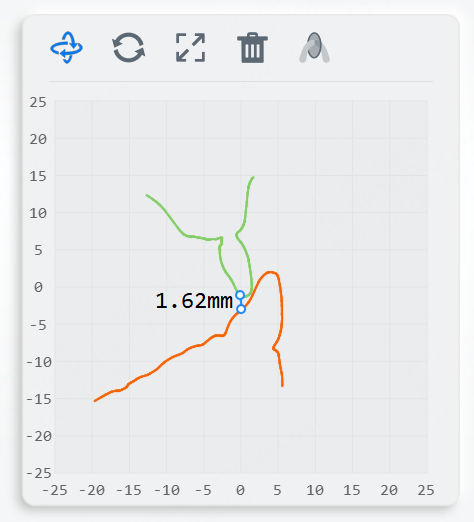
Click  to enter the section mode, from which the occlusion status can be easily checked (the positions of teeth in upper jaw and lower jaw). A plane will be generated and the 2D window in the lower left corner shows the corresponding intersecting parts between the plane and the model.
Note
- The generated plane is perpendicular to the arch line by default and can be moved along with the arch line. If you want a plane that can be moved freely, please enable
 Free Section Mode.
 - The arch line will be extracted automatically when using Section Mode. If the arch line can not be extracted, it will enable free section mode instead.
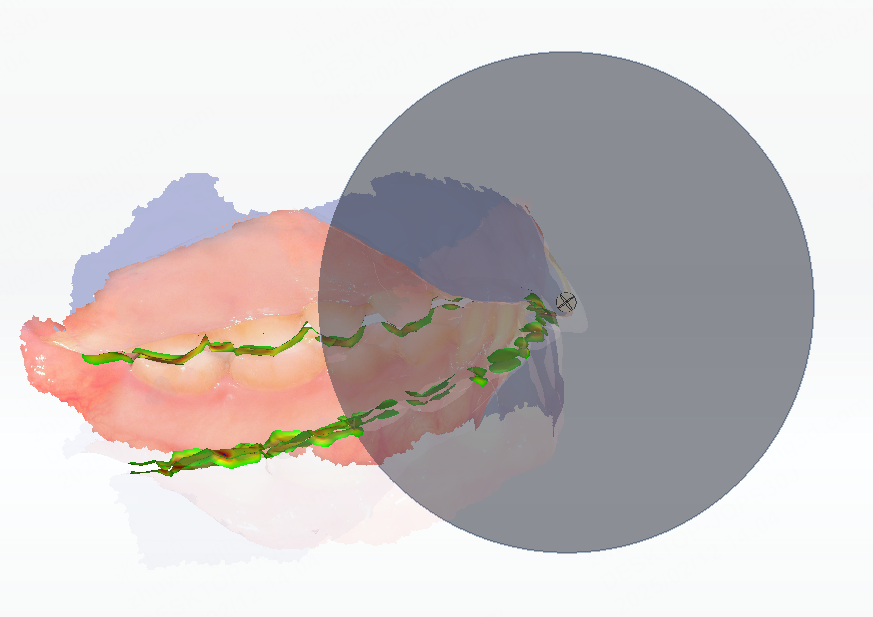
| Plane operation | Description |
|---|---|
| Move the plane | Press the pink ball on the middle of the plane and move the cursor. |
| Rotate the plane | Press any point of the plane (except the pink ball) and move the cursor. |
| 2D Window operation | Description |
|---|---|
| Vertical to dental arch | Click  to show the dental arch on the model. When moving the plane, it will be vertical to the dental arch. to show the dental arch on the model. When moving the plane, it will be vertical to the dental arch. |
| Reset | Click  to reset the plane to the original state. to reset the plane to the original state. |
| Zoom in/out |  to zoom in the 2D window. to zoom in the 2D window. |
| Delete | Click  to delete all points on the 2D window. to delete all points on the 2D window. |
| Free section mode | to enter the free section mode. |
| Measurement |