Create Order
Create different kinds of orders according to the scanning results. Orders will show the types of patients, tooth place and scanning process.
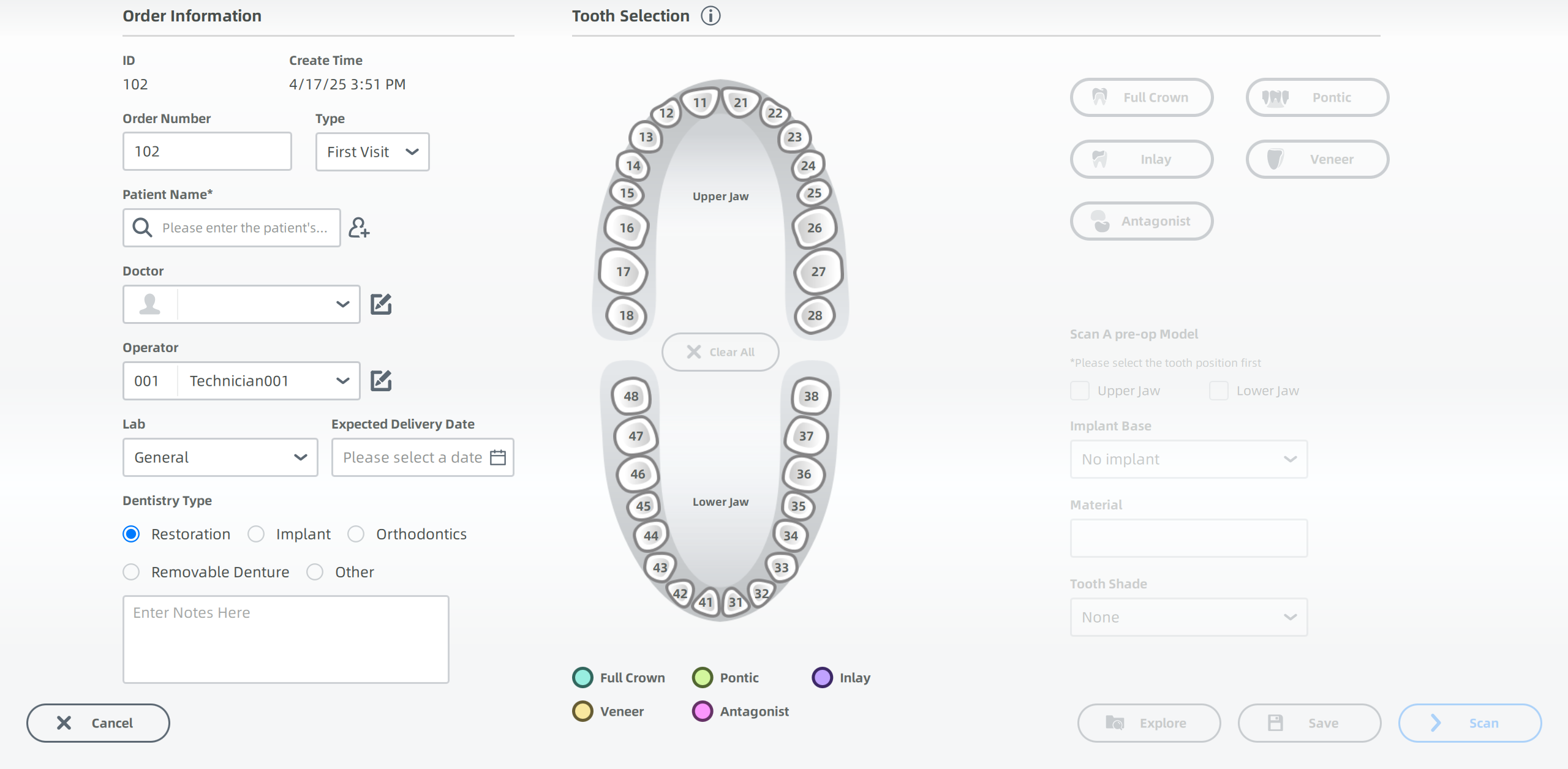
Order information
Click  to enter order information.
If the scanner is in the standby mode or the sleeping mode, you can press the button on the scanner and wake it up for preparation. More details about the standby mode or the sleeping mode, please refer to Standby mode and sleeping mode.
-
Add/Select a patient.
- You can add a new patient by entering the name, gender and age.
- You can search a patient that has been added by entering the name.
- Click Expand details to add more information.
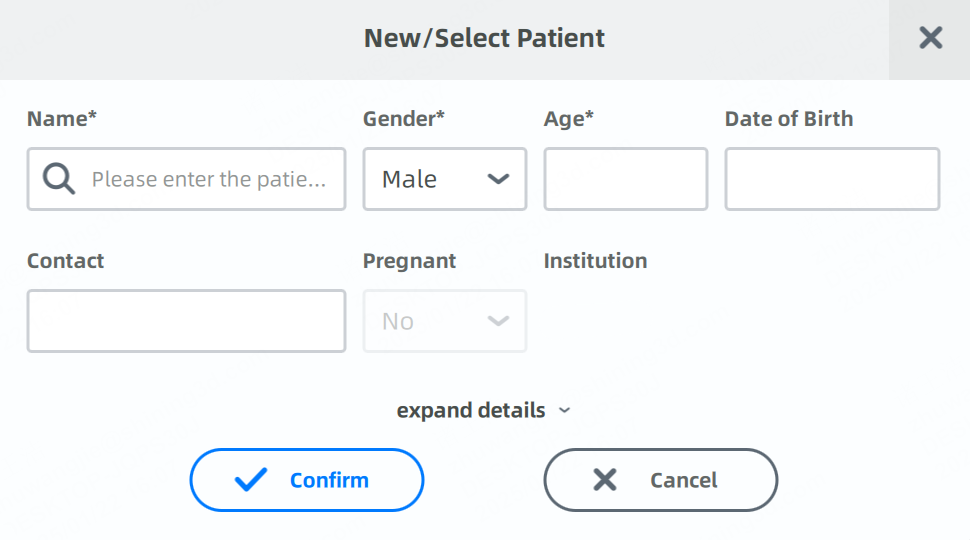
- You can click
 to edit patient's information.
-
Enter the doctor's name to search the doctor. Or click
to add a new doctor: enter the doctor's name (and email or phone if needed) in the Doctor Configuration interface and click  to add the new doctor.
 -
(Optional) Select the expected delivery date of the order.
-
Select a dentistry type:
- Restoration: Replace or restore your missing parts of your tooth structure. The treatment types include Full Crown, Pontic, Inlay, Veneer and Antagonist, and the dentist will choose the proper types according to the situation.
- Implant: Replace damaged or missing teeth with artificial teeth. Implant treatment types include Full Crown, Bridge, Upper, Lower and Full, and the dentist will choose the proper types according to the situation.
-
Orthodontics: Deal with irregularities of the teeth and their correction. Treatment types include Fixed Ortho, Mobile Ortho and Invisible Ortho.
-
Removable denture: Check the bite relationships of edentulous patients. The types of removable denture orders can be Full denture, Partial removable denture or Antagonist. The Bite Record Type can be natural occlusion, bite tray, old denture or copy denture (scanned extraorally).
-
Other: Receive other dental examinations and treatments including Oral Exam, Caries Filling, Oral RCT and Period DontTm.
-
Check Plaque Detection Scan and you can scan the teeth with colored plaque, which clearly shows the distribution and range of the colored plaque on the tooth surface. More details can be found in Plaque Detection Scan.
Tooth selection
-
Based on the teeth to be treated, select the teeth directly on the teeth map. More shortcuts can be found in Shortcut Instructions.
Keyboard Shortcuts Description Left Button Select one tooth or teeth. Right Button Cancel settings of a tooth. Ctrl+Left Button Copy the last defined dental restoration type to the currently selected dental position. Shift+Left Button Copy the restoration type defined by the previous tooth position to all teeth between the selected tooth position and the previous tooth position. Note
It is supported to change the teeth of an order that has been scanned and the scanned data will noe be deleted.
-
Select whether to Scan a Pre-op Model. Select Implant Base, Material and Tooth Shade.
- The selection method of pre-op scanning (Select by tooth position or Select by dental arch) can be adjusted in Order Settings - General.
- If you have selected Scan a pre-op model, you can select the way of post-op scanning in the dropdown list.
-
Implant Base:
Implant Type Description Custom Abutment Add the step of scanning ScanBody. Custom Abutment (manual positioning) Add the step of scanning Abutment. Screw Retained Add the step of scanning ScanBody for dental implant. Screw Retained (manual positioning) Add the step of die scanning. -
Once a tooth shade is selected for one tooth, the same shade will be applied to all other teeth.
-
When Removable Denture is selected as the Dentistry Type, you can select the Bite Record Type: Natural Occlusion, Bite Tray, Old Denture or Copy Denture (scanned extraorally).
-
When Orthodontics is selected as the Dentistry Type, the dentist can choose the orthodontics stages.
-
Click Scan to start scanning.
Or click Save to save the current order on local path for future scanning. Click Explore to check the local path of the order on the pop-up window.
Import orders
Click Import order and select INPROJECT or DENTALPROJECT files. It is supported to import orders saved by IntraoralScan software and ExoCAD.
If you import a scanned order and click Scan, a prompt pops up to inform you that the order has been scanned. Click Yes to load the original data, or click No to stay at the current interface.