Post-Processing
After the scan is complete, click on Post-Processing in the lower right corner to enter data processing mode.
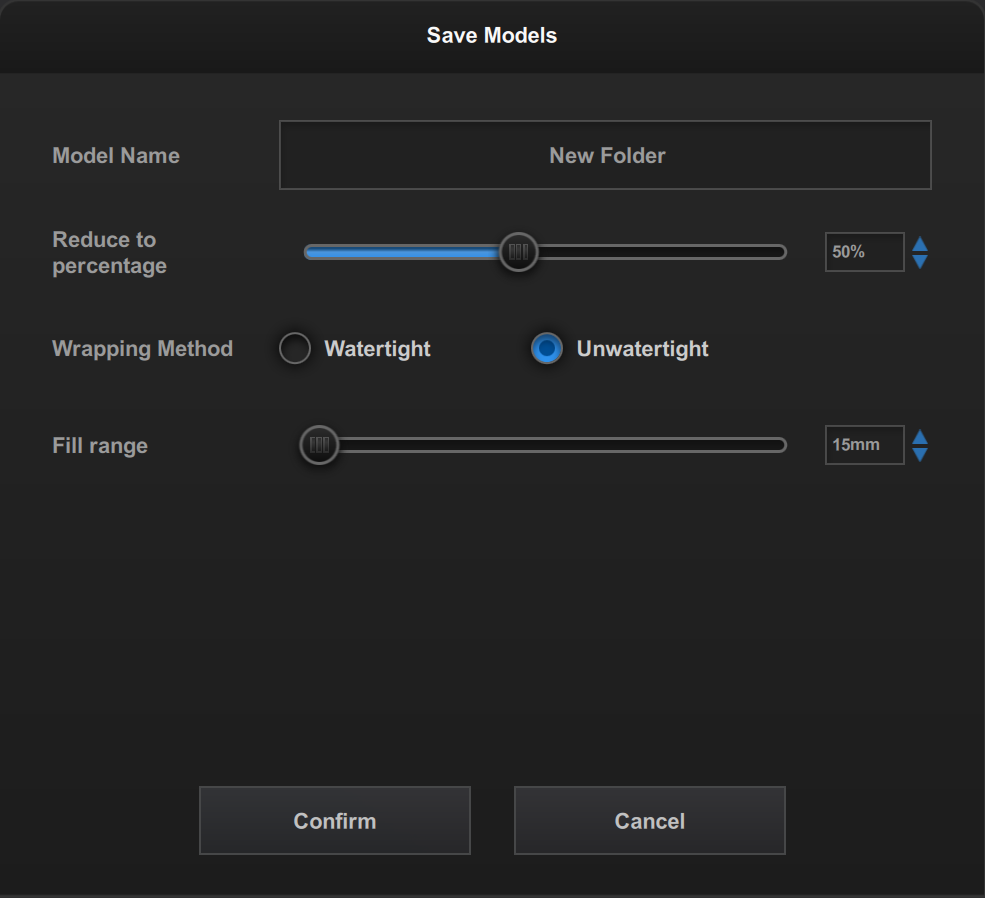
Single Model Data Processing:
Multiple Model Data Processing:
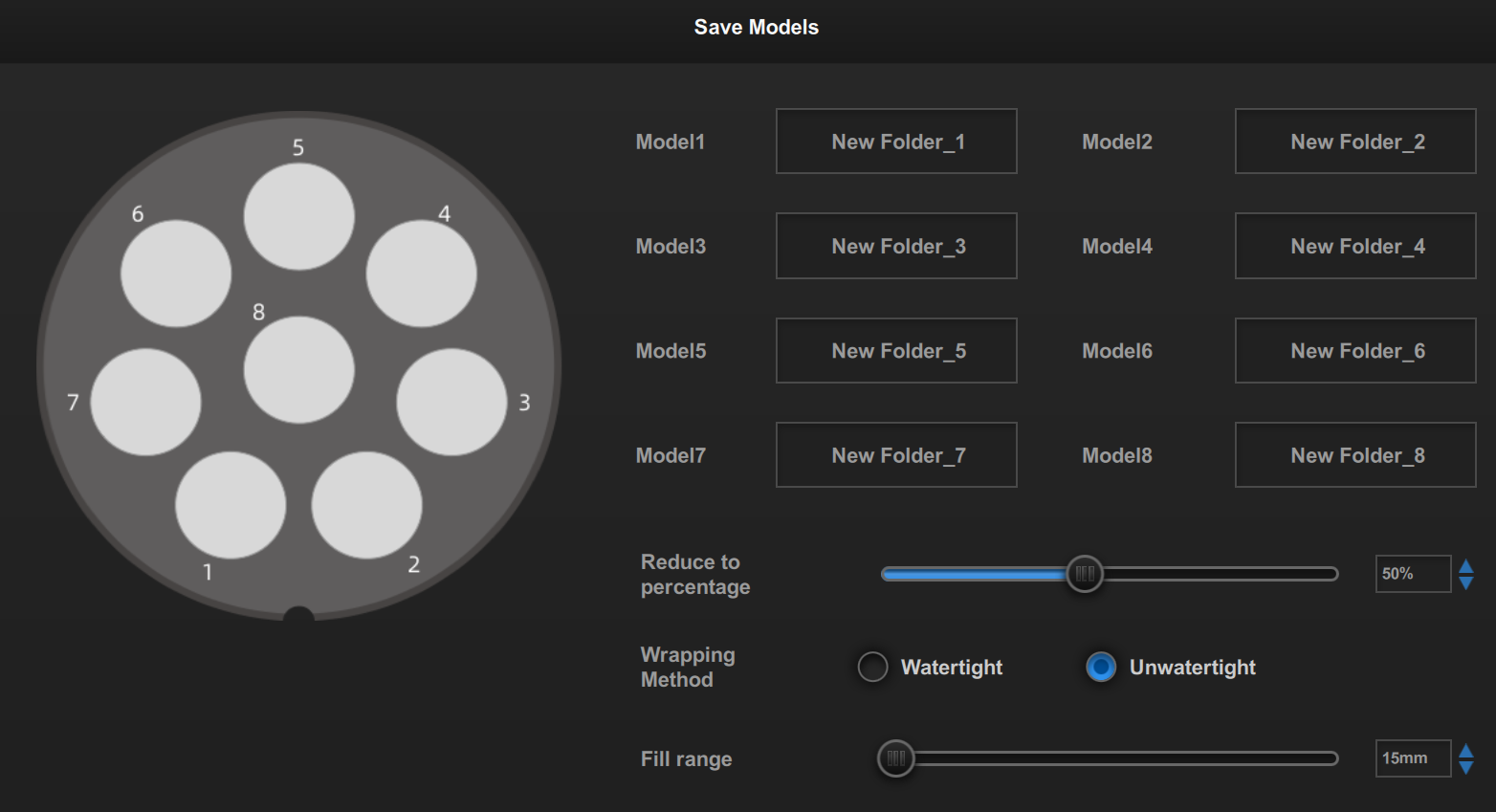
- Model Name: The name of the scanned model, which can be clicked to modify.
- Simplification (Reduce to Percentage): A higher simplification value increases the detail of the scanned data, while a lower value reduces the detail.
- Data Processing Method: Watertight fills in all holes automatically; Unwatertight retains the original without filling in any holes.
- Hole Filling Range: This option is only supported in open mode. Parameters can be set based on the perimeter of the holes to be filled. It fills holes smaller than the set perimeter.
Export Model
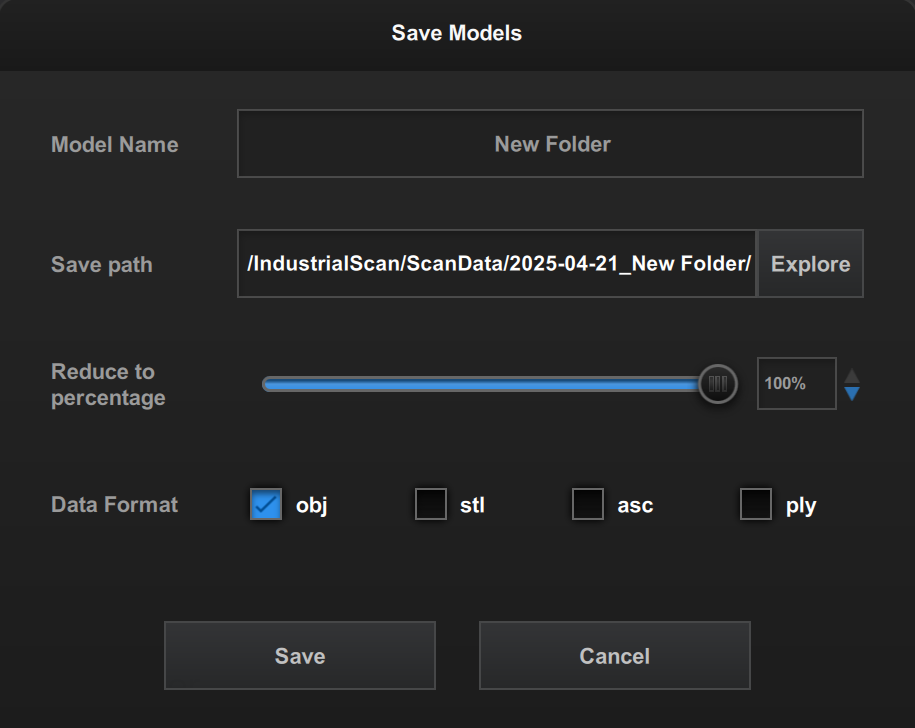
Click on  in the left model list to export the scanned model file in OBJ, STL, ASC or PLY format.
Measurement
After data processing is complete, click Measurement in the lower-right corner to enter the SHINING3D Inspect software. For detailed instructions, please refer to the official documentation: https://docs.shining3d.com/inspect/latest/en-us/getting-started/
Note
The measurement function requires authorization to be enabled. To activate this feature, please contact Technical Support.
View Order Folder
After data processing, click on Finish in the lower right corner to return to the homepage.
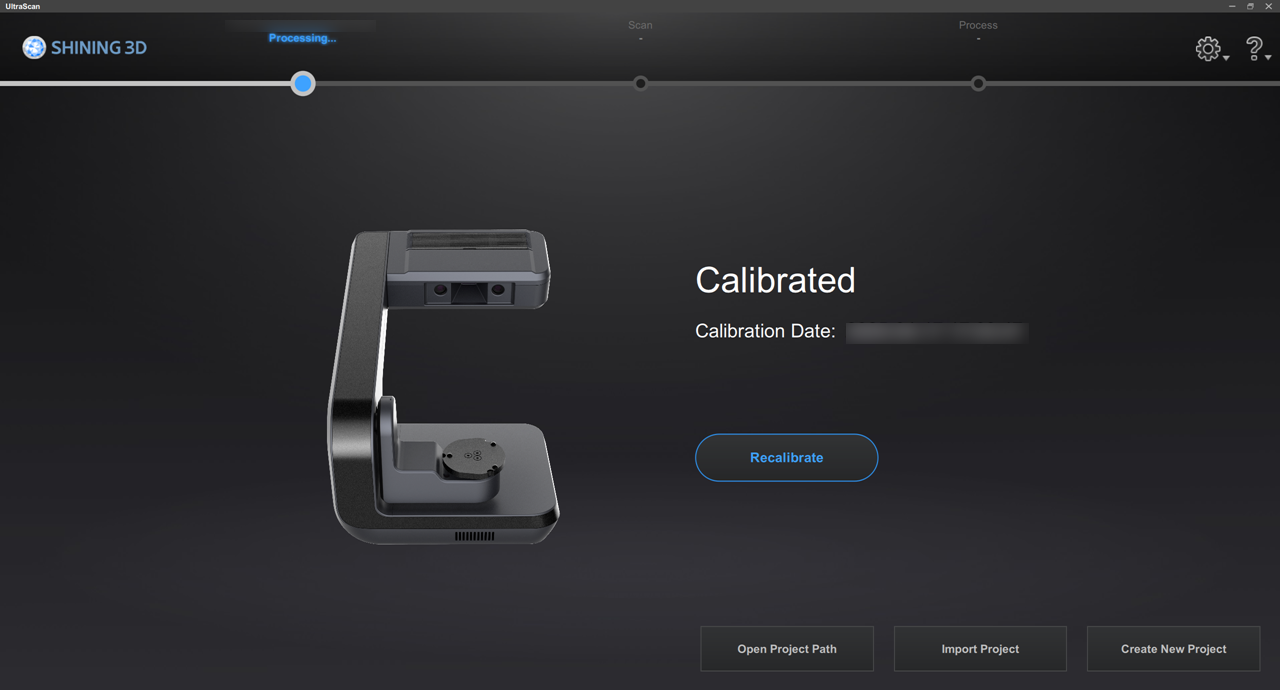
Click on Open Project Path to view the folder containing the recently completed scan order.