Activation
Please activate the device before using it for the first time.
Registration
Col
Col
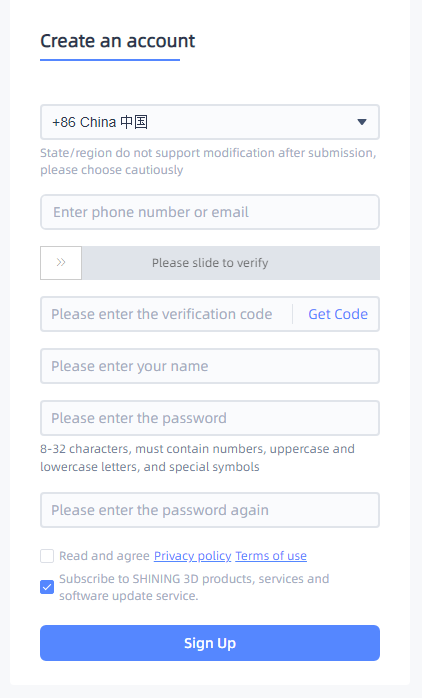
If you are a new user, please register a User Account first. You can click Register in the pop-up window when opening the software or click Sign Up in our User Account website: https://passport.shining3d.com/signup.
Note
- Please enter a valid email or phone number to get a verification code.
- Please enter correct user information for better service.
- Please read and check Privacy Policy and Terms of use.
Login
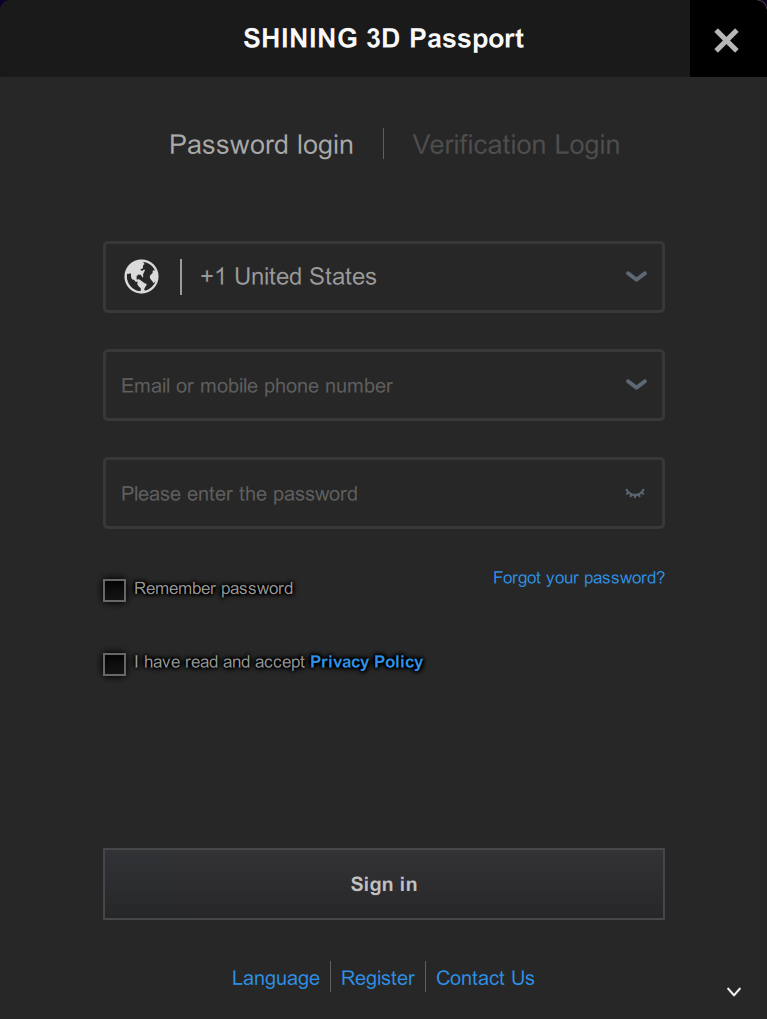
Please ensure your computer is connected to the internet. After launching the software and successfully logging into your SHINING 3D account, a confirmation dialog box will appear. Click Confirm, then enter your enterprise name to complete the activation.
Device Activation
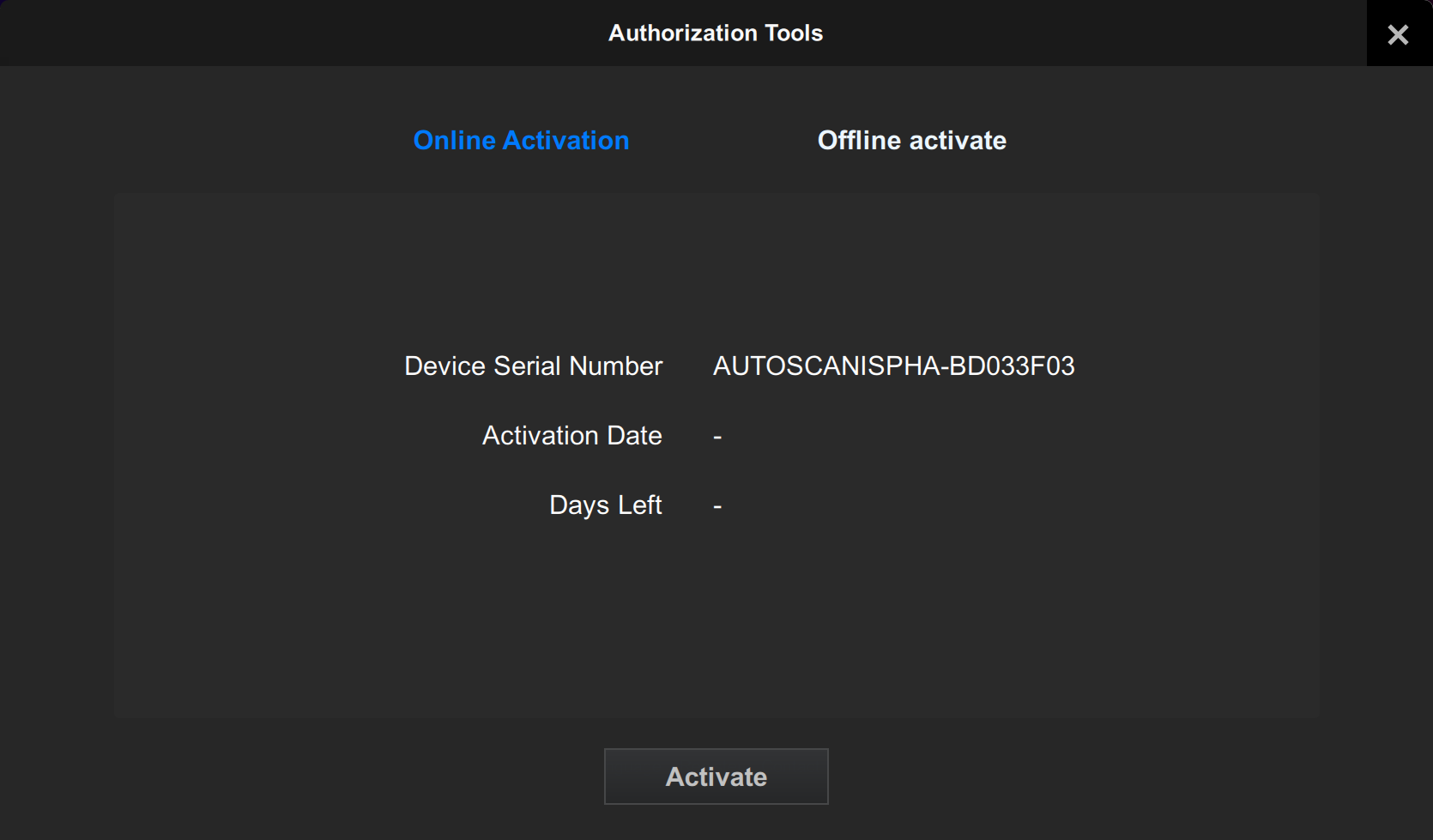
Online Activation
Please ensure your computer is connected to the internet. After launching the software and successfully logging into your SHINING 3D account, a confirmation dialog box will appear. Click "Confirm", then enter your enterprise name to complete the activation.
If you accidentally close the pop-up, you can reopen it by clicking "Apply for License Update" in the upper right corner of the software.
Offline Activation
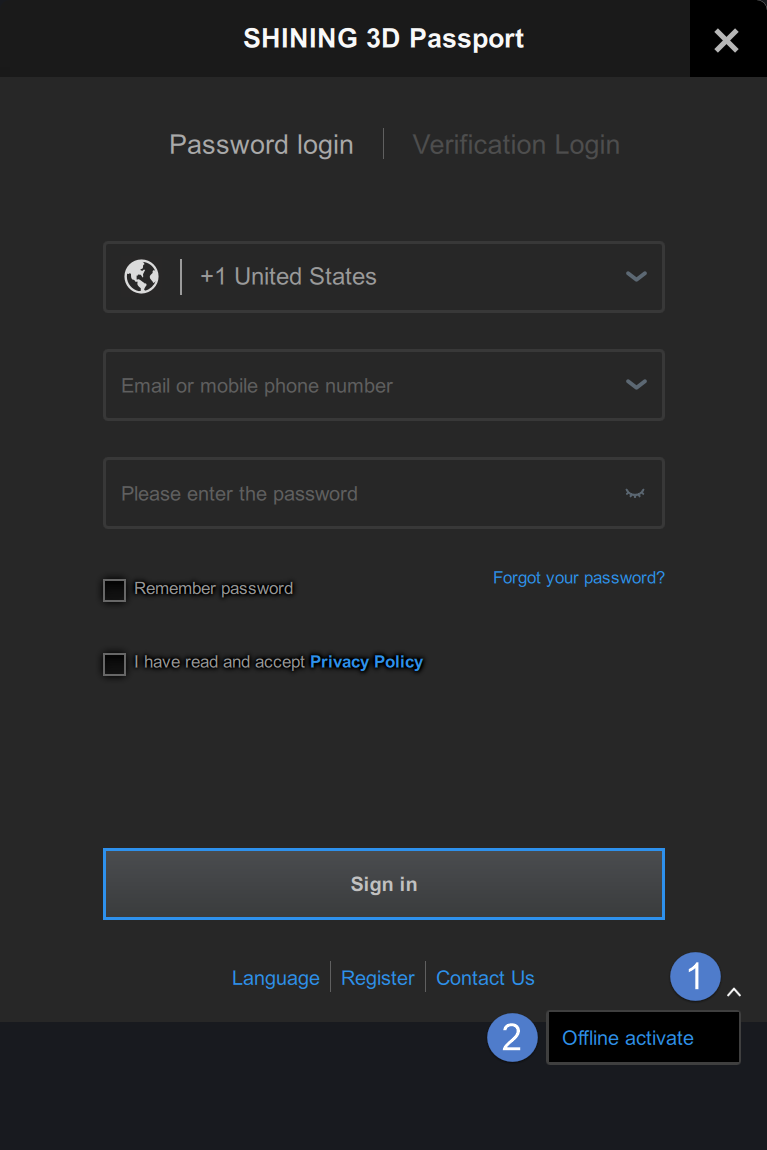
If your computer's network connection fails or there is no internet connection, you can activate the device in this way.
-
Export a C2V file from the computer that is connected to the scanner but not to the Internet.
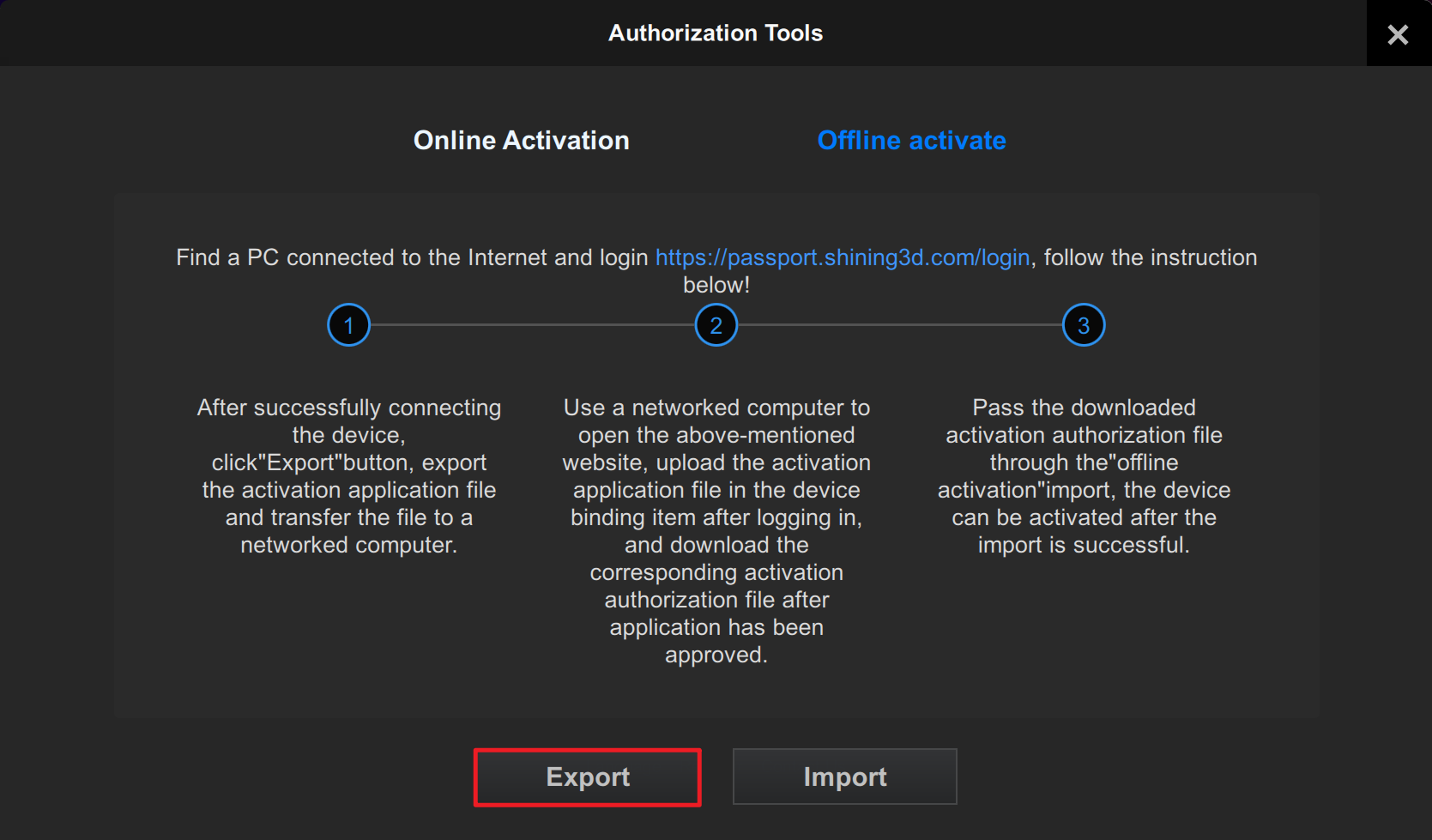
-
Copy the C2V file to another computer that is connected to the Internet by a USB flash drive or in other ways.
-
On the computer that is connected to the Internet, log in to https://passport.shining3d.com/, upload your C2V file in offline activation page, click Activation and go to the corresponding page to download the V2C file.
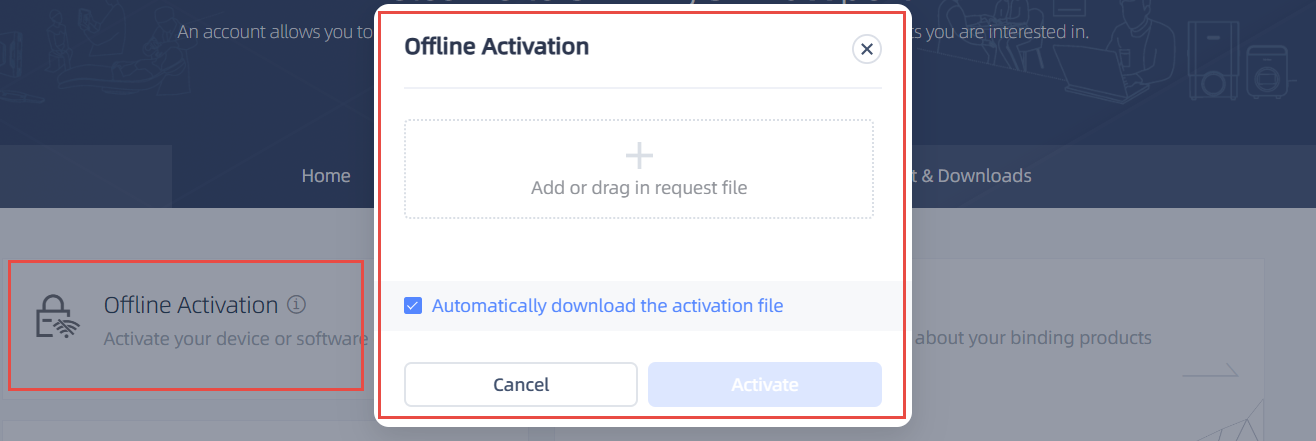
-
Copy the V2C file to the computer that is not connected to the Internet and import the file into the software to finish offline activation.
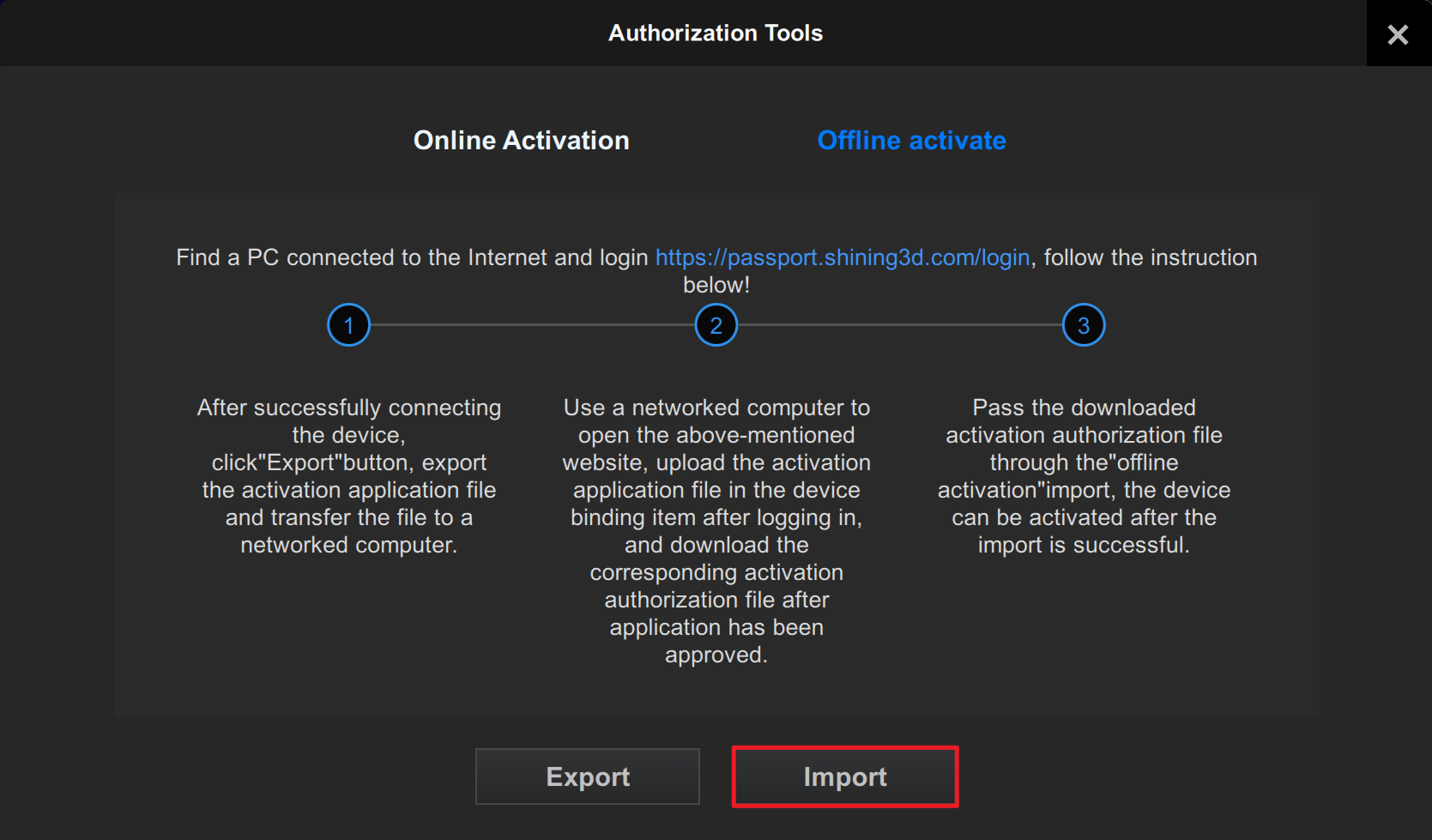
Note
If you fail to activate the device in either way, please contact your supplier or our support team.