Installation
Install FreeScan to use the scanner(hereinafter referred to as the "software").
Recommended PC configuration
| Configuration | Recommendation |
|---|---|
| CPU | Intel® Core™ i7-8700 or above |
| Graphics Card | NVIDIA RTX 3060 or above |
| VRAM | 6 GB or above |
| RAM | 32 GB or above |
| USB | USB 3.0 |
| Operation System | Windows 10 (64-bit) and Windows 11 Pro (64-bit) |
Software installation
Steps
-
Insert the flash drive.
-
Copy the installation file to the PC and run it.
-
Install the software by following the installation wizard.
-
Click Finish and run the software.
Note
- Administrator rights are required for the software installation. The initial installation environment may take a long time, please wait patiently.
- Please do not install the software in C:\Program Files or C:\Program Files (x86). The software will not run when installed under these folders due to restricted rights.
- After installing the software, please follow these steps to ensure smooth operation: Go to Windows Settings > About > Advanced system settings > Performance > Adjust for best performance. By adjusting the system settings for optimal performance, you can ensure that the software runs smoothly.
- If you don't insert the dongle and only connect the device, the software will automatically enter guest mode when you start it. If you need to use the full functionality, please insert the dongle and click on the navigation bar > Device
 to reconnect the scanner.
Graphics card
It is recommend to use a discrete graphics card instead of integrated graphics card for better performance.
Desktop
- Connect your display to the port of discrete graphics card on the back of your computer.
Laptop
-
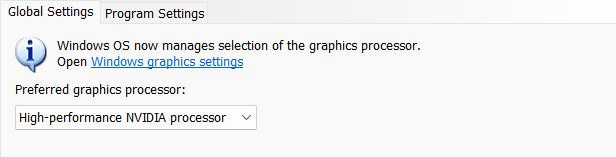
Launch NVIDIA Settings on your laptop.
-
In 3D Settings Manage 3D Settings > Global Settings, select High-performance NVIDIA processor and click Apply.