Settings
Laser Mode
Scan Mode
Choose the proper scanning mode to scan.
-
Scan Global Markers
This mode is used to scan markers on the surface of an object. You can quickly obtain the markers data of an object in this way and switch to Scan Mesh to continue scanning.
 Caution
- The scanner does not project laser lines during the scanning process.
- You can scan new markers after opening a global markers file.
- When switching to Scan Global Markers, the current scanned data will be cleaned up and the data can not be recovered.
-
Scan Mesh
Directly scan to generate mesh data. This mode is suitable for most scanning scenarios.
 Note
NoteWhen the markers are not fully scanned in Scan Global Markers, you can check Add Global Markers to scan new global markers.
-
Partial HD Scanning
This mode is used for scanning when there is a high requirement for details in a specific area or when there are missing data in certain regions. By using this mode for targeted scanning, it can save scanning time and make the scanned data more accurate and complete.
Resolution
Note
- When there is only one project within the project group, you can adjust the resolution in real-time in the scan mesh mode.
- When there are multiple projects within the project group, you cannot adjust the resolution anymore in the scan mesh mode.
Laser Mode
| Scan Mode | Point Distance |
|---|---|
| Scan Mesh | 0.05 mm ~ 10.0 mm |
| Partial HD Scanning | 0.01 mm ~ 3.0 mm |
IR Mode
| Scan Mode | Point Distance |
|---|---|
| Scan Point Cloud | 0.1 mm (small objects) ~ 3.0 mm |
Light Source Mode
According to the scanning requirements, you can choose different laser line modes.
| Light Source Mode | |
|---|---|
| 50 Lines | 50 cross laser lines to scan large objects quickly |
| 7 Lines | 7 parallel laser lines to scan fine details |
| 1 Line | A single laser line for deep holes and pocket area scanning |
Object
It supports scanning of both normal objects and reflective objects. When scanning reflective objects, select Reflective to improve the scanning effect.
Outdoor Mode
To scan normally in the glare environment such as outdoors.
Caution
Please avoid direct sunlight when scanning objects.
Data Quality Indicator
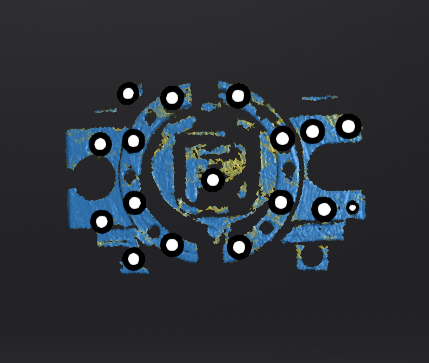
Differentiating scan quality in colors: blue represents high-quality scanned data and yellow represents insufficient scanned data that requires further scanning. Insufficiently scanned data may disappear or become anomalous after editing.
Note
This function is not available for scanning in scan markers mode or photogrammetry mode.
Scan in Point Cloud
After enabling the Scan in Point Cloud, the point cloud data will be displayed during the scanning process, thereby reducing GPU memory consumption.
Note
- Mesh data will be displayed after pausing the scanning whether this mode is enabled or not.
- You can switch another scan mode when only global markers data is present or after all data is cleared.
- Scan modes cannot be switched during pre-scanning, the scanning process, or when data present in the scene.
- Projects within the same project group can adopt different states:Project A within the group can have this mode enabled, while Project B can have it disabled.
- This function is only supported by Scan Mesh mode and Partial HD Scanning mode.
Local Enlarged View
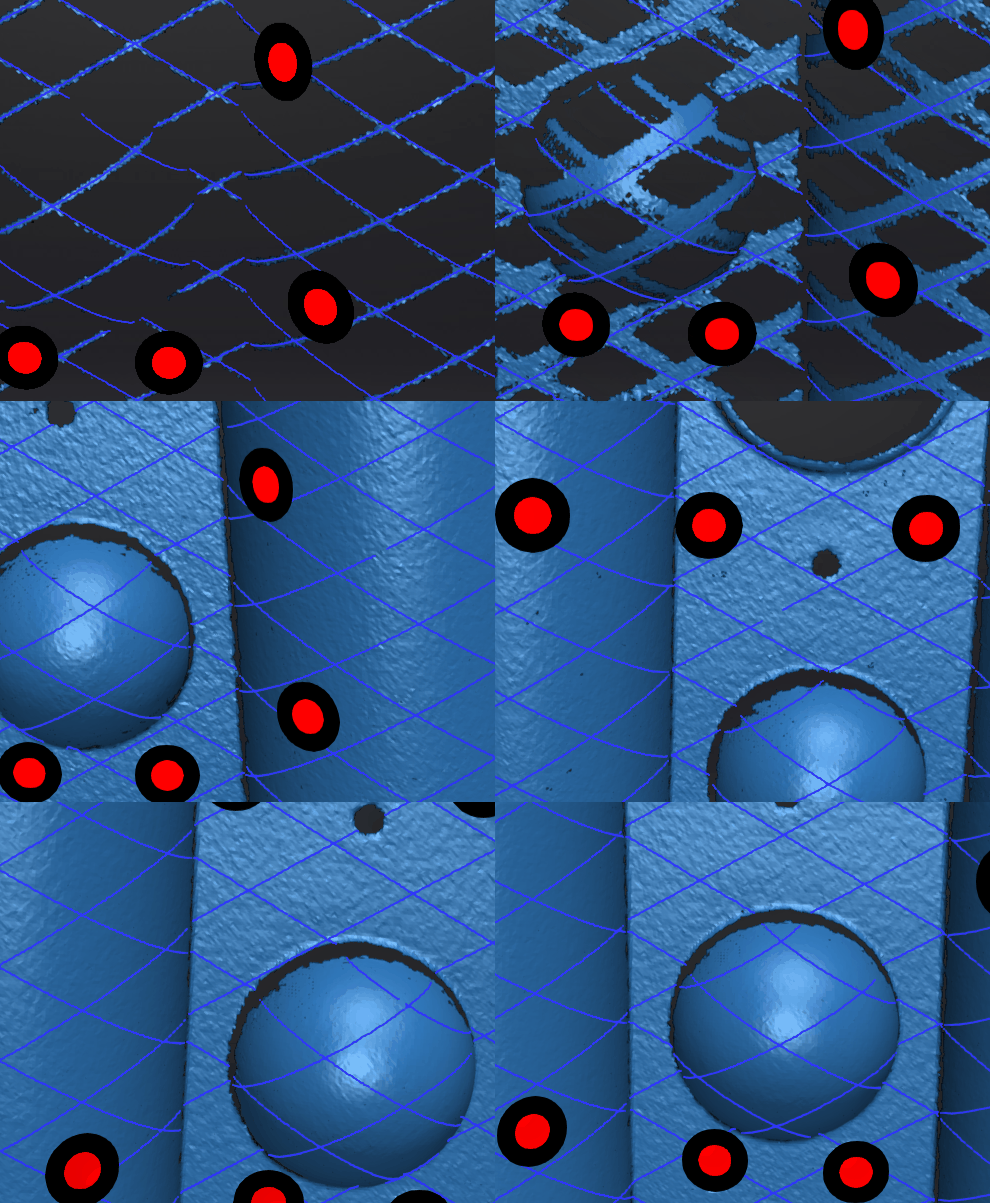
When the function is enabled, the scanning interface only displays the local perspective of the scanned object, which can be used for supplementary scanning of small holes. It is recommended to enable under 0.2 mm point distance.
View Lock
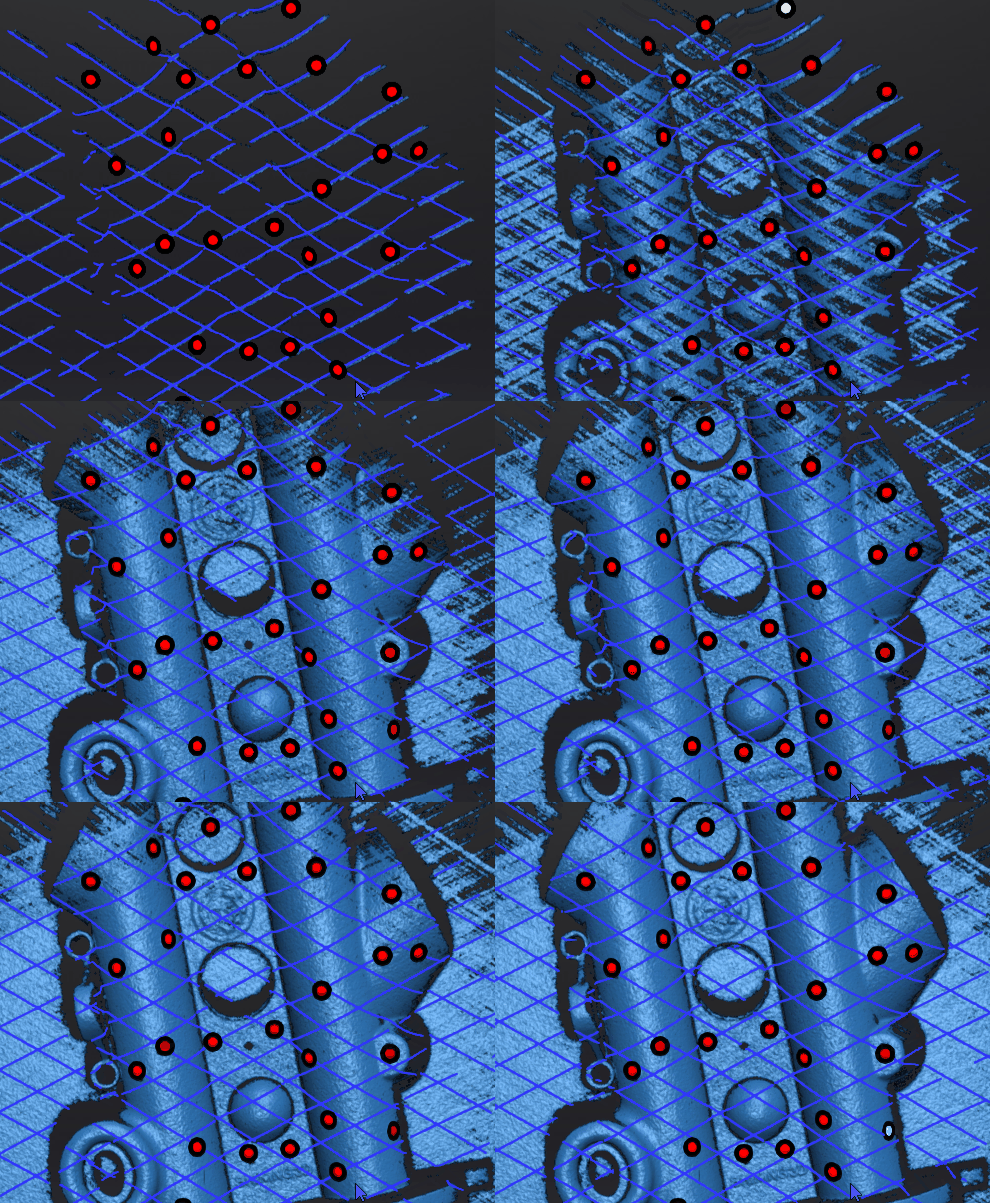
The object view will be locked during scanning and not follow the scanning path, when the function is enabled.
Brightness
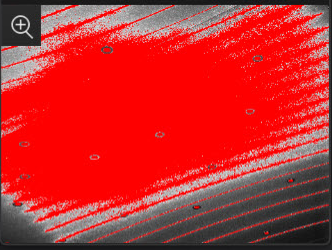
For objects of different materials and colors, adjust the brightness of the scanner to scan better.
Col
 Too Bright
Col
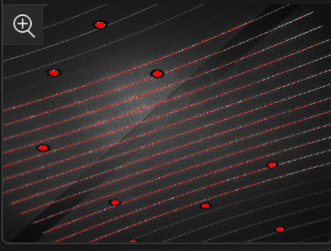 Proper
Col
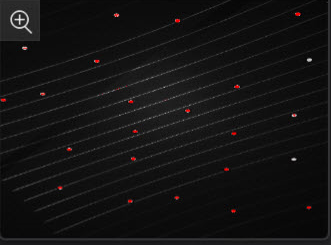 Too Dark
IR Mode
Scan Mode
-
Scan Point Cloud(IR Mode)
Directly scanning point clouds. After the scanning is complete, point cloud data needs to be generated.
Working Distance Adjustment
The effective area of the scanned data. It can be adjusted according to the size of the object and the alignment mode. The larger the value, the easier it is to scan data with far distance, but some data details will be lost.
| Scan Mode | Minimum Scanning Distance | Maximum Scanning Distance | Scanning Distance Range |
|---|---|---|---|
| Portrait | 160 mm | 1400 mm | ≥ 200 mm |
| Object | 160 mm | 600 mm 250 mm (small objects) |
≥ 200 mm ≥ 40 mm (small objects) |
Data Quality Indicator
For more, see Data Quality Indicator.
Hair Mode
When the function is enabled, it is easier to capture hair but the data noise will increase.
Note
Only available in portrait scan mode.
Col
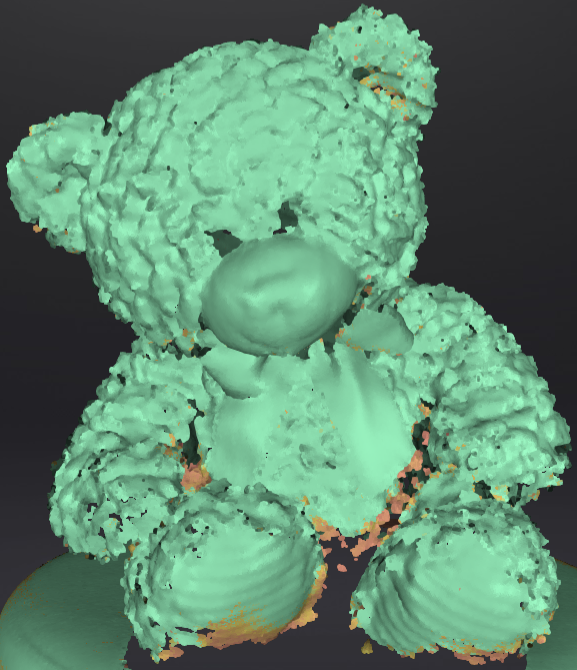 Turn off
Col
 Turn on
Flat Detection
When enabled, it can reduce the possibility of misalignment, but the scanner cannot scan plane or surface with few features. The software will prompt "please scan the non-plane area".
Note
Only available in feature align and hybrid align mode.
Local Enlarged View
For more, see Local Enlarged View.
View Lock
For more, see View Lock.