Installation
Please install FreeScan to use the scanner (hereinafter referred to as the "software").
PC Configuration
| Recommendation | |
|---|---|
| Processor | 13th Gen Intel® Core™ i7-13700H or above |
| Graphics Card | NVIDIA GeForce RTX 4060 Laptop GPU or above |
| VRAM | 8 GB or above |
| RAM | 64 GB or above, DDR5 dual-channel |
| Interface | USB 3.0 |
| Network Interface Controller | 1 Gbit/s or above |
| Operating System | Windows 11 Professional 22H2 (64-bit) |
Note
It is recommended that you use a computer with dual-channel RAM to avoid potential low frame rates during scanning, as low frame rates could impact your scanning experience. You can check your RAM information in Task Manager > Performance.
Software Installation
Steps
-
Insert the flash drive.
-
Copy the installation file to the PC and run it.
-
Install the software by following the installation wizard.
-
Click Finish and run the software.
Note
- Administrator rights are required for the software installation. The initial installation environment may take a long time, please wait patiently.
- Please do not install the software in C:\Program Files or C:\Program Files (x86). The software will not run when installed under these folders due to restricted rights.
- After installing the software, please follow these steps to ensure smooth operation: Go to Windows Settings > About > Advanced system settings > Performance > Adjust for best performance. By adjusting the system settings for optimal performance, you can ensure that the software runs smoothly.
Graphics Card
Please use a discrete graphics card instead of integrated graphics card for better performance.
Desktop
Connect your display to the port of discrete graphics card on the back of your computer.
Laptop
-
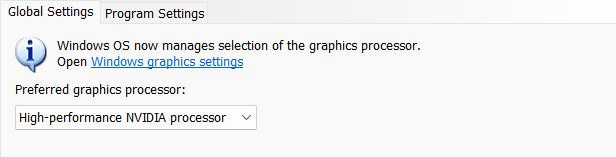
Launch NVIDIA Settings on your laptop.
-
In 3D Settings Manage 3D Settings > Global Settings, select High-performance NVIDIA processor and click Apply.