Skip to content

Create Features

Click to display the menu of creating features. To close the menu, please click the icon again, or click Close.

Col
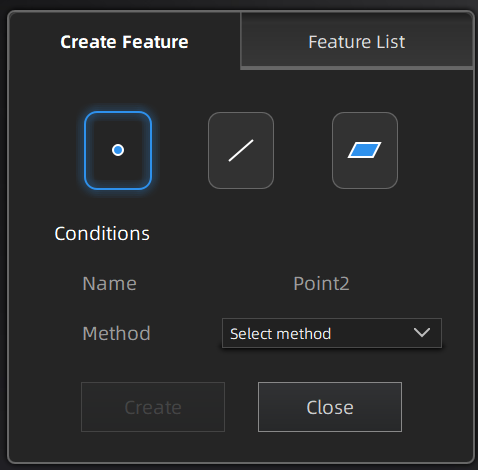
Col
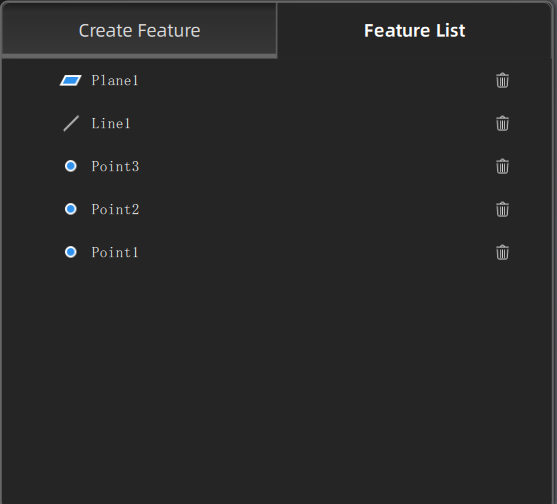
Note

You can switch to Feature List to check the created features; you can also click to delete features.

Creation Method
Description
Note
Selected Points
  1. Click the data to select the point.
  2. Click Create to create a feature point.
/
Markers
  1. Click existing markers to select the point.
  2. Click Create to create a feature point.
You can select markers to create feature points for model data that only have markers and are not meshed yet.
Line-Plane Intersection
  1. Click the existing feature lines or choose lines in the drop-down list.
  2. Click the existing feature planes or choose planes in the drop-down list.
  3. Click Create to create feature points.
  • The feature line can't be in the feature plane.
  • The feature line can't be parallel with the feature plane.
Creation Method
Description
Note
Point-Point
  1. Click the data or existing feature points to select the point.
  2. Click Create to create a line.
You can tick the checkbox before From or to and re-select the feature points.
Marker to Marker
  1. Click two existing markers.
  2. Click Create to create a line.
  • You can select this mode to create a feature line for model data that only have markers and are not meshed yet.
  • You can tick the checkbox before From or to and re-select the feature points.
  • Plane-Plane Intersection
    1. Click existing feature planes or choose planes in the drop-down list.
    2. After selecting two planes, click Create to create an intersection of two non-parallel planes.
  • Create two feature planes in advance.
  • The feature planes can't be parallel to each other.
  • Creation Method
    Description
    Note
    3 Points Fit
    1. Click the data or existing feature points to select the point.
    2. Click Create to create a plane.
  • The three points can't be in a line.
  • You can tick the checkbox before the three points and re-select the point.
  • Point-Line Fit
    1. Click existing feature lines or choose lines in the drop-down list.
    2. Click the data or existing feature points to select the point.
    3. Click Create to create a plane.
    The point can't be in the line.
    Best Fit When there are selected data, click Create to create a plane that has the smallest deviation from the selected area.
    Note
    You can use editing tools or shortcuts to select the data.
    /
    Three Markers
    1. Click the data or existing markers to select the point.
    2. Click Create to create a plane.
  • You can select this mode to create a feature plane for model data that only have markers and are not meshed yet.
  • The three markers can't be in a line.
  • You can tick the checkbox before the three points and re-select the point.
  • Markers Point-Line Fit
    1. Click existing feature lines or choose lines in the drop-down list.
    2. Click the existing marker to select the point.
    3. Click Create to create a plane.
  • You can select this mode to create a feature plane for model data that only have markers and are not meshed yet.
  • The feature point can't be in the feature line.
  • Markers Best Fit When there are selected markers (≥ 3), click Create to create a plane that has the smallest deviation from the selected area.
    Note
    You can use editing tools or shortcuts to select the data.
    You can select this mode to create a feature plane for model data that only have markers and are not meshed yet.