Device Connection
EXStar Mobile can be connected to the scanner wirelessly or via a cable.
Wired Connection
-
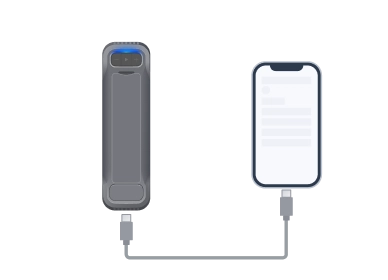
Insert the USB-C to USB-C data cable into the USB-C ports of the scanner or handle and the phone respectively.
Note
Some phones will display a prompt asking Allow "EXStar Mobile" to access Einstar2?; you need to tap Confirm.
-
After successful connection, a floating notification Einstar2 connected will appear in the software.
Note
It is recommended to use the original USB cable provided in the package for the best scanning results.
Wireless Connection
The scanner can be connected wirelessly in the following ways:
- Scan to Connect Scan the QR code to quickly establish a connection between the scanner and the software.
- Nearby devices Connect the device to the Wi-Fi hotspot created by the scanner, and then connect to the scanner in the software.
Steps
-
EINSTAR EZ GO: press and hold the button on the handle body to supply power, and wait until the blue indicator blinks quickly.
EINSTAR EZ: supply power with a fast-charging power bank or adapter, and wait until the blue indicator blinks quickly.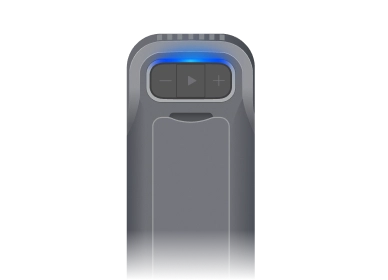
-
Tap the connection status bar at the top left of the software homepage or
 at the bottom center to enter the device connection interface.
-
Select a connection method and complete the connection as follows:
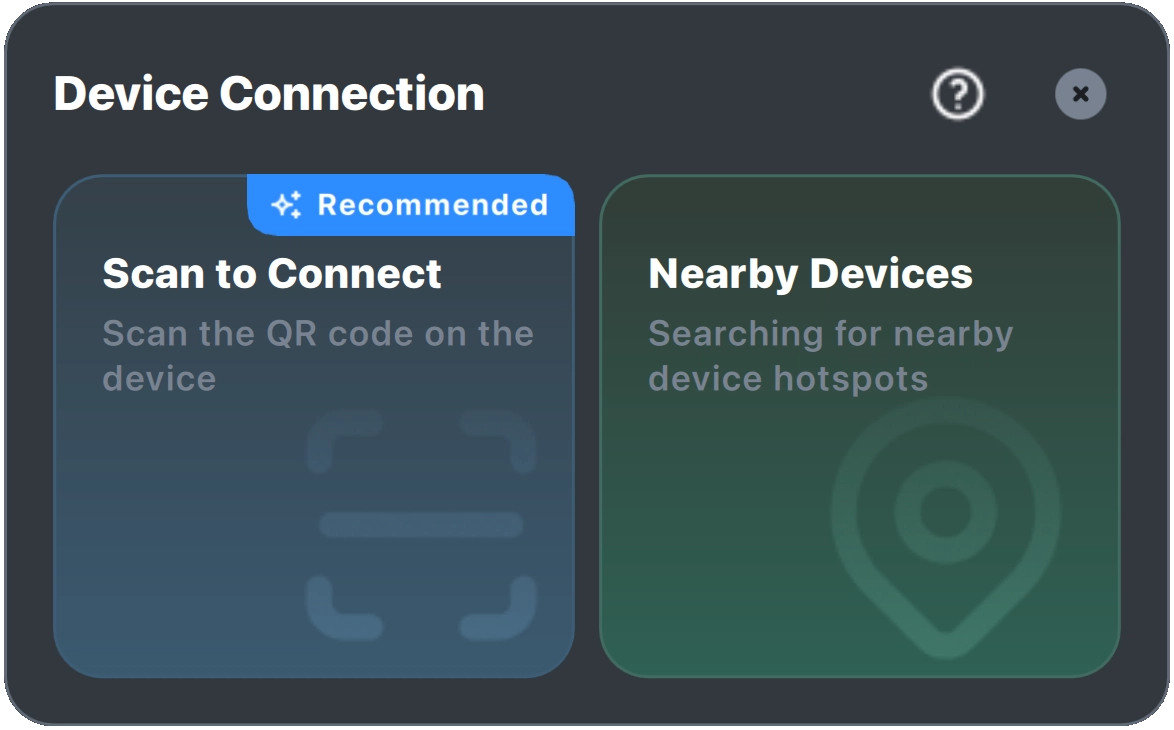
- Tap Scan QR Code, and the software will open the camera.
- Scan the QR code on the scanner body; after a successful scan, the software will complete the device connection automatically.
- Tap Nearby Devices and select the corresponding scanner model.
- Select the hotspot named like
Einstar2_XXXXXXXX. - Copy the hotspot password, go to the Wi-Fi settings interface of the phone, paste the password and connect to the hotspot.
- After successful connection, the software will complete the device connection automatically.