Skip to content

You can measure on the model you just scanned, or you can open a model file to do the measurement.

Select the file to be measured or directly drag the file (STL, OBJ, PLY) to the measurement interface.

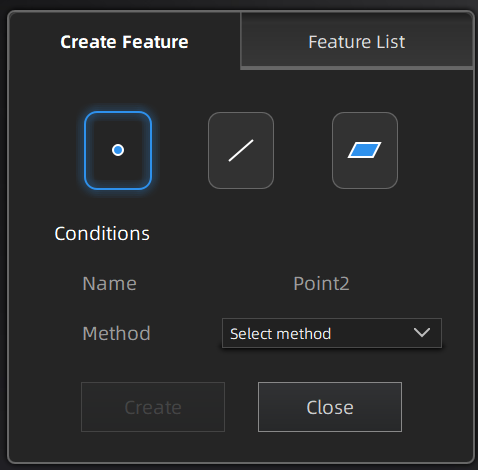
Create features

Click to display the menu of creating features. To close the menu, please click the icon again, or click Close.
Note

You can switch to Feature List to check the created features; You can also click to delete features.

Creation Method
Description
Note
Selected Points
  1. Click the data to select the point.
  2. Click Create to create a feature point.
/
Line-Plane Intersection
  1. Click the existing feature lines or choose lines in the drop-down list.
  2. Click the existing feature planes or choose planes in the drop-down list.
  3. Click Create and create feature points.
  • The feature line can't be in the feature plane.
  • The feature line can't be parallel with the feature plane.
Creation Method
Description
Note
Point-Point
  • Click the data or existing feature points to select the point.
  • You can tick the checkbox before From or to and re-select the feature points. Click Create and create a line.
/
Plane-Plane Intersection
  1. Click existing feature planes or choose planes in the drop-down list.
  2. After selecting two planes, click Create and create an intersection of two non-parallel planes.
  • Create two feature planes in advance.
  • The feature planes can't be parallel to each other.
Creation Method
Description
Note
3 Points Fit
  • Click the data or existing feature points to select the point.
  • Tick the checkbox before the three points and re-select the point. Click Create and create a plane.
The three points can't be in a line.
Point-Line Fit
  • Click existing feature lines or choose lines in the drop-down list.
  • Click the data or existing feature points to select the point.
The point can't be in the line.
Best Fit
  • The plane generated is the position with the smallest deviation from the selected area.