Compare
Click Compare in the top navigation bar to enter the compare module, where you can perform 3D comparison, displaying the deviation between the measured model and the reference model through the color map. Besides, you can also create comparison points on the color map.
Note
Before using the 3D compare function, please import the reference model and the measured model and align them.
3D Compare
Col
- In the Alignment Tools bar, click
 3D Compare to open the corresponding window.
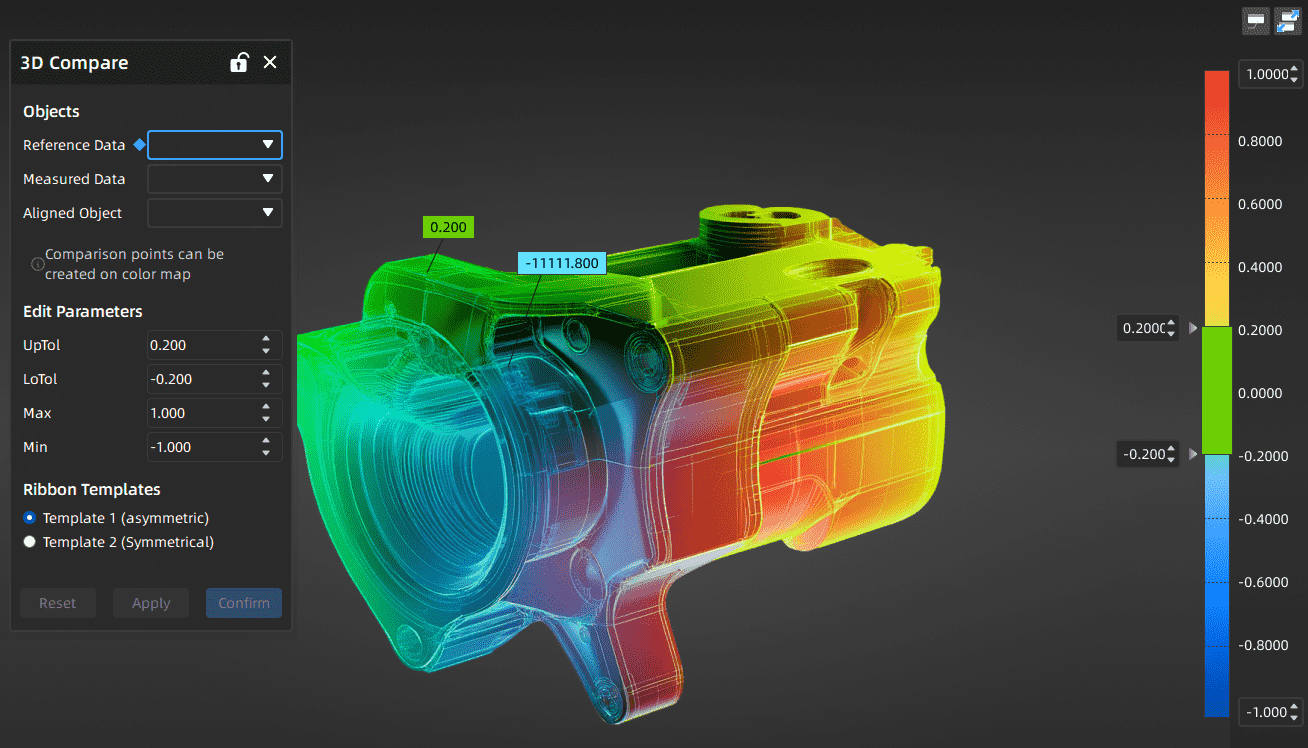
 - Select the reference data, the measured data to be aligned and an aligned object, and edit parameters (the upper & lower tolerances and the maximum & minimum values) and choose a ribbon template.
 Note
Note- Besides, the parameters above can also be directly adjusted on the ribbon.
- The tolerance range should be greater than the difference between the maximum and minimum values, otherwise it will not take effect.
- Additionally, if the absolute values of the upper tolerance and lower tolerance are the same, adjusting the upper tolerance will cause the lower tolerance to change synchronously; if the absolute values of the maximum and minimum values are the same, adjusting the maximum value will cause the minimum value to change synchronously.
- Click Apply to display the 3D color map in the scene and the ribbon in the right; then click Confirm to save the 3D compare object, which will be displayed in the
 compare module in the left-side tree view.Note
- As the 3D compare object is associated with the aligned object, the 3D compare object can only be checked when the associated align object is activated.
- Multiple 3D compare objects can be created for one aligned object, and each 3D compare object has one individual ribbon.
- (Optional) In the preview state, you can click on the 3D color map in the scene to create comparison points, or right-click on one 3D compare object in the tree view, click Edit Comparison Points, and click on the 3D color map to create; for the created comparison points, you can use left-button to drag or use Del to delete.
Col
Ribbon
On the right-side ribbon, you can enter values by left-click on the input box or use  stepper, so as to adjust the tolerance range and the maximum & minimum values; you can also drag
  up and down to adjust the tolerance range.
When adjusting values, the parameter value in the 3D Compare window and the 3D color map in the scene will be updated in real time.