Scan
Note
It is recommended to complete calibration in the scanning software before using the device.
Device Connection
Auto Connection
If SHINING3D Inspect is started from scanning software, it will automatically connect to the scanning device. After successful connection, the device's online status will be displayed in real-time in the upper right corner ( /
/  /
/  ); if the device goes offline (
 /
/  /
/  ), it will automatically reconnect. If it fails to connect for a long time, please restart the software or contact technical support.
Manual Connection
If SHINING3D Inspect is started independently, you need to click  , select the device to be connected from the drop-down list; after successful connection, the device's online status will be displayed in real-time in the upper right corner ( / / ); if the device goes offline ( / / ), it will automatically reconnect. If it fails to connect for a long time, please restart the software or contact technical support.
Disconnect
If you need to disconnect the device, click Disconnect in the upper right corner of the interface.
Probe Features
Use the probe to create new features by point probing.
Note
- Before creating features using the probe method, please import a reference model or measured model.
- Probe features apply to creating point, line, plane, circle, sphere, cone, and cylinder features.
Creation Steps
- Click Scan > Probe Features in the navigation bar or select Probe Features from the tree view right-click menu.
- Select the feature to be created and edit parameters.
-
According to the interface prompts, use the probe to probe points.
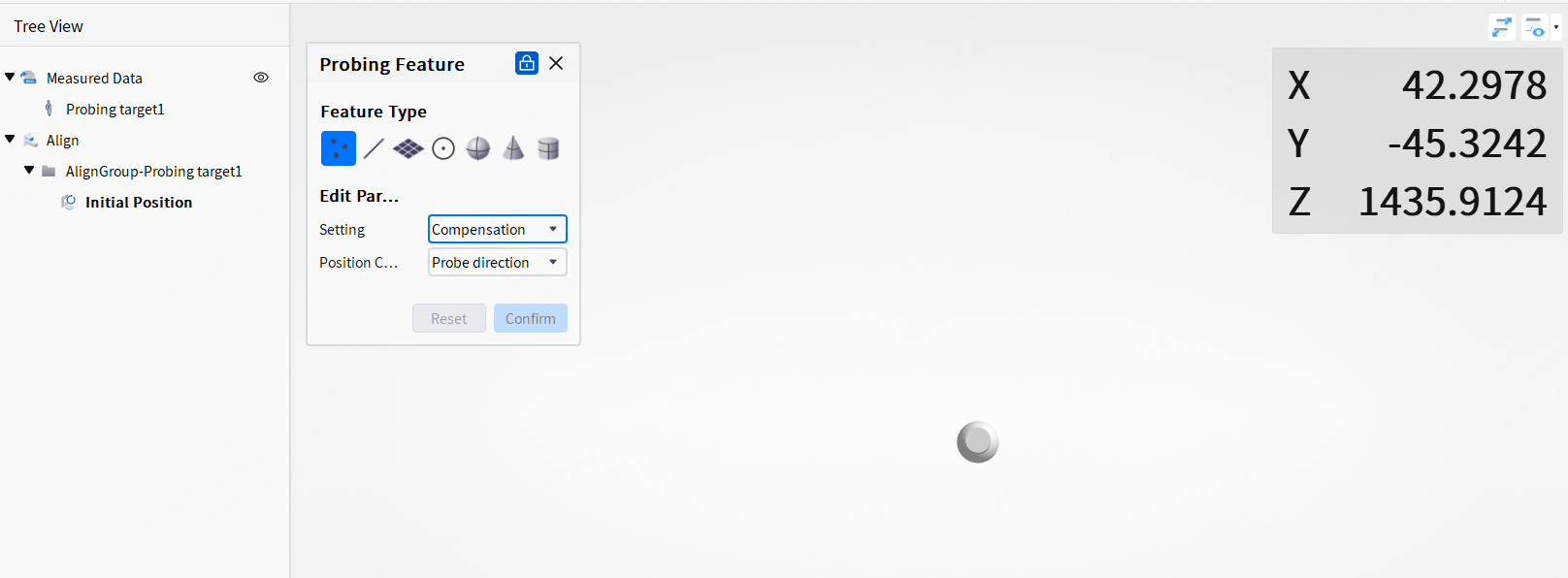
-
After using the probe to probe points, relevant features will be automatically fitted. Click Confirm to create a new feature.
Note
- Support multiple point probing to create multiple features.
- Before pressing the Confirm button, you can undo the points that have been probed. If you have Confirmed creation, you can delete the corresponding point features in the left tree view.
Track Tracking
When the probe is successfully connected, you can use the track tracking function. By setting the tracking time interval, the software will automatically record the point coordinates during the tracking process. After tracking is completed, the point coordinates can be exported as TXT files.