Hybrid Leapfrog
When the object or scene to be scanned is large and there are fewer markers in the scanning scene, it is recommended to use the hybrid leapfrog scanning method. This mode uses dual alignment technology (marker alignment and point cloud alignment), allowing you to perform flexible leapfrog scanning with fewer markers, making scanning more efficient.
Note
- Mode Requirement: This feature can only be enabled in Trak Mode.
- Data Status: This feature cannot be enabled when there are only markers data.
Steps
Col
Col
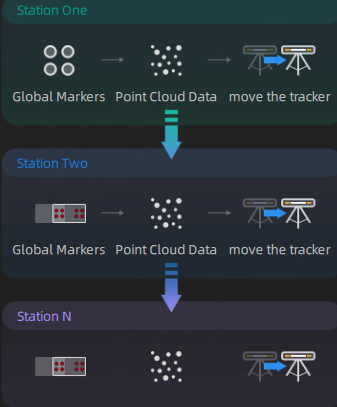
-
In Trak Mode, enable the hybrid leapfrog mode.
Note
After enabling hybrid leapfrog, a new project will be automatically created with the name:
Original Project Name_s1. When moving to the next leap, new projects will be created with names:Original Project Name_s2,Original Project Name_s3, etc. -
Click
 on the right or press the scan button on the scanner to use Scan Global Markers (Scanner) mode for scanning.
 -
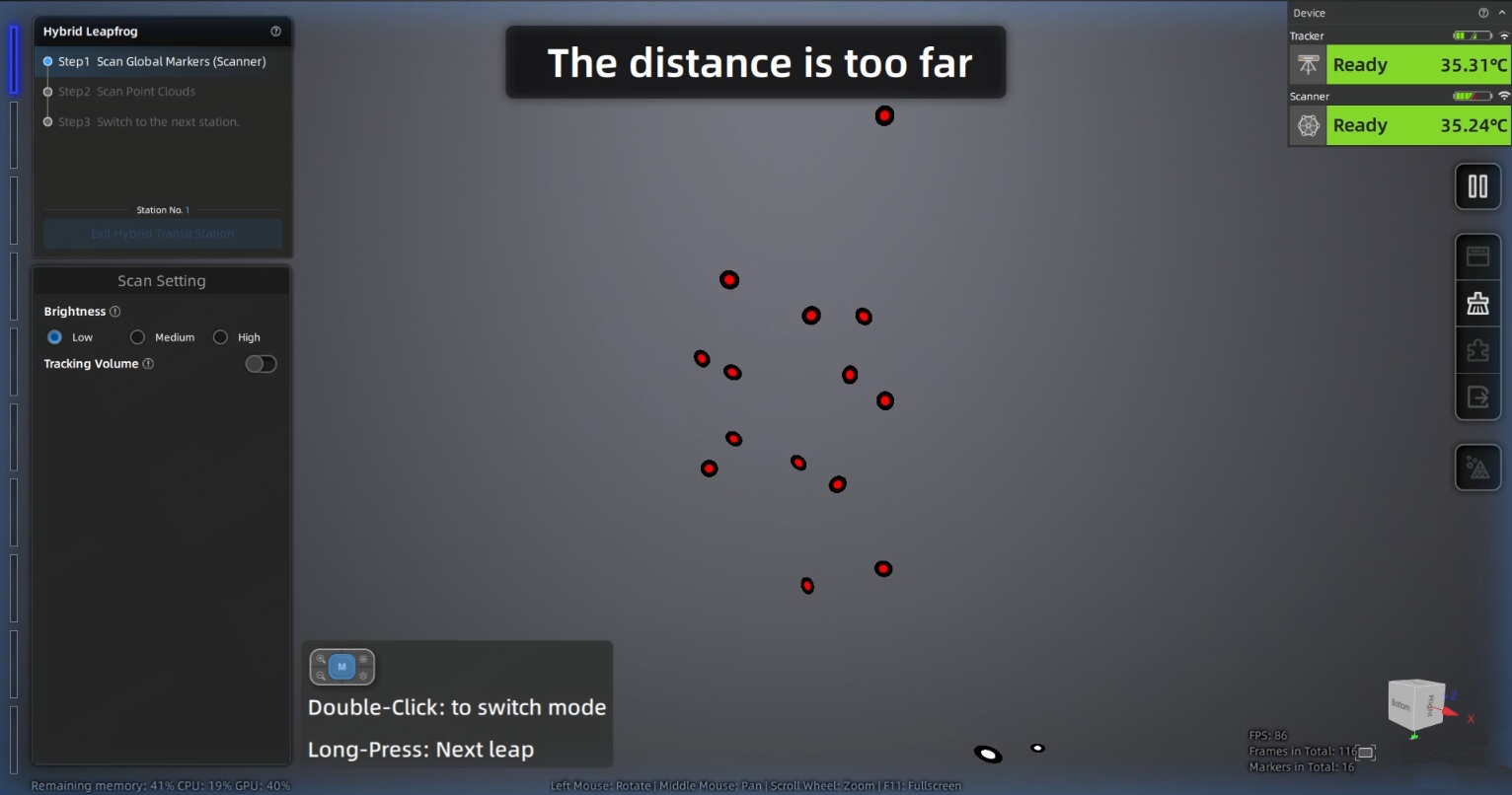
During scanning, adjust the scanning distance based on the color indicator at the edge of the scanning interface and the distance indication:
- Blue indicates the scanning distance is too far.
- Yellow indicates the scanning distance is too close.
- No color indicates the scanning distance is appropriate.
-
After clicking
 on the right or pressing the scan button on the scanner to pause scanning. Press the middle button on the scanner twice or click Scan Point Cloud mode on the interface to switch to Scan Point Cloud mode for scanning.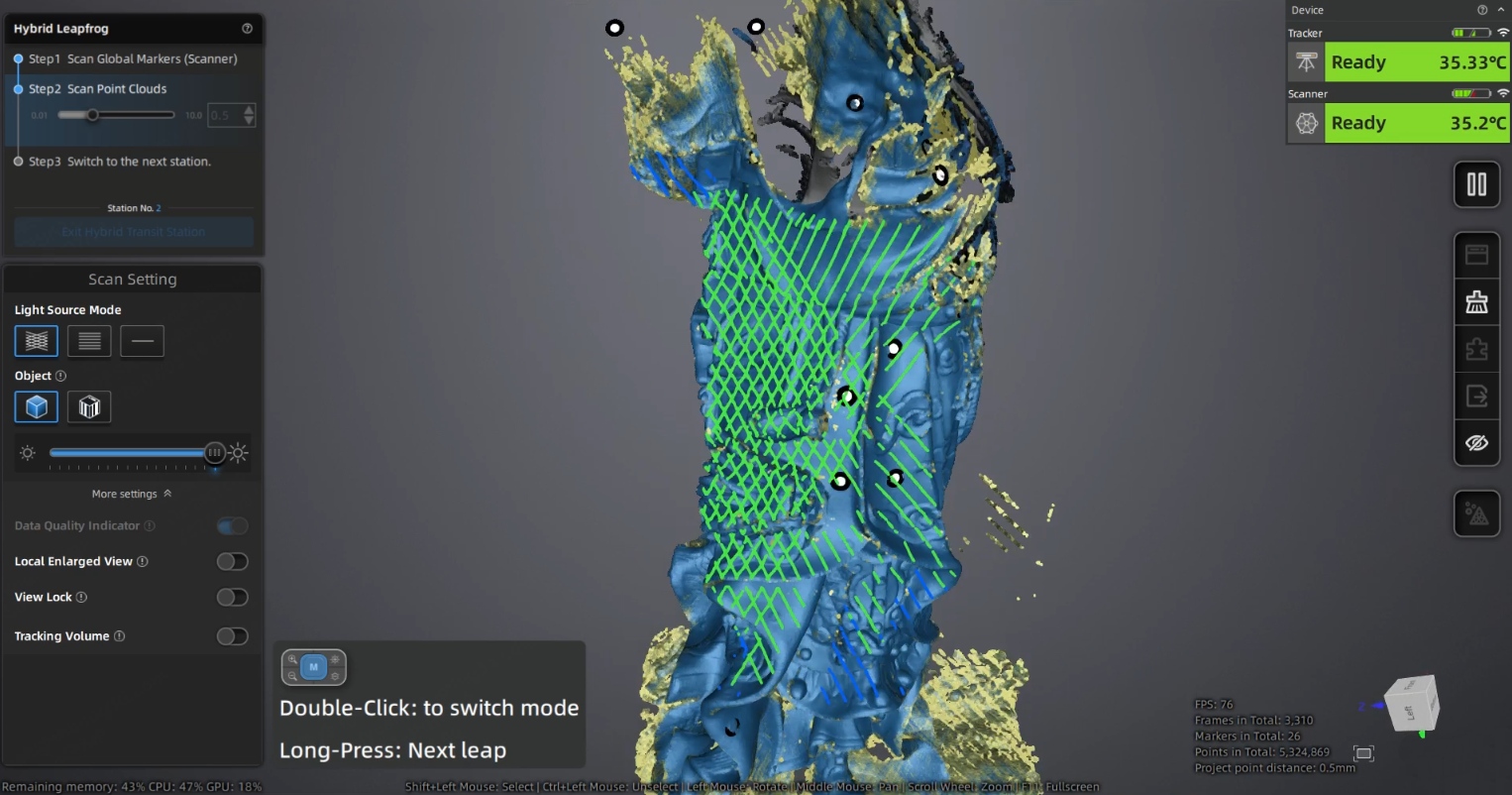
Note
- During scanning and when paused, you can adjust the scanning object and scanning brightness based on the scanning results. For more scan settings, please refer to the Scan Settings section.
- During scanning, only the data from the current leap supports Data Quality Indicator. Based on the color indication, you can further scan insufficiently scanned areas (yellow areas) until the data turns blue.
- For the first leap scanning, both point cloud scanning and marker scanning must be completed, otherwise you cannot proceed to the next leap.
- After completing each leap, it is recommended to pause scanning to review the scan results and edit data. Returning to previous leaps to supplement markers or point cloud data is not supported.
-
Move the tracker (optional), and long press the middle button on the scanner to proceed to the next leap.
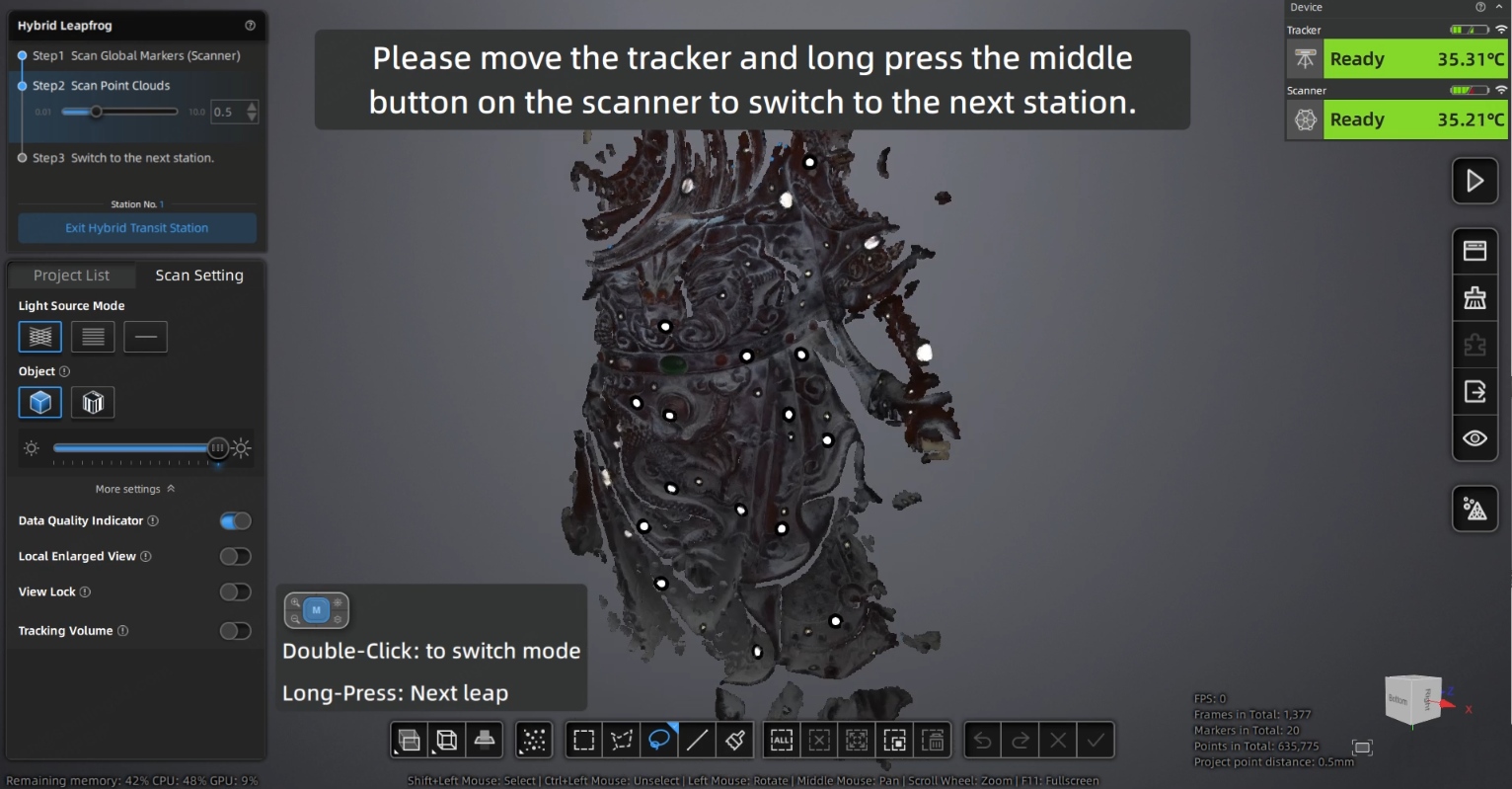
Note
The current project only supports one point distance. Different projects can have different point distances.
-
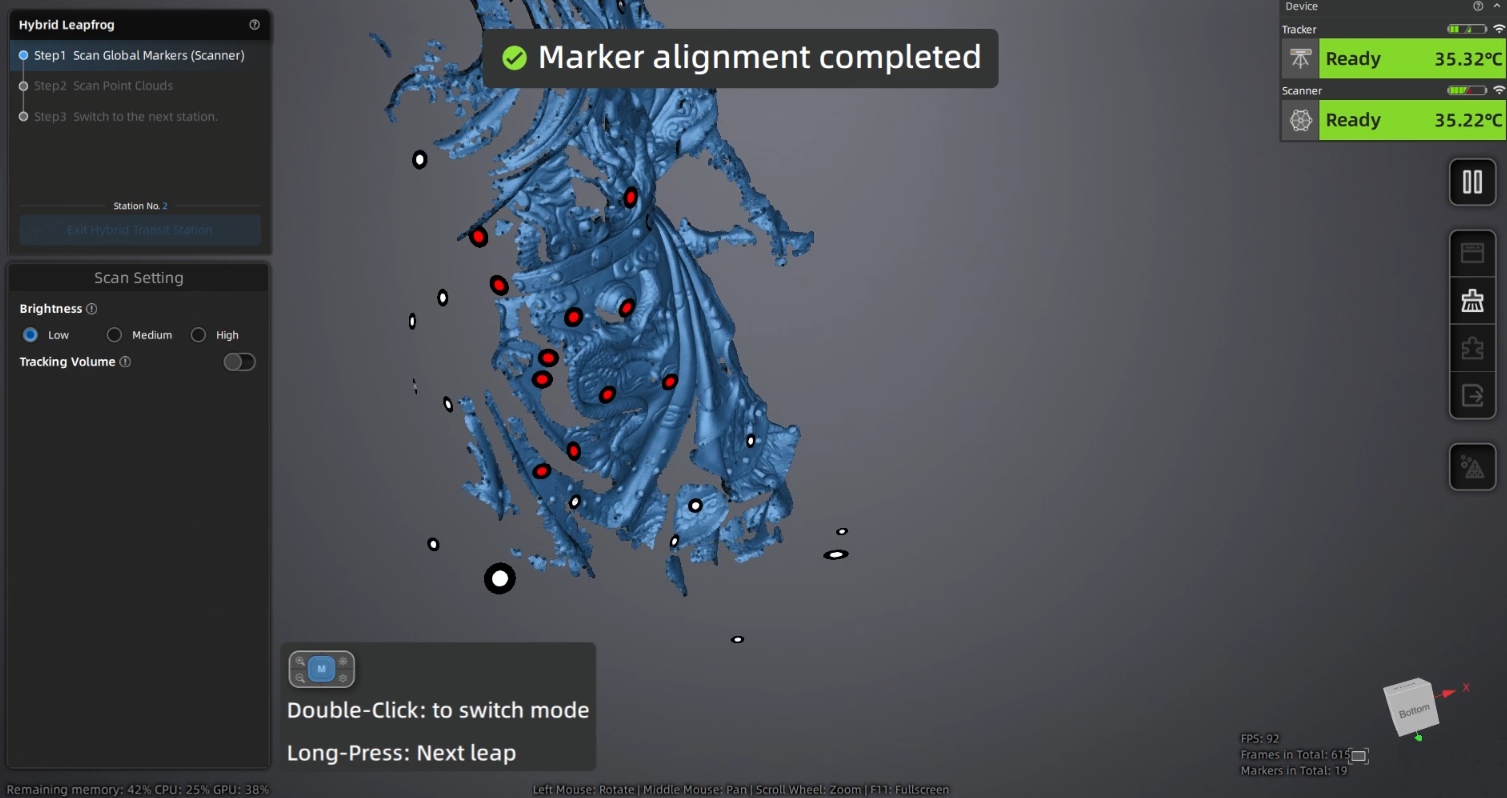
Use Scan Global Markers (Scanner) mode again to scan markers. When the current leap successfully aligns with the previous leap's markers, the software interface will display "Aligned".
Note
In the overlapping area between the current scanning leap and the next scanning leap, at least 4 markers need to be scanned for aligning data between leaps.
-
After clicking
on the right or pressing the scan button on the scanner to pause scanning. Press the middle button on the scanner twice or click Scan Point Cloud mode on the interface to switch to Scan Point Cloud mode for point cloud scanning. -
Repeat steps 4-6 for leapfrog scanning until all scanning is complete.
Note
For subsequent leap scanning, markers must be scanned first, followed by point cloud data. If markers between two leaps are not successfully aligned, point cloud scanning for the next leap cannot proceed.
-
Pause scanning and edit the scanned data.
- Click Exit to quit Hybrid Leapfrog mode.
- Click
 for mesh processing. The software will automatically align all scanned data in Hybrid Leapfrog mode and optimize the data.