Device Connection
This software supports wireless connection for wireless scanning. If the wireless connection fails, you can try Wi-Fi Pairing.
Wireless Connection
- After connecting the router and turning on the device, launch the software, and the device will automatically establish a wireless connection.
- Once the connection is successful, you can start wireless scanning. If the interface indicates that the battery level is low (remaining battery below 25%) or the battery indicator light turns red while using the device, please replace the battery as soon as possible.
Note
If the wireless connection fails multiple times, you can choose a wired connection for wired scanning, or follow the on-screen prompts to perform Wi-Fi pairing. If the problem persists, please contact technical support.
Wi-Fi Pairing
Caution
If you have failed to connect wirelessly, changed the router name or password, reset or replaced the router, please complete the wired connection of the device, launch the software, and perform Wi-Fi Pairing within the software. After successful pairing, you can use wireless scanning.
Steps
- Go to the router settings page (192.168.8.1), set the router to Wi-Fi 6 mode, and disable 2.4G.
-
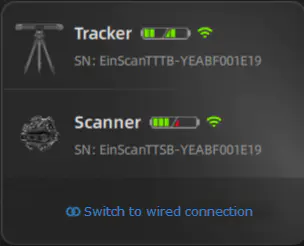
After launching the software, on the home screen, click Switch to Wired Connection > Wi-Fi Pairing.
-
Click the Pair button on the Wi-Fi pairing interface.
- In the router pairing window that pops up, enter the corresponding SSID and password.
- Click Confirm to start pairing, or click Cancel to return to the Wi-Fi pairing interface.
- After successful connection, the device information card will turn green.
Automatic Connection Switching
When a wired connection is established while the device is connected wirelessly, or when the cable is disconnected in wired connection mode, the software will automatically switch the connection method. There is no need to disconnect the router or restart the device.
- Wireless to Wired Connection: When the device is connected wirelessly, connect it to the computer via cable and the software will automatically switch to the wired connection. During the switch, the device will be offline for about 2 to 3 seconds.
- Wired to Wireless Connection: In wired connection mode, unplugging the cable will disconnect the device. If the router is online at this time, the device will search for the wireless network and reconnect automatically.
Note
- If you are collecting data during calibration or scanning, the automatic switch will not take place. The connection method will be switched automatically after the work is finished (data collection is complete or scanning is paused).
- If another device is connected to the computer via cable while the current device is connected wirelessly, the software will automatically switch to the wired-connected device.
- If the current device is connected to another computer via cable while it is wirelessly connected, the device on this computer will go offline automatically.
Caution
- The automatic connection switching function is available only after upgrading the device firmware (V0.0.14.5 or later) and the software version (V1.1.0 or later).
- If one of the tracker and the scanner uses a wired connection while the other uses a wireless connection, the device connection status on the home screen will be displayed as abnormal. Please use a consistent connection method.