Upgrade
When a new version of the software is released or a higher firmware version is available, you will be prompted when launching the software.
Firmware Upgrade
Col
To achieve better scanning results or fix issues, we may periodically release scanner firmware updates.
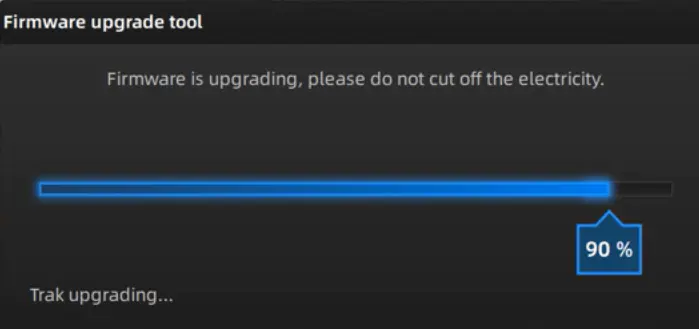
Each time the software runs, it automatically checks for firmware updates. Please follow the prompts to upgrade.
Col
Caution
- Firmware upgrades are supported in both wired connection and wireless connection states.
- During the upgrade, do not power off the device to avoid interrupting the upgrade and causing damage to the device.
- During the upgrade, a red flashing device status light indicates that it's restarting; when the upgrade progress finishes, a pop-up will appear prompting a software reboot. Click Confirm to restart the software.
- If the upgrade fails, power off the device, reconnect it, and try again.
Software Upgrade
Col
Col
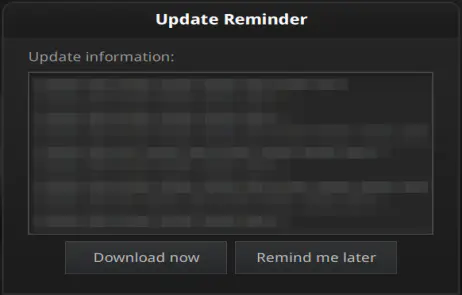
Typically, when new features are released, issues are fixed, or software performance is optimized, a new software version will be released. You will be notified when launching the software.
In the update popup, click Download Now to download the installation package in the background. You can continue using the software during the download.
Caution
Please do not close the software before the installation package download is complete.
Click Yes to start installing the new version.
Caution
The software will be closed automatically during the upgrade process. Please save your scanning data in advance.