File
On the File page, you can import, detected and repair the local model files or design files attached to the orders, and preview the models.
Interface Introduction
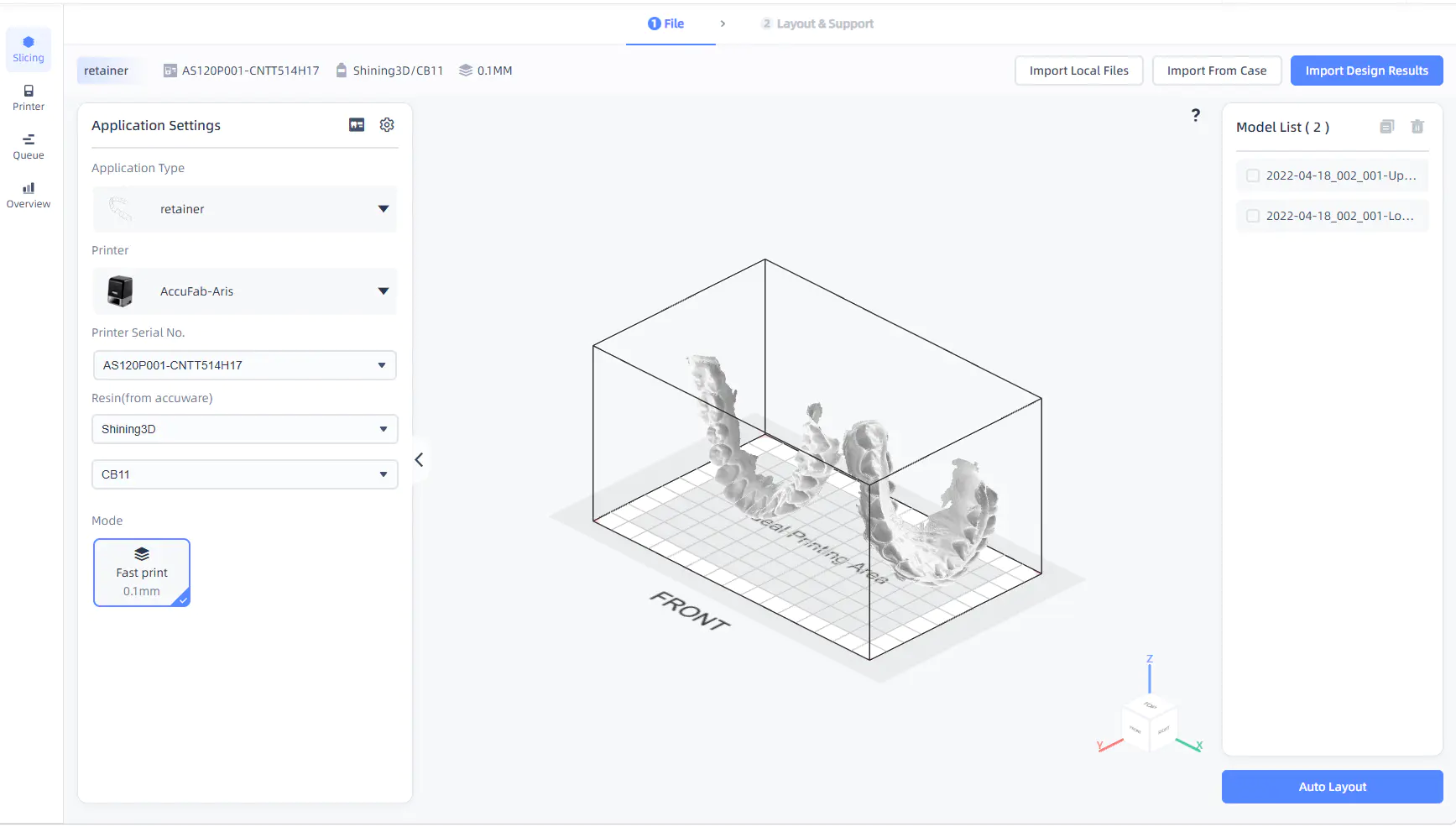
Display application type,  printer serial number,
  resin and
  mode.
mode.
You can Import local files, Import order files or Import design result files. For more please see import files.
Successfully uploaded model files will be displayed in the Model list (sequenced by the import time from early to late).
 Duplicate model files: Support check
  before the file name to duplicate one or multiple models.
 Delete model files: Support check before the file name to delete one or multiple models.
After importing models, you can operate the platform to preview models from different angles.
Platform operation:
- Move the platform: Press Shift+Left Button and drag the mouse, or press Middle Button and drag.
- Rotate the platform: Press Left Button and drag.
- Zoom the platform: Scroll the Middle Button.
Besides, you can use the perspective controller in the bottom right corner to switch the perspective by one click (double click to switch to the default perspective).
Note
You can select the model by directly clicking it or check in the Model list to select one or multiple models (support operating models by one-click).
Import Files
Support import local files, import order files and import design result files.
Note
- You can directly click Slicing
 button on the design page of the order to slice the specified design file, but new model files can not be imported manually afterwards.
 - Before importing files, you are not allowed to go to Layout & Support by clicking the top bar or click Auto layout.
- You can return to File interface to adjust printing settings before or after importing files; if you switch the application card after importing model files, please follow the pop-up to delete or retain models.
- If you exit the current page after importing model files, a pop-up reminder will appear; and when entering the Slicing page again, you can directly proceed with the incomplete slicing procedure by following the pop-up instruction.
The models will be automatically detected and repaired (if needed) during the import process, and you can set the switch for auto repair in More settings.
Caution
- During the import process, any other operations are not supported and the process can not be cancelled.
- If an error pop-up occurs during the model detection and repair process, please follow the prompts to open/download AccuWare to continue the slicing process.
After importing the model file, click Auto layout to go to the Layout & Support step.
Import Local Files
Click Import local files in the top right corner, and the file selection dialog will appear.
The model files in the format of BEB, STL and OBJ can be imported.
Caution
The total size of model files imported each time can not exceed 200 MB.
Import Order Files
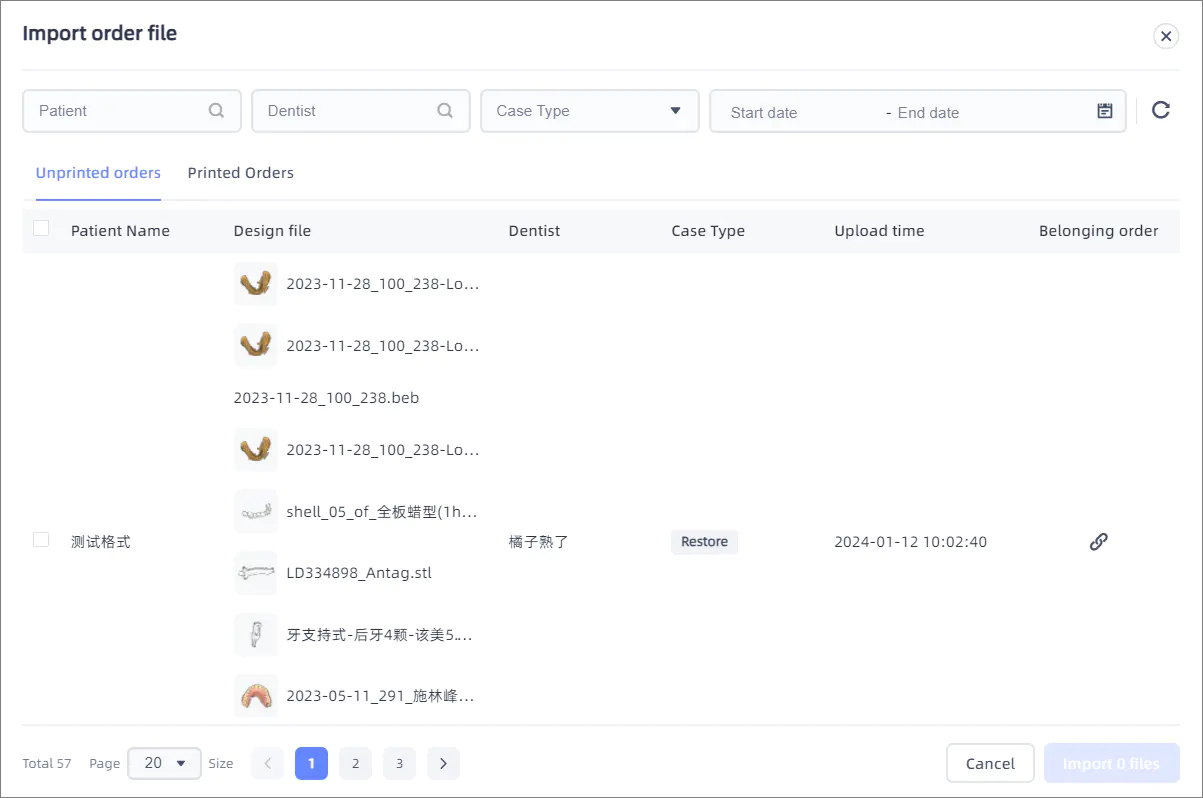
Filter orders by patient/dentist name (supports fuzzy search), case type, or upload time period. Click the magnifying-glass  search button or press Enter to update the order list.
Click the arrow-rotate-right  reset button to clear the filter settings and restore the order list to its default state.
Display all orders attached with design files, including Unprinted orders and Printed orders1, which are sequenced by the update time from the latest to earlier.
- Each column displays the corresponding patient name, the name of design file (supports hovering the mouse over the model thumbnail to enlarge and view), dentist, case type, upload time and belonging order (click Direct to order
 button to go to detailed information to check the related information of attached design files).
 - Check before each colum to select the order, and support importing multiple orders or all orders under the current filter condition by one click.
Caution
- The Import button can be clicked after at least one order has been selected.
- The total size of model files imported each time can not exceed 200 MB.
Import Design Result Files
Display the design result files of existing orders in this institution, which can include Unprinted orders and Printed orders. Support filtering by case number and case name.
-
Only contains orders whose design files have all been already printed. ↩