Main interface
You can access various pages by clicking the buttons on the left side navigation bar of the main interface.


Introduction of top navigation:
Click this button to open the dropdown list:
 Announcement: Click this button, and the Update log window will pop up where you can find the notifications and new features.
 Service Ticket: Click this button to navigate to the Service section where you can add and manage service ticket.
 FAQ: Click this button to be redirected to User Manual.
Click this button to view all message notifications. You can categorize them by "Unread messages" and "All messages" for easier viewing.Click settings icon  in right corner, you can mark all notifications as read or delete read notifications.
Note
Support for modifying notification methods, including bell ringing, browser tab flashing, and audible notifications.
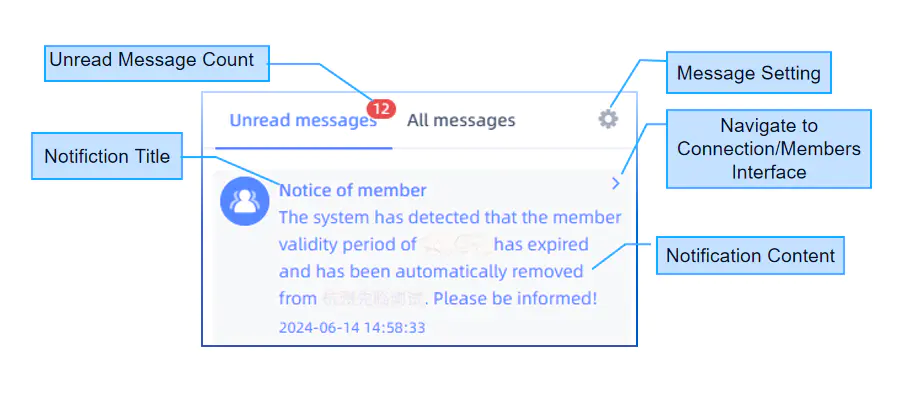
- Support for types of messages set by administrators for members. For more information, please refer to Notification settings.
- Support for types of messages set by members. For more information, please refer to Account settings.
- Support for statistics the SMS used for the month. For more information, please refer to Notification settings.
Note
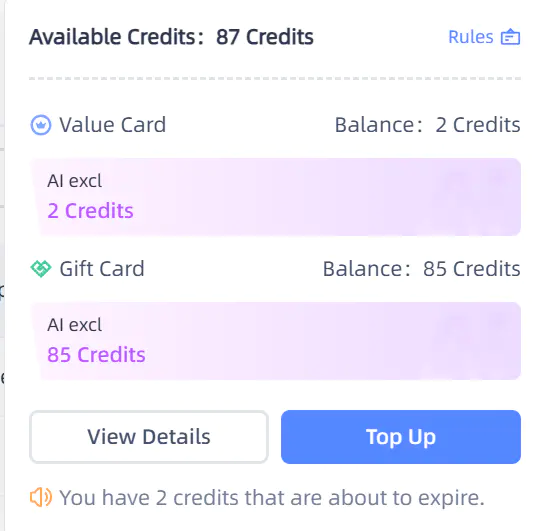
Only with the authorization of the "Design" module can you view and utilize the credits.
| Icon | Name | Description |
|---|---|---|
 |
Rules | Check the frequently asked questions about credits. |
 |
Value Card | The total number of credits obtained from recharging. You can contact your local dealer to recharge and redeem credits. |
 |
Gift Card | The total number of credits obtained from participating in the event. |
| / | View Details | View the detailed records for credits earned from stored value cards and gift cards. |
 |
Notice | Display notifications for expiring credits. |
Click and you can open the dropdown list:
-
 Account settings:
Col
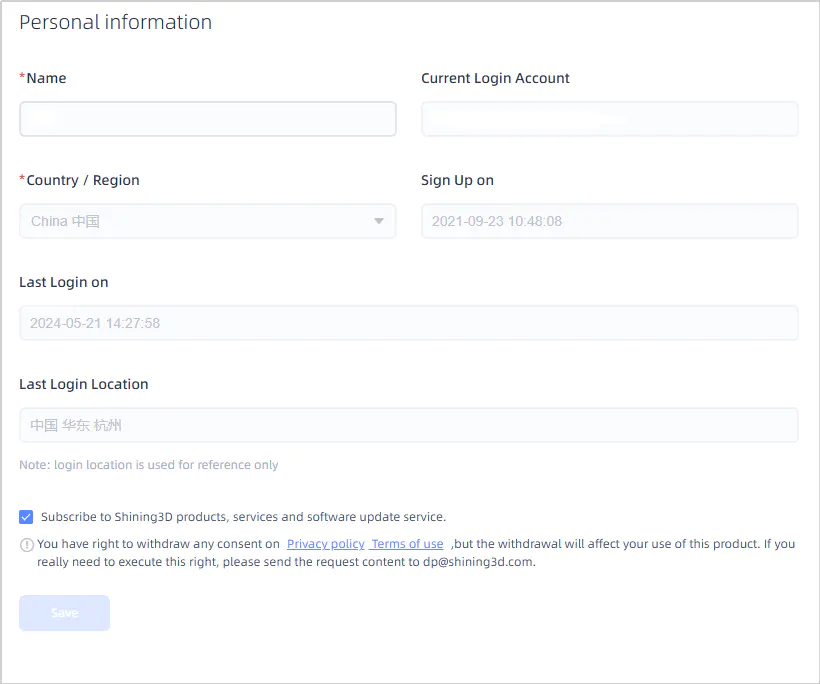
Click this button to navigate to Personal information.
You can change the name, view information about the account's country/region, registration time, last login time, and location.
Col
-
 Change password:
Col
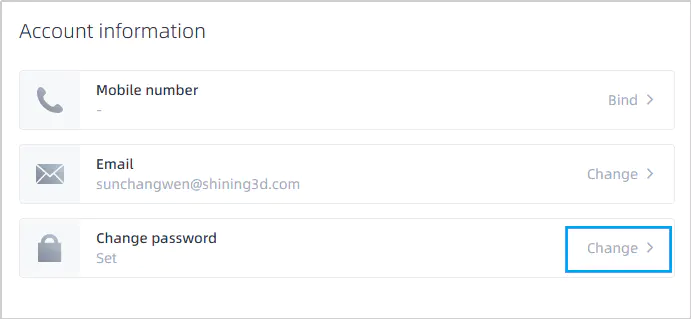
Click this button to navigate to Account Password.
You can link, change, or unlink your phone number and email address, change your password, and deactivate your account.
Col
-
You can configure MFA Validation for secondary login verification.
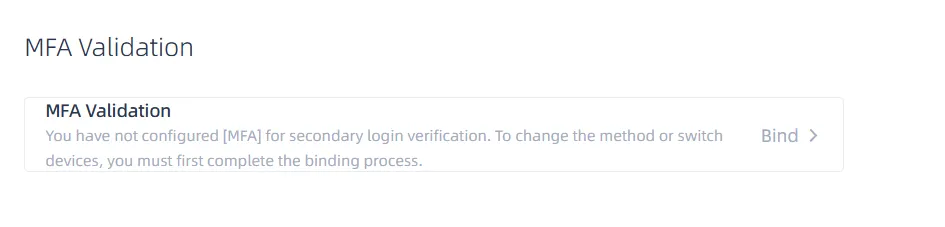
- In MFA Binding, click Bind and enter the verification code in the pop-up window for identity verification. After successful verification, click Next.
- Download the Google Authenticator app on your mobile device as prompted.
- Use the app to scan the QR code and obtain the verification code.
- Enter the verification code to complete the binding.
Note
When MFA Validation is enabled, after the Account Password login passes verification, you need to enter an additional dynamic token to log in successfully.
-
-
 Language settings:
Click this button and a Language Setting window will pop up.
You can select your preferred language, including Simplified Chinese, English or Japanese.
-
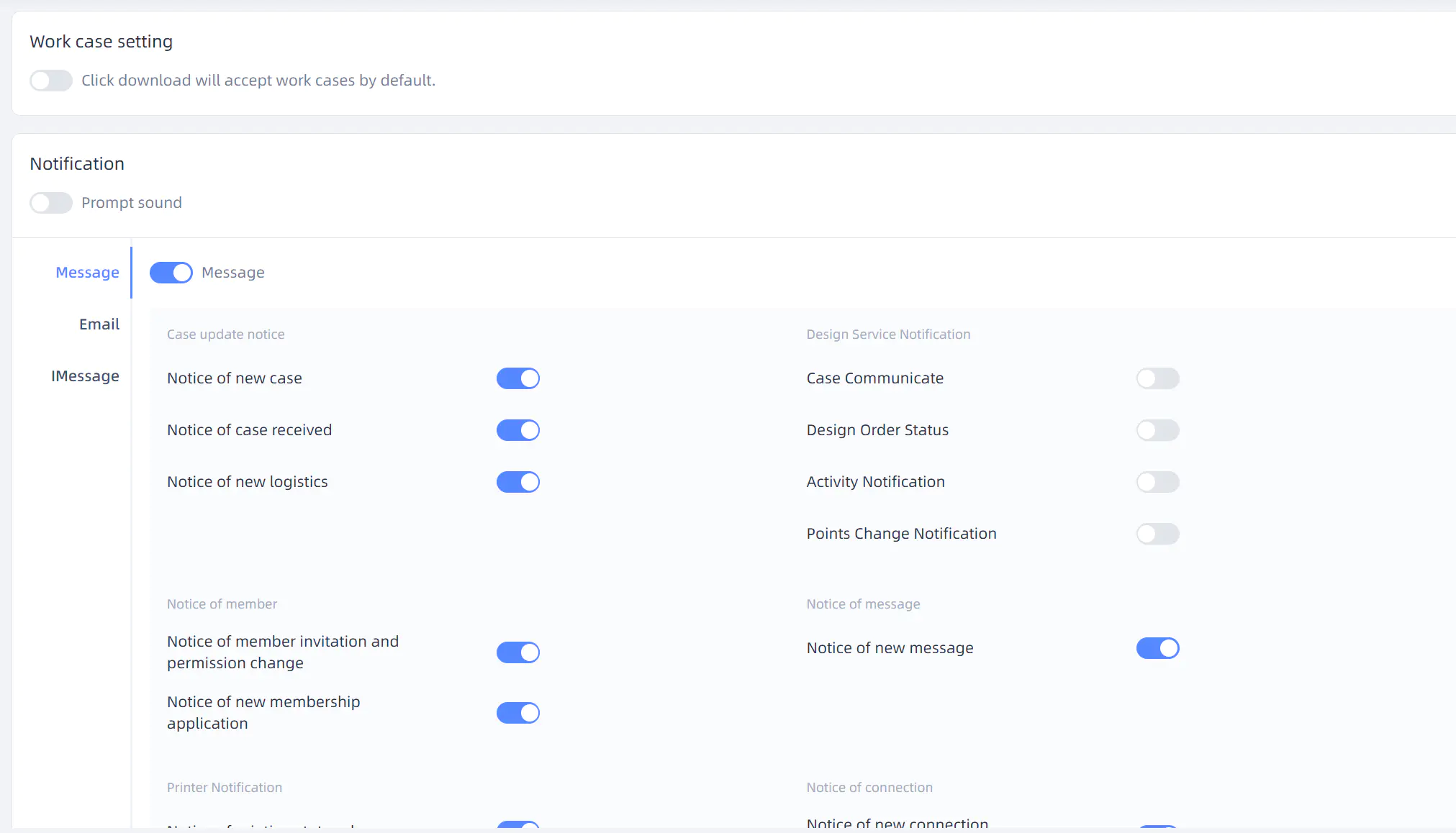
 Notification:
Col
Clicking this button will navigate to Notification.
You can modify the SMS, E-mail and message receiving status.
Col
-
 Log out:
Click this button will pop up a window for a second confirmation. Then click Confirm to log out account.
In addition, you can click the Institution info icon  on this page to navigate to the Institution information page. You can view all the institution information that belongs to the account and create, join or exit institutions.