Auto Monitor
 AutoInspectWatcher automation tool supports importing inspection templates, setting monitoring paths, performing inspection processes, and exporting inspection reports.
Interface Overview
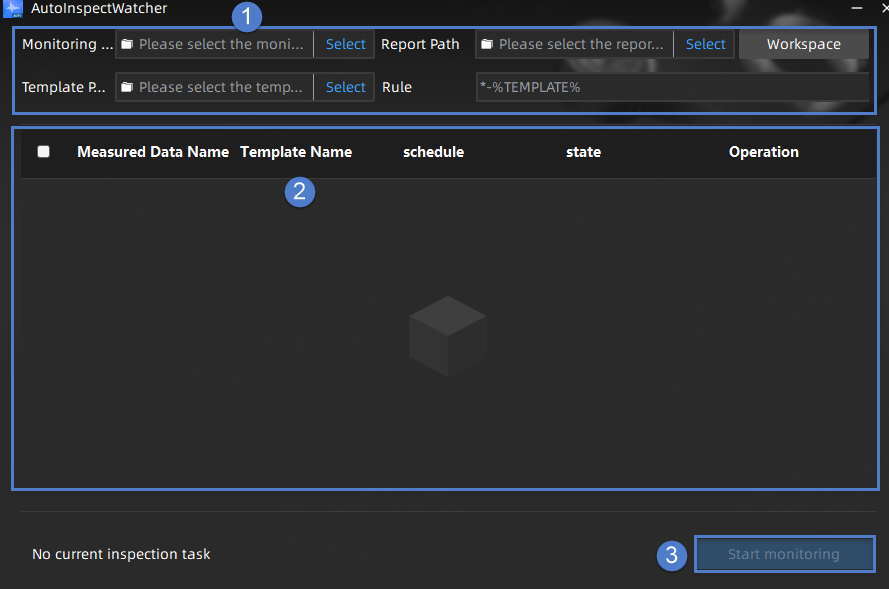
Set the inspection template, monitoring path, export path and rule for the final inspection report for the automated inspection process.
Note
- Project files (*.SNITemplate) exported from the Inspect software can be used as inspection templates.
-
Multiple file naming rules can be selected to adapt to different types of monitoring:
- Single Template: Default option.
- *-%TEMPLATE%: Requires measurement model files to be named as “xxx-inspection template name”; suitable for batch monitoring of multiple files.
- %TEMPLATE%-*: Requires measurement model files to be named as “inspection template name-xxx”; suitable for batch monitoring of multiple files.
- %TEMPLATE%: Requires measurement model files to be named as the template name; suitable for single file monitoring.
- Custom Rule: Customize the naming rule.
Display all imported measurement models, including model name, schedule, state, and support operations such as  inspection,
  deletion,
  view report on individual models.
Buttons to control the automatic inspection process: Stop Monitoring / Start Monitoring.
Operation Process
-
Select the template path, monitoring path, and output path for the inspection report.
Note
After starting monitoring, the software will use the corresponding inspection template according to the inspection template name in the measurement model file name for inspection.
-
Click Start Monitoring. When new files are added to the monitoring directory, the software will automatically monitor and complete the inspection process.
-
During the automatic inspection process, the bottom left corner of the interface will display the inspection progress: "Inspecting, currently inspecting Xth item, total X inspection items"; The inspection status of completed measurement models is "
 Completed", and the inspection result is displayed as "
 Success /
  Failure". You can click View button to view the corresponding inspection report.
Additionally, you can click the Stop Monitoring button to pause the inspection process.Note
If you manually Stop Monitoring while there are current inspection tasks, the software will stop the inspection after the current task is completed.
-
(Optional) If the inspection process is unexpectedly terminated and the software closes, you can click Workspace in the upper right corner after restarting to restore the inspection project.