Cross-Section Creation
You can use sectional tools to create  cross-sections.
After creating cross-sections, you can extract measured cross-sections, or create features from cross-sections.
Note
- Before using the cross-section function, please import the reference model or measured model.
- After entering the From Cross-Section function or hiding the model, you can view the cross-section view.
Creation Steps
Col
- In the Sectional Tools bar, click Cross-Section to open the corresponding window.
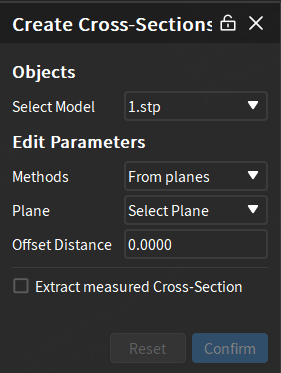
- Select the model to create cross-sections and edit parameters:
- Creation method is From Plane: Select an already created face feature as the plane, and set the offset distance.
- Creation method is Along Specified Direction: Click on a point on the model in the 3D scene, and select a direction (X Axis / Y Axis / Z Axis / Custom).
- After completing relevant settings, you can preview this plane on the model in the 3D scene; then click Confirm to create this new cross-section, and it will be displayed in the
 cross-section module of the left tree view as
  cross-section reference object or
  cross-section measurement object.
Col
Extract Measured Values
If the created cross-section is a reference cross-section, you can extract the corresponding measured cross-section through automatic or manual methods.
- Automatic Extraction of Measured Values: In the upper right corner
 Settings > Calculation of the software interface, enable Automatic Extraction of Measured Values, or check
  Extract Measured Cross-Section in the creation window. The software will automatically extract the corresponding measured cross-section with default parameters after creating any reference cross-section.
 - Manual Extraction of Measured Values: After creating a reference cross-section, right-click the
 cross-section group in the left tree view, select Extract Measured Cross-Section and specify the measurement model to be extracted; you can specify Alignment Object in the Extract Cross-Section pop-up window.