Interface
Overview
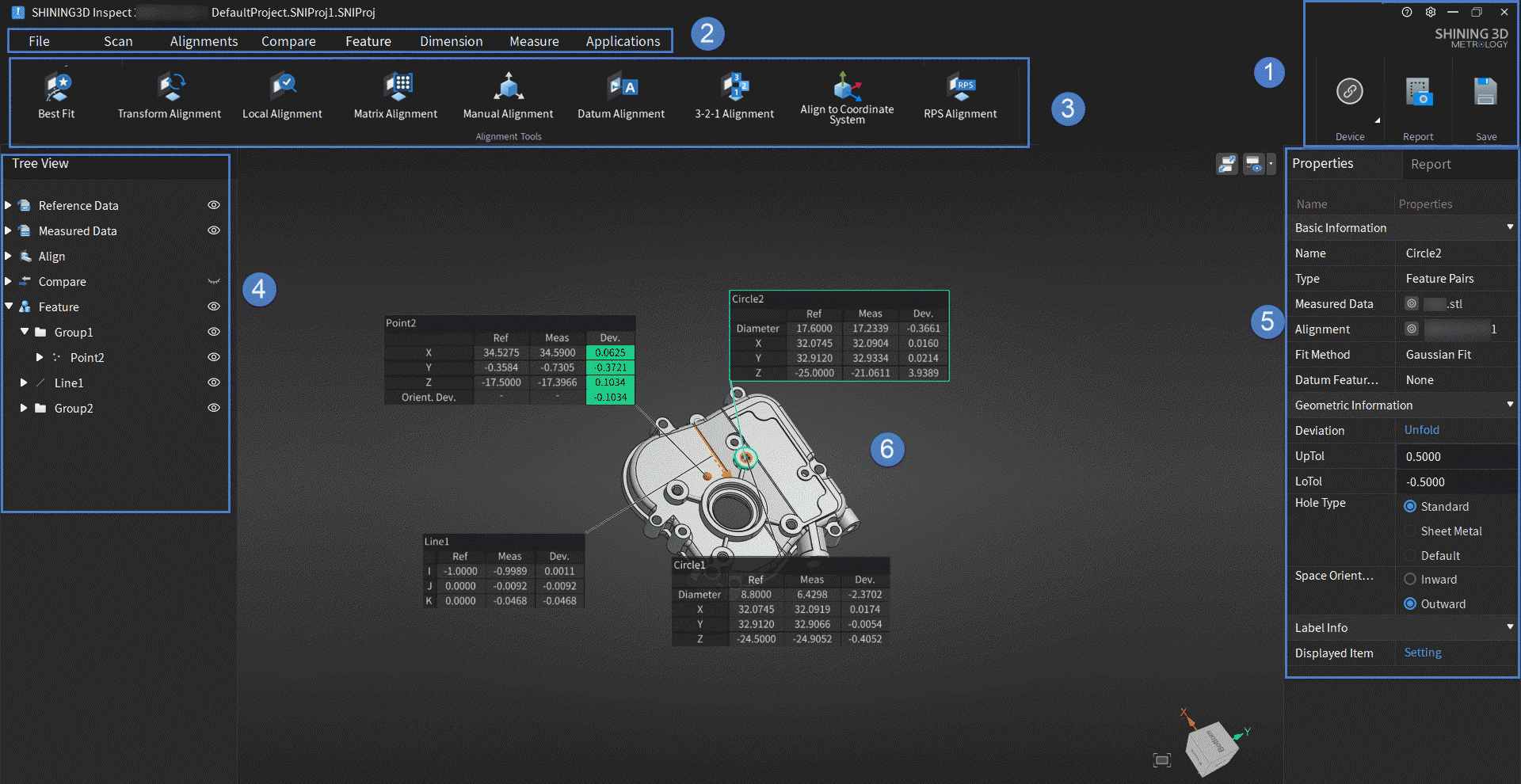
① Function Buttons
Click this button to expand the drop-down list:
- User Manual: Click to open this user manual.
- Shortcut Instructions: Click to open the Shortcut Instructions window, which provides instructions on the shortcut keys for model operations and fitting creation.
- About: Click to open the About window, which displays the software version, release date and other information.
- Privacy Policy: Click to check the Privacy Policy.
Click this button to open the Settings window:
 General
- Language: Switch the software interface language to Simplified Chinese, English or Deutsch.
- Theme: Switch the software theme color to Light Mode or Dark Mode.
- License Tool: Can launch the license tool for authorization.
 Value Unit
-
Length: Select millimeters or inches as the numerical unit displayed in the interface.
Note
- This setting will take effect after restarting the software and creating a new project; the units of existing projects remain unchanged.
- If the imported measured data does not match the current unit setting, the display unit of the measured data will be changed to the current software setting unit after importing.
-
Decimal Places: Select the maximum number of decimal places (0 ~ 4) that can be displayed in the interface; if the actual data has more than 4 decimal places, hover the cursor over the data to display the complete value.
 Calculation
- GD&T System: Select ASME or ISO system.
- Auto Extraction of Measured Values: After enabling, when a reference value is created, the software will select the first measured model in the left tree view as the measured object and automatically extract a measured value using the currently activated alignment object.
Click this button to select the corresponding device or probe for connection in the inspection software; after connecting the device, it can be used for scanning; after connecting the probe, it can be used for probing.
Click this button to add the inspection item to the report; for more details, please refer to Report.
Click this button to save the current project.
② Navigation Bar
Click buttons in the navigation bar to enter the corresponding modules: File, Scan, Alignments, Compare, Feature, Inspection, measured and Applications.
③ Tools & Functions Bar
Provide tools and their functions in each module. Please refer to the relevant chapters for more details.
When you enable a specific tool, a corresponding settings window will usually be brought up. The  icon in the top right corner of the window represents the unlocked status (default), when the window will automatically close after clicking the Confirm or Apply button; If you click to switch to the
  locked status, the window will not close after clicking Confirm or Apply.
④ Tree View
Display the list of models, alignment groups, comparison groups, feature pairs, measured values and corresponding created objects.
 represents the expanded state of a module / group, and clicking it will switch to
  to collapse it.
-
 represents the object in the display state, and clicking it will switch to
  to hide it.
Note
You can use Ctrl and left-click to select multiple objects, then press space bar to hide the selected objects.
-
You can double-click the inspection item or use the right-click menu to rename the inspection item.
Different functionality options are provided in the right-click menu for each module column. Please refer to the relevant chapters for more details.
⑤ Properties
Display the property information of the selected objects, including basic information, geometric information, appearance information (supports modifying the model color), statistical information, hole information, etc. By switching the selected objects in the tree view, you can switch the displayed information in this panel.
Note
Supports filtering label properties in the properties panel; this setting can also be applied to similar items with one click.
⑥ Model Preview
The 3D preview area of the model displays color maps, annotation labels, measured values, etc., according to different functional scenarios. In this area, you can operate the model using keyboard shortcuts. Please refer to the relevant chapters for more details.
| Function | |
|---|---|
 |
Click this button to control the arrangement of labels. |
 |
Click to show or hide annotation labels for all types of objects; click to expand the menu and choose to show or hide annotation labels for different types of objects. |
 |
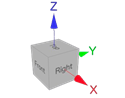
Click to automatically center the model and adjust the model view size to fit the screen. |
 |